
A document print (also called a document report) is not an interactive grid but a designed, paginated document — an invoice layout, a purchase-order form, a delivery note, a payslip, a statement, a letter. Its data comes from the same wizard as a grid report; its appearance is drawn in the full report designer, band by band, so the output is print-grade and deliberate. What makes document prints distinctive is where they run: mostly not from a library, but from the records they describe.
The Document Prints area
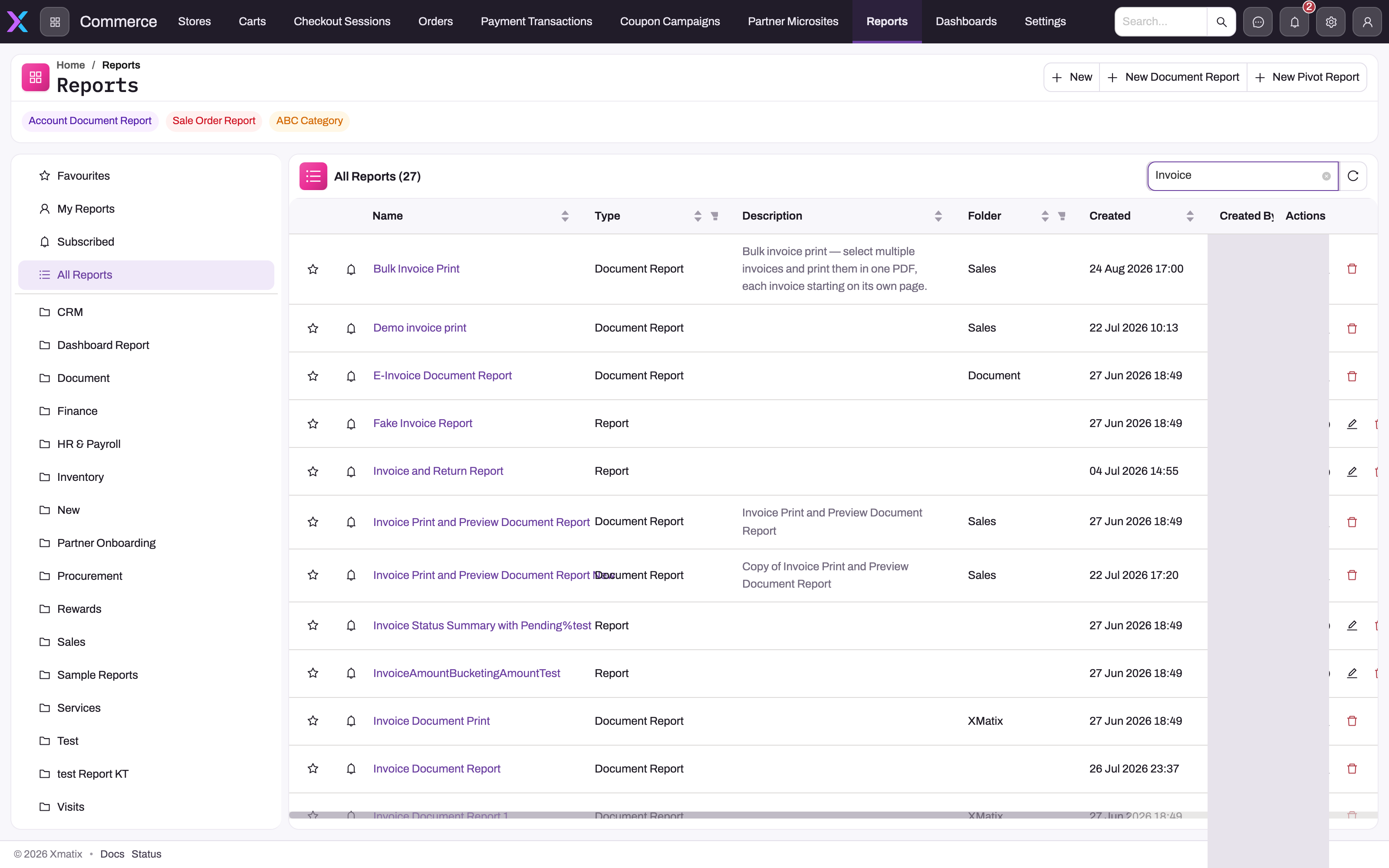
- 1
New document print opens the Document Print Data wizard (primary entity, relationships, fields, filters) before the layout is designed; grid reports start from New report on the Reports page.
- 2
Type distinguishes a Document Report (a designed, paginated layout) from a Report (an interactive grid) with the same data definition underneath.
- 3
Opening a document print from the list renders whatever its own query returns — the record-scoped rendering happens from Print and Preview actions on the record.
- 4
Description and Folder are how users find the right print format; Bulk Invoice Print documents that a selection of records prints as one PDF, each on its own page.
- 5
Favourites, My Reports and Subscribed scope the list; every document print you can see is listed.
Document prints have their own navigation item, Document Prints, separate from Reports. The page looks like the Reports library — the same Favourites, My Reports, Subscribed and All Document Prints scopes, the same folders with By Folder and By Role pills, the same star, Subscribe, Design, Edit and Delete row actions — but lists only document prints, and its page header offers New document print. Opening one shows it at /document-prints/<id>; older /reports/d/<id> links redirect there.
An administrator adds the item to an app under Setup → Design Studio → Apps → the app's Manage Items → Add item (Opens: Feature), choosing the built-in feature route Document Prints (/document-prints) — it is offered next to Reports and Dashboards. Without it, users still print from record actions but have no list of document prints in their menu.
Two halves: data and layout
Every document report has a data definition and a layout.
- Data is built in the wizard, which titles this pass Document Print Data and walks eight steps: Data Source (the primary entity and its related entities), Relationships, Fields, Columns, Display Grouping, Display Summary, Filters and Details. Next stays disabled until the current step has what it needs — a primary entity first of all.
- Layout is built in the banded report designer: page bands, headers and footers, detail rows, groups and totals, images and labels.
The split shows up in the Setup analytics screen as two separate row actions — Edit Report for the data, Design Report for the layout — and in practice as two different skills: the data half is query thinking, the layout half is page design.
Where document prints surface
- On records, as Print and Preview actions. This is the main stage. An administrator adds an action of type Preview or Print to an entity under Design Studio → Entities → the entity → Logic → Actions, and the action form asks for the document report to render. When a user runs the action, the current record's identifier is passed to the report as its
Idparameter, so the layout renders just that record. The document is rendered on the server as a PDF: Preview shows it in a viewer inside the page; Print hands it straight to the browser's print dialog. - From lists, for selected records. The same actions run from a list over the selected rows, passing every selected identifier. The records are rendered into one PDF with each record starting on a fresh page — which is what a Bulk Invoice Print format is for. An action can be marked as requiring a selection, in which case running it with nothing selected prompts for one instead of rendering everything.
- In the Document Prints area. A document print you can see is listed under Document Prints and opens as a PDF rendered on the server and shown in the browser; on a long document the first pages appear first while the rest render. Print and Export (PDF, Excel, Word, CSV, HTML, RTF, Text or Image) sit in the viewer toolbar. Run this way — without a record context — it renders whatever its own query and filters return; one whose query returns nothing shows an empty document rather than an error.
- In subscription emails. A subscription to a document report exports the designed layout on schedule, so the attachment matches the printed form.
Access follows the report rules
A document print is shared like a report: the visibility rule decides who sees it in Document Prints, and it starts private to its creator. Wire it to a record action and share it with the users who run that action — an unshared print format is the classic reason a Print button works for the administrator who built it and fails for everyone else. The record action itself is also permissioned like any custom action: the user's profile must grant it.
Common questions
How do I put a Print button on invoices?
Two pieces. First, build the document print: Document Prints → New document print, define the data over the invoice entity (joining the customer and the invoice lines), then lay out the form in the designer — the full walk-through is in the report designer guide. Second, have an administrator add a Print action on the invoice entity that references that report, and share the report with the users who will print. From then on the button renders the current invoice and opens the print dialog; the same action on the invoice list prints the selected invoices as one PDF.
Can one document report serve several entities?
A document report is built over one primary entity — its query starts there, and record actions pass identifiers of that entity's records. Related data comes in through relationships (an invoice layout routinely prints customer fields and line items), but for genuinely different documents — an invoice form and a purchase-order form — build one document report each.
What's the difference between a document report and exporting a grid to PDF?
A grid export is the table, as rendered: columns, rows, whatever you filtered. A document report is a designed page: headers and footers where you put them, one record per document if that is the design, logo, addresses, totals in the right corner. Use exports to move data; use document reports when the page itself is the deliverable.
Why does the document open empty from Document Prints but print fine from a record?
Because a run from the list has no record context. The report's own filters decide what it returns, and a layout designed around a single record often has a filter that matches nothing until an Id is supplied. That is expected; test print formats from the record action, not from the list.
Where did my document reports go?
They moved out of Reports into Document Prints. Nothing was deleted; if the menu has no Document Prints item, ask an administrator to add it to the app (see above). Record Print and Preview actions keep working unchanged.