
Most analytics surprises have short explanations, because the moving parts are few and inspectable: a report is a stored query, visibility is an explicit grant list, a dashboard is a set of tiles each evaluated for the viewer, and a subscription is a stored schedule. This page works through the frequent complaints in the order that finds the cause fastest — in every case, check access and definition before suspecting the data.
Before you start, capture the essentials: the report or dashboard name and folder (duplicate names are allowed), who is affected, what they expected versus what they saw, when, and whether an interactive run and a scheduled delivery differ.
A report is missing from the Reports menu
The library shows only what the visibility rule grants: creator, an all-users share, or a role, team or profile assignment — with no administrator bypass, and with inactive reports hidden from everyone including their creator.
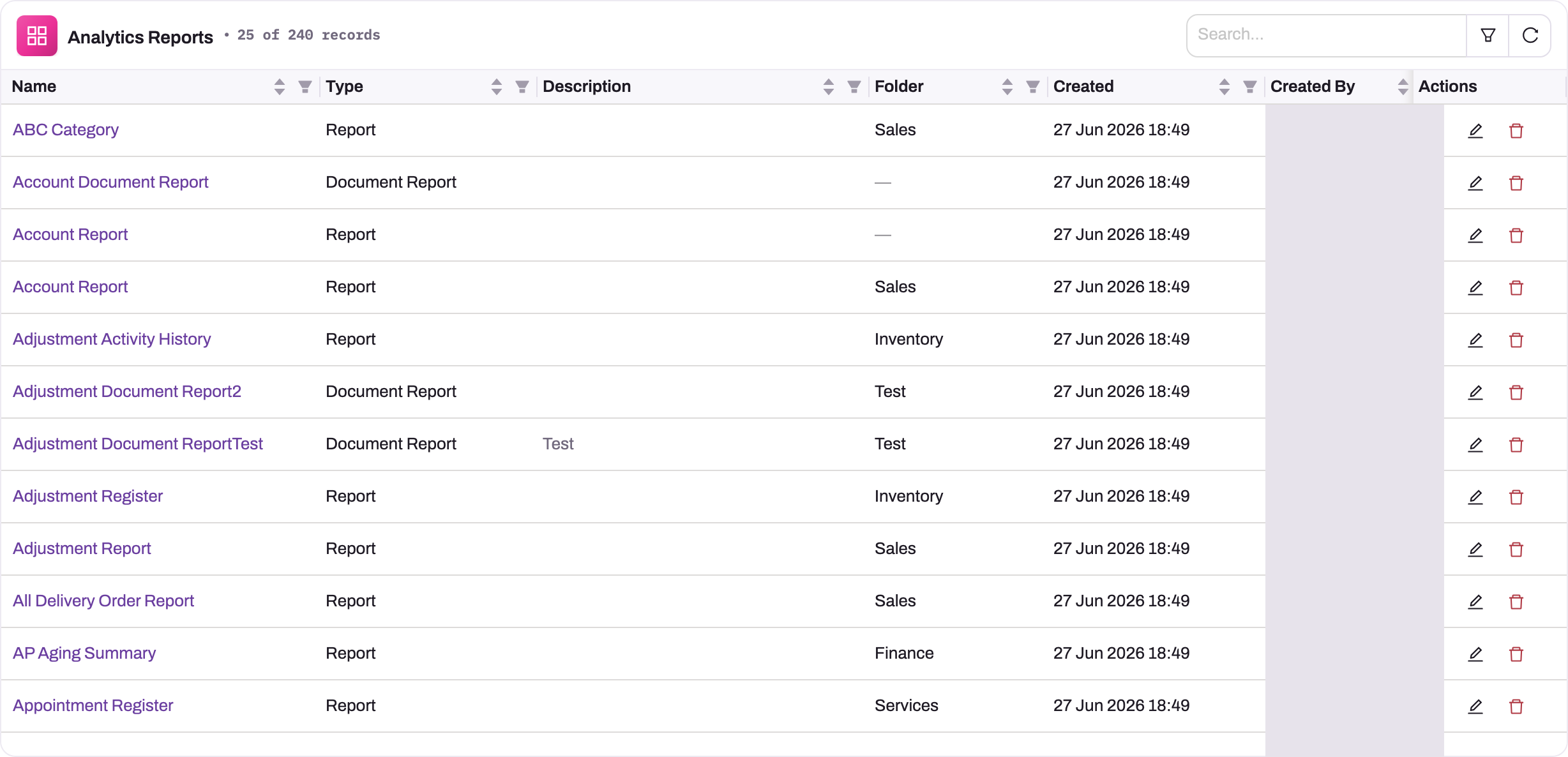
- 1
The record count here (240) is the whole inventory; the Reports library shows each user only the subset the visibility rule grants them.
- 2
Search by name, filter by column and refresh after a sharing or activation change before deciding a report is gone.
- 3
Type separates grid reports (Report) from Document Report (listed for users under Document Prints) — a Print or Preview action must point at a Document Report.
- 4
Two rows named Account Report in different folders: when counts differ between colleagues, first confirm both opened the same definition.
- 5
Created By identifies the owner — the one person who always sees the report; content whose creator has left may be shared with nobody.
- 6
Edit Report opens name, folder, the Active switch and Visibility (Only me / All users / Selected users) — the fix for both 'inactive' and 'unshared'; Delete Report removes it and ends its subscriptions.
- Confirm the report exists. An administrator opens Setup → Access control → Roles (or Profiles / Teams), opens one of the affected user's groups and chooses Reports → Add: that list offers every report in the organization regardless of sharing. Check the folder shown beside the name, since the same name can exist in several folders.
- If the group's Reports tab shows the report but its Active column says inactive, the report is hidden from every list, its creator's included. The Reports screen has no Active switch.
- If it is active, it has not been shared with the affected user. Select it in Add and choose Save, or use Edit on the report's row in Reports and set Visibility to All users or Selected users with the right roles, profiles or teams. Remember that new and cloned reports start private, and content whose creator has left (or that arrived through an import) may be shared with nobody at all.
A document report (invoice, statement or letter layout) is not missing either — it moved to Document Prints, its own navigation item. If the app's menu has no Document Prints item, an administrator adds it as the built-in feature route Document Prints (/document-prints) on the app's items; see Document prints. Pivot reports were removed from the platform and existing ones are deleted; rebuild one as a grid report with bucketing or as a dashboard pivot-table widget.
A report opens but shows no rows
The query ran and returned nothing — the question is which condition emptied it.
- Clear your own viewer filters first (Filters in the toolbar); a leftover condition is the quickest win.
- Check the report's built-in filters (Edit in the actions menu opens the wizard's Filters step): a date window that has slid past its data, or a status condition that no longer matches, empties a report honestly.
- Check the relationships. Only matched records keeps only rows with a match in the joined entity, so a single such relation to a sparsely filled lookup can drop nearly everything. Switching it to Keep all base records shows what was being excluded.
If specific columns are blank while rows are present, those columns come from a joined entity whose relation found no match for those rows — Keep all base records working as designed.
A report's columns or filters changed and nobody edited it
Someone pressed Save in the report viewer. Save writes the current column arrangement, grouping, sort and filter state into the shared report definition — it is not a personal view — so a colleague tidying the grid for themselves changes the report for everyone. Reopen the wizard (Edit) to restore the intended columns, and point people at Clone for private variations. See Reports.
A dashboard is blank, or its tiles are empty
Three distinct symptoms with three distinct causes:
- Tiles render but show no data. Tile data loads under the viewer's own access, so the viewer can open the dashboard but not the source behind a tile. For a report-backed tile, share the report with the dashboard's audience; for an entity- or dataset-backed tile, check the viewer's record access or the dataset's active state. If tiles are empty even for the report owner, open the backing report directly: if it is empty too, the problem is the report (previous section), not the dashboard. Also check the filter bar — a Last 90 days preset over data that stopped last quarter is empty by definition.
- Numbers look stale. Tile results are cached per viewer for about a minute and Refresh data is disabled until that minute has passed; a change made seconds ago appears on the next refresh, not instantly.
- *The whole dashboard opens with the alert This dashboard's definition is invalid.* The stored layout has been damaged — usually by an edit made outside the designer. The viewer refuses to guess rather than render something wrong. Rebuild in the designer and save; do not hand-edit stored layouts.
A subscription email never arrives
Deliveries stop for mundane reasons more often than for broken ones. In order:
- Confirm you are still subscribed. The library's Subscribed scope lists your active subscriptions and the bell on the row is filled; choosing it shows the stored settings. Unsubscribing removes the schedule entirely.
- Check the timing assumption. The first email comes at the next occurrence after subscribing — a monthly subscription created on the 5th for day 1 sends next month, not today. Times run in UTC (next section).
- Check the mailbox and the address. The subscription always sends to your user account's email address — verify it is correct, and look in spam or filtering for the sender your organization uses.
- Check the content still exists. A deleted report or dashboard ends its deliveries; the worker skips a subscription whose content is gone. Deactivating or unsharing a report does not stop deliveries — if you are receiving a report you can no longer open, that is why; unsubscribe.
- Re-save the schedule. Reopening the dialog and choosing Save rewrites a clean expression; a schedule the platform cannot parse never fires and raises no error.
- Ask an administrator to check the worker. Report exports and emails are retried on later scheduler passes when they fail, so a persistent outage of the mail service or, for dashboards, of the PDF renderer shows up as a run of retries in the worker's logs rather than as a bounced email.
If additional recipients receive the email and you do not (or vice versa), the recipient list is the issue — it is a comma-separated list, and every address in it gets the same attachment.
The subscription email arrives at the wrong hour
Schedule times are evaluated in UTC. A schedule saved for 8:00 sends at 08:00 UTC, which lands mid-afternoon in some time zones and before dawn in others. Reopen the subscription and set the UTC time that corresponds to the local hour you want; revisit it when your region changes its clocks, since UTC does not.
A record's Print or Preview action fails
The action's error text says which piece is missing:
- "No document report is configured for this action." The action exists but references no document print — an administrator must point it at one in the entity's Actions setup.
- "Please select at least one record." The action requires a selection and ran from a list with nothing selected. Select the rows first.
- "This report is not a document report." The action references a grid report. Print and Preview render designed layouts only — rebuild the target as a document print.
- The action works for its builder and fails for others: the document print has not been shared with the users running the action.