
A delivery order is the dispatch document for goods leaving a branch: it names the customer, the addresses, the lines being sent and the transport details, and it is the document that moves the stock out of your inventory. It usually comes after allocation or picking on a fulfilment, or after an invoice in an invoice-first process. After it come the inventory and ledger postings, and either an invoice (warehouse-led selling) or a shipment for a receiving branch that also works in xMatix.
Overview
A delivery order has a header (who is selling, from which branch, to which customer, on what date) and Delivery Order Lines (item, lot, storage location, quantity, price and tax). The header totals are calculated from the lines. Creating a delivery order does not move stock. Stock leaves the branch when you run Post Inventory, and the accounting entry is made when you run Post General Ledger.
Delivery orders live in the Warehouse app, on the Delivery Orders tab.
When to use it
- Dispatching sold goods. You allocated or picked stock against a sales order and the goods are now leaving.
- Delivering against an invoice. You invoiced first (counter-style selling) and now hand over the goods.
- Sending goods to another company in your group. The receiving company records the receipt in xMatix from the shipment that the delivery order releases.
- Returning claim parts. An approved or rejected Part To Part warranty claim line produces a delivery order for the parts.
How xMatix handles it
Most delivery orders are created by an action on another document. The source decides what the header and lines carry.
| Created from | Action | Header filled from source | Lines |
|---|---|---|---|
| Fulfilment | Allocation Delivery, Selective Allocation Delivery | Fulfilment, Order, Partner Account, Branch, Account | One per allocation line still waiting for delivery (lines already moved to picking are skipped) |
| Fulfilment | Picked Delivery, Selective Picked Delivery | As above, plus the service order when the fulfilment serves one | One per picked line still waiting for delivery |
| Sales order | Allocation Delivery, Picked Delivery and their selective forms | Order, Partner Account, Branch, Account | As for the fulfilment actions |
| Sales order | Delivery, Selective Delivery | Order, Partner Account, Branch, Account, Tax Supply Type | Only for order lines that are already invoiced or allocated. Other order lines are skipped, and an order with neither gets no delivery order |
| Invoice | Delivery | Invoice, Partner Account, Branch, Account | One per invoice line still waiting for delivery, with the invoice's lot, storage location, price and scheme discount |
| Warranty claim line (Part To Part) | Setting Approve Quantity or Reject Quantity | Claim, Partner Account, Branch; Account is the claim's supplier | One per change, with the item and the approved or rejected quantity only. Approved and rejected parts go to two separate delivery orders per claim |
| Van sales run built from orders | Releasing the load, when Create delivery orders on load release is on | Order, Account, Partner Account, Branch, Delivery By, Vehicle Number, Visit | One per load line, at the order line's price, leaving from the run's storage location (see Van sales) |
All of these set Document Date to the day of creation, except claim deliveries, which leave it empty, and van-sales deliveries, which take the run's date. Every new delivery order also gets:
- Document Number from the Delivery Order Document Name Setting (default series
DN). - Price List and Discount Group defaults for the account.
- Billing, Shipping and Delivery addresses defaulted from the account's contact addresses.
- GSTIN, Place of Supply, Source of Supply and Tax Supply Type filled in for India GST, as described in Business rules.
Prerequisites
- Access to the Warehouse app, and a security profile that can read delivery orders and run the actions you need (see Permissions).
- For the usual flow: a sales order with allocated or picked stock, or an invoice with lines waiting for delivery.
- For Release Shipment: the customer account must be the partner account of a branch in your xMatix tenant.
- For the checklist: a checklist template for deliveries (see Configuration).
- For Post General Ledger: GL Posting Enabled switched on for the selling partner account (see Accounts).
Procedure
Step 1 — Find the delivery order
Open the Warehouse app from the App Launcher and select Delivery Orders. The default view is All Delivery Orders. Pending Delivery Orders lists those whose Status is not Delivered, and Delivered Delivery Orders lists those whose Status is Delivered. Open a row by its Document Number.
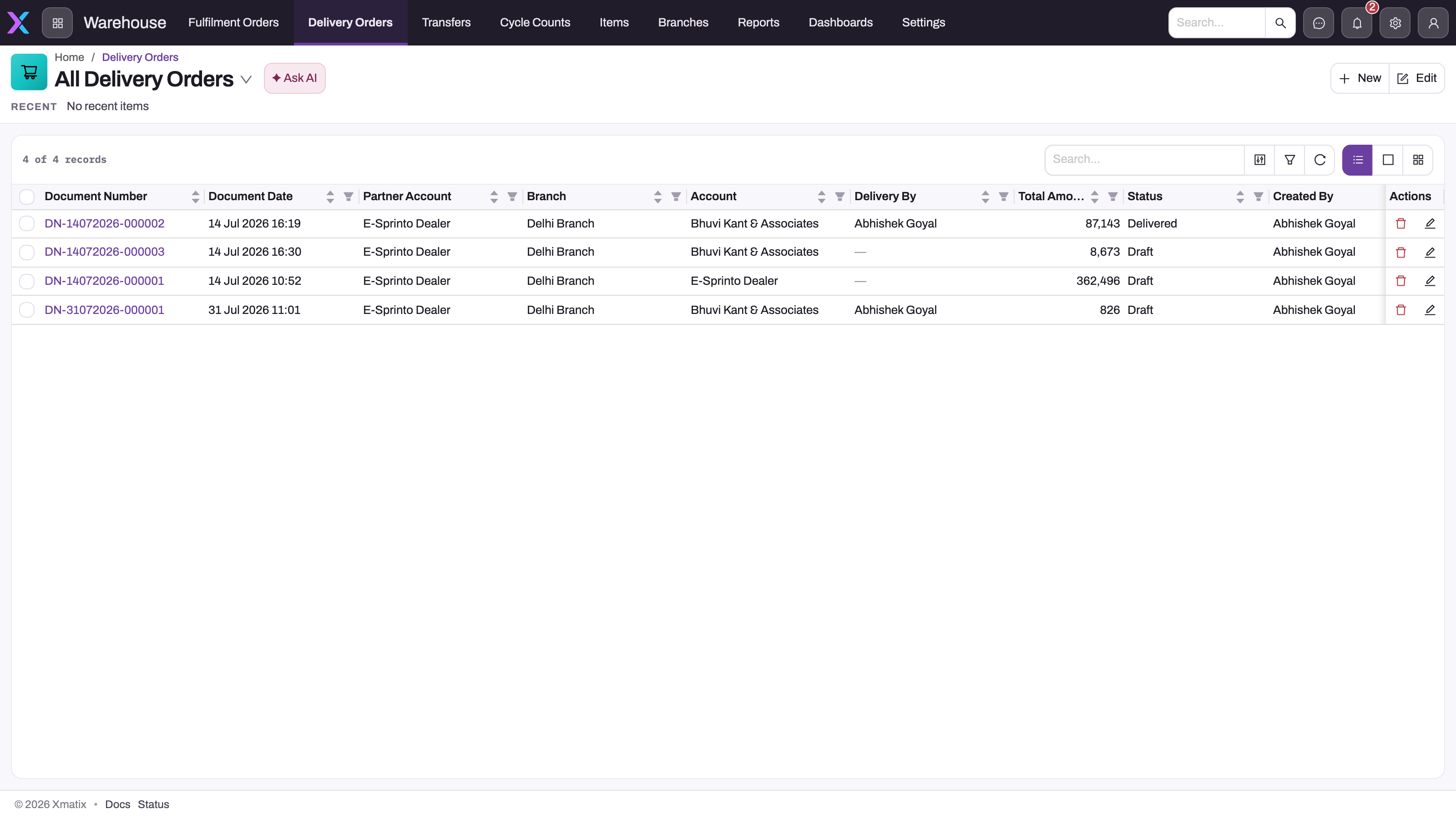
Start from the delivery order that the fulfilment, order or invoice created. A delivery order you create by hand is not linked to any order lines, so it cannot be invoiced from (see Step 7).
Step 2 — Review the document
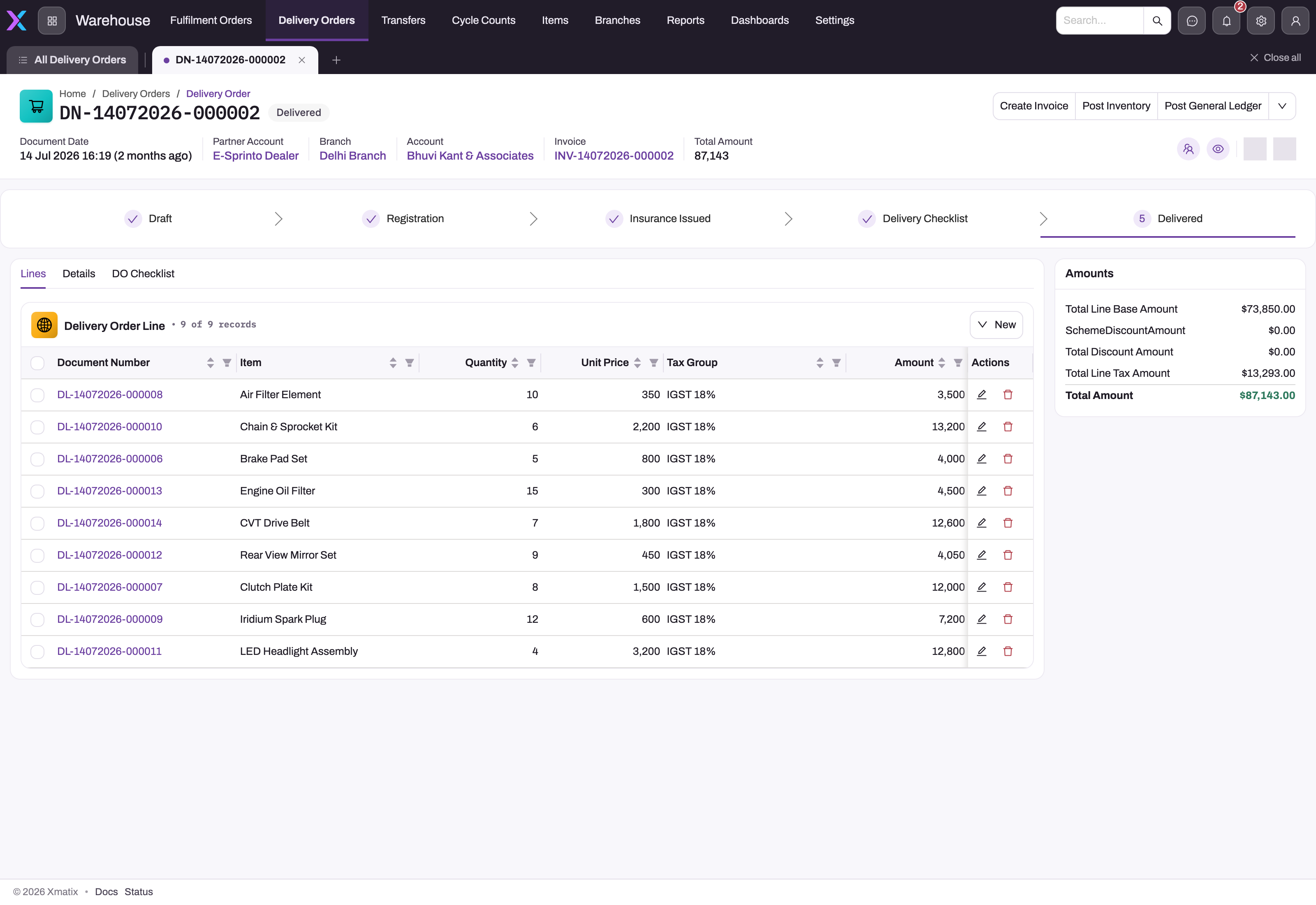
The record page shows these parts:
- Header strip. Document Date, Partner Account, Branch, Account and Invoice.
- Header actions. Post Inventory, Post General Ledger and Print DO are shown. Edit and Delete are behind the arrow.
- Stage bar. It follows the Status field.
- Amounts panel. Base amount, discount, tax and total, calculated from the lines.
The Lines tab lists the Delivery Order Lines. Select a line's name to open its record page with the lot, the quantities and the source lines it relieves (see Step 8). Partial deliveries are normal, so compare the lines with the source document rather than judging completeness from the header.
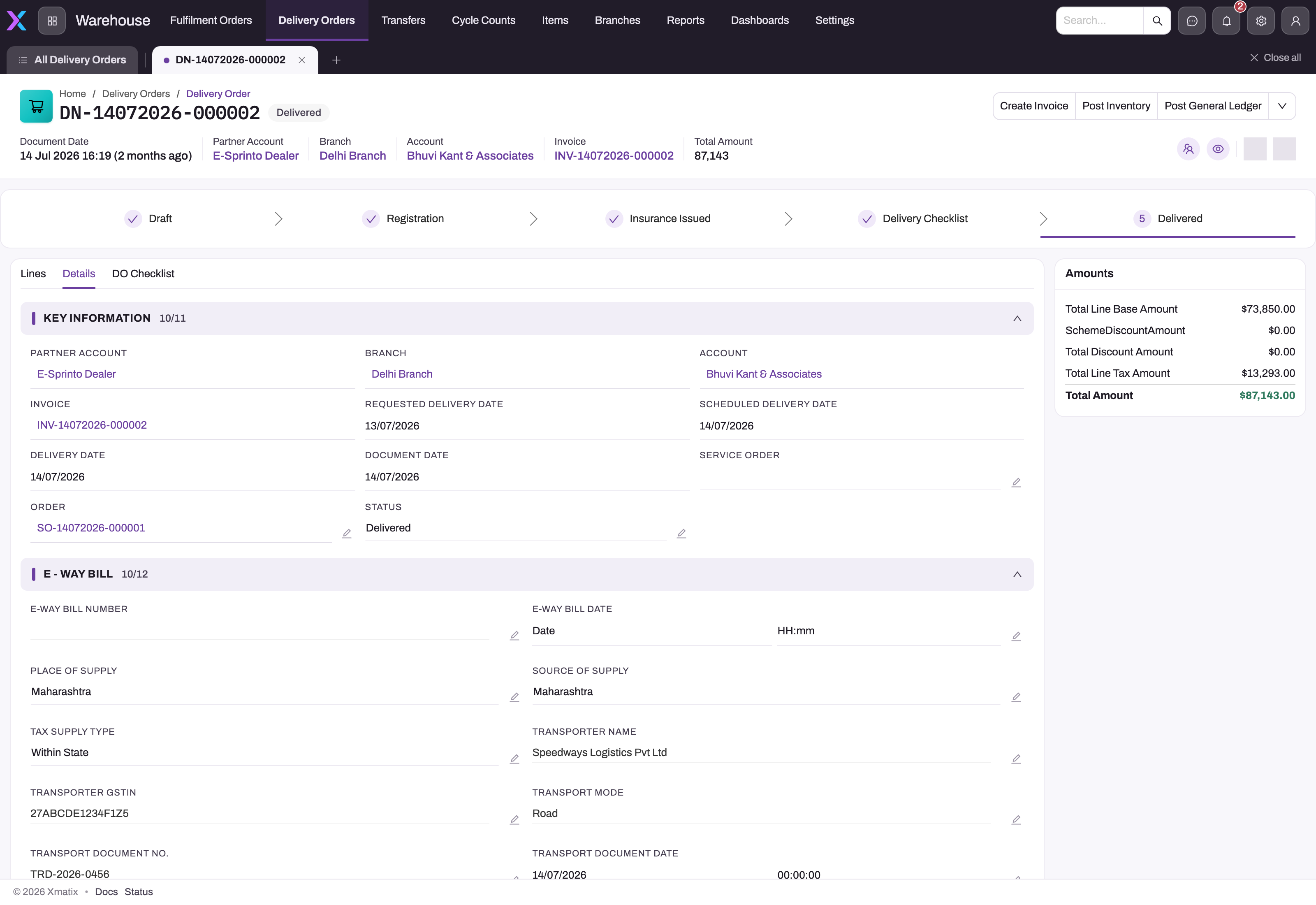
The Details tab groups the header fields into the following panels:
- Key Information. Partner Account, Branch, Account, Invoice, Requested Delivery Date, Scheduled Delivery Date, Delivery Date, Document Date, Service Order and Order.
- e - Way Bill. Transport and GST fields.
- Address panels. Billing Address, Shipping Address and Delivery Address.
- Additional Information. Delivery By, Price List, Discount Group and Tax Supply Type.
- System Information. Created and modified details.
Your administrator can add more actions to this header, such as Create Invoice, Release Shipment, Selective Release Shipment and Populate Checklist. The shipped layout does not show them (see Configuration).
Step 3 — Create a delivery order by hand (when needed)
On the Delivery Orders list, select New. The form asks for:
- Partner Account, Branch, Account, Invoice, Delivery By, Document Date and Remarks.
- A Delivery Dates tab: Requested Delivery Date, Scheduled Delivery Date, Requested Delivery Time Slot and Delivery Date.
- A Delivery Address tab: Delivery Address, Delivery Street, Delivery City, Delivery State, Delivery Postal Code and Delivery Country.
- A Billing Address tab: Billing Address, Delivery Location, Billing City, Billing State, Billing Country and Billing Postal Code.
- An Additional Details tab: Discount Group, Price List, Tax Supply Type and Service Order.
Save. The Branch must belong to the Partner Account, or the save is refused. Once saved, Partner Account, Branch, Account, Order and Document Date cannot be changed.
Then add the lines. On the Lines tab, select Quick Add. The line form asks for Item, SKU, Item Lot Type, Quantity, Unit Price and Tax Group:
- Quantity must be at least 1.
- Leave Unit Price at 0 to have it priced from the price list, or type a price to keep it.
- Leave Tax Group empty to have it filled from the tax group rules.
The form has no lot or storage location. If the stock is kept by lot or location, open the saved line and set Item Lot on its record page before you post. A line you add by hand is not linked to any order, allocation or invoice line, so posting it is a plain Outward movement.
Step 4 — Complete the delivery checklist
Open the DO Checklist tab. It shows the questions of the checklist template the layout points at. Answer each one and select Save. Your answers are stored against this delivery order only, so a new delivery order starts blank. If the tab shows no questions, the template it points at does not exist in your tenant. An administrator has to set it (see Configuration).
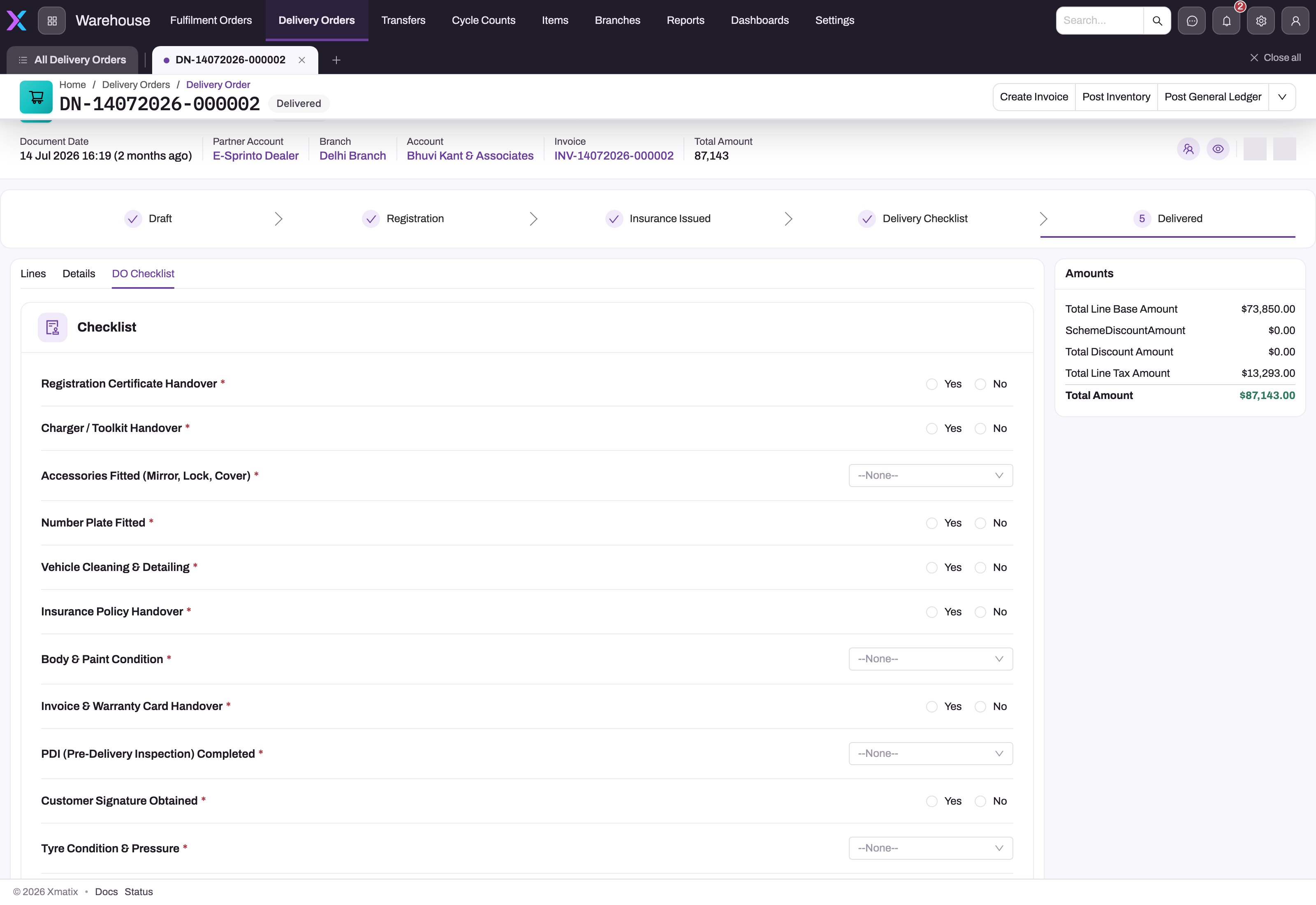
If your layout has Populate Checklist, that action copies the lines of every checklist template whose Type is Delivery onto the delivery order as checklist lines. It does nothing if no such template exists. It also adds a second set of lines if you run it twice.
Step 5 — Record transport and e-way bill details
On the Details tab, select a field in the e - Way Bill panel to edit it in place, then save. The fields are:
- E-Way Bill Number and E-Way Bill Date.
- Transporter Name and Transporter GSTIN.
- Transport Mode, Transport Document No. and Transport Document Date.
- Vehicle Number, Approximate Distance and GSTIN.
Transporter GSTIN, GSTIN and Vehicle Number are checked against the Indian formats when you save.
The e-way bill fields are for recording a bill you generated elsewhere. The E Way Bill action on delivery orders has no server behaviour and generates nothing. For generating e-way bills, see E-way bills.
Select Print DO to print the delivery note that goes with the goods. It opens your browser's print dialog for the Delivery Order Report and changes no data.
Step 6 — Post the inventory
Select Post Inventory. It posts every line that has not been posted yet to the inventory ledger as an Outward movement. Each line also releases the stock it held, depending on where it came from:
| Line came from | Effect on branch stock |
|---|---|
| A picking line | Outward, and the picked quantity is released |
| An allocation line (not picked) | Outward, and the allocation is released |
| An invoice line | The quantity pending delivery for the invoice is reduced by the invoiced quantity |
| Nothing (manual or claim line) | Outward only |
The cost of the goods is booked at the same time (cost of goods sold against inventory). Once every line is posted, a seeded business rule sets Status to Delivered the next time the delivery order is saved. If every line is already posted, the action stops with No Delivery Order Lines found for Inventory Posting.
Post Inventory picks only lines whose Inventory Ledger field is empty. A line whose Quantity or Unit Price you changed after saving has already posted itself (see Step 8), so Post Inventory skips it.
Step 7 — Post the general ledger, then invoice or ship
- Post General Ledger books the delivery value (the total of the lines' gross amounts) as a debit to Unbilled Dispatch and a credit to Inventory Asset, dated with the Document Date. Running it again reverses the earlier journal and posts a fresh one. Nothing is posted when GL posting is not enabled for the partner account.
- Create Invoice (if your layout has it) builds an invoice from delivery lines that still have quantity to invoice. It only bills lines that came from an allocation or a picking line of a sales order, and it groups them by order. The invoice links back to this delivery order, and the sales order's Document State moves to Invoiced or Partially Invoiced. Continue in Invoices.
- Release Shipment (if your layout has it) creates a shipment for a receiving branch in your tenant. The shipment is named
SHP-plus this document's number, with one line per delivery line. Selective Release Shipment does the same for chosen lines and quantities, through a dialog your administrator sets up. The receiving branch then books its goods receipt from the shipment.
Step 8 — Check, correct or delete a line
On the Lines tab, select a line's name to open its record page. The header shows Edit and Delete. The fields sit in these panels:
- Item Details. Item, SKU, Item Lot and Inventory Ledger. An empty Inventory Ledger means the line has not been posted yet.
- Quantities. Quantity, Allocated Quantity, Invoiced Quantity, Delivered Quantity, Pending Invoice Quantity and Returned Quantity.
- Amount Summary. Base Amount, Tax Amount, Scheme Discount Amount, Discount Amount and Amount.
- Related Sources. The Delivery Order, the Sale Invoice Line and the Sale Order Line this line came from.
- Additional Details. Price List, Price As On Date, Discount and Tax Group.
- System Details. Created and modified details.
Fields on the record page edit in place. On the Lines tab, the row's Edit opens the line form (Item, SKU, Item Lot Type, Quantity, Unit Price, Tax Group) in a dialog.
To change what is being dispatched, change Quantity. Keep these effects in mind:
- The change posts at once. Saving a new Quantity or Unit Price posts the line to the inventory ledger straight away, even if nobody has run Post Inventory yet. If the line was already posted, the earlier entry is reversed and the new figure posted.
- The source line follows. The delivered quantity on the sales order line, allocation line, picking line or invoice line the line came from is updated in the same save.
- Tax is not recalculated. The Tax Amount was worked out when the line was created. After a change of quantity, price or tax group it keeps the old figure, while Base Amount and Amount follow the change.
- Some fields are locked. Item, SKU and Item Lot cannot be changed on a line that came from a sales order line.
Quantity cannot go below 1 (Quantity cannot be 0), and a line with a quantity above zero cannot be deleted (There are downstream transactions. The record cannot be deleted.). Together, these two rules mean you cannot remove a saved line with the shipped settings. An administrator can relax the quantity rule (see Configuration). There is no cancel action for a delivery order.
The other quantity fields are kept by xMatix. Allocated Quantity and Invoiced Quantity are set when the line is created. Pending Invoice Quantity falls as Create Invoice bills the line, and Returned Quantity rises as credit notes are raised against it. Delivered Quantity is not maintained for delivery lines. The record page lets you type in these fields, but leave them alone. Typed values in Pending Invoice Quantity and Returned Quantity are replaced the next time xMatix recalculates them. A typed Allocated or Invoiced Quantity just stops matching the source document.
On mobile
The Warehouse app, where delivery orders live, is not part of a shipped field app. Delivery drivers work through Order Delivery visits instead. Visit planning creates one for each delivery order that matches the plan's branch, partner account and dates (see Visit plans).
Where the field app offers the Delivery Fulfillment visit activity, the driver picks the delivery order and its lines appear as Items delivered, all ticked. The driver unticks what did not arrive, enters a Delivered qty and a Short / non-delivery reason where needed, and signs off. These figures are stored on the visit activity only. They do not change the delivery lines or the inventory ledger, so a short delivery still has to be corrected on the delivery order.
Fields
Header fields, in the order of the record page's Details tab.
| Field | What it means | Notes |
|---|---|---|
| Partner Account | The selling company that owns the document | Copied from the source; cannot be changed after creation. Becomes the supplier on a released shipment |
| Branch | The dispatching branch | Must belong to the Partner Account; locked after creation. Its stock is relieved on posting |
| Account | The customer receiving the goods | Locked after creation. On a claim delivery it is the claim's supplier |
| Invoice | The invoice this delivery was made from | Set by the invoice's Delivery action |
| Requested Delivery Date | The date the customer asked for | Optional |
| Scheduled Delivery Date | The date the warehouse plans to deliver | Optional |
| Delivery Date | The actual delivery date | Entered by you; nothing sets it automatically |
| Document Date | The accounting date of the dispatch | Today on creation; locked afterwards; dates the ledger journal |
| Service Order | The service order this delivery serves | Set by picked deliveries for service fulfilments |
| Order | The sales order being delivered | Locked after creation |
| E-Way Bill Number / E-Way Bill Date | The e-way bill reference for the consignment | Recorded only |
| Place of Supply | The destination state for GST | Filled from the billing address, else the account |
| Source of Supply | The origin state for GST | Filled from the branch |
| Tax Supply Type | Within State, Outside State, Export, SEZ or Exempt | Recalculated on every save for India GST; see Business rules |
| Transporter Name / Transporter GSTIN | The carrier and its GST number | GSTIN format checked on save |
| Transport Mode | How the goods travel | Free text, for example Road, Rail, Air or Ship |
| Transport Document No. / Transport Document Date | The carrier's document reference | Recorded only |
| Vehicle Number | The vehicle registration | Format checked on save |
| Approximate Distance | The distance for the e-way bill | Recorded only |
| GSTIN | The customer's GST number | Filled from the billing address, else the account; format checked |
| Billing Address panel | Billing contact address and its street, city, state, country and postal code | Defaulted from the account's contact addresses |
| Shipping Address panel | Shipping contact address and its parts | Defaulted from the account's contact addresses |
| Delivery Address panel | Where the goods are handed over | Delivery Address lookup plus street, city, state, country and postal code |
| Delivery By | The resource who makes the delivery | Must be a valid resource; for reference only |
| Price List / Discount Group | The commercial terms used to price the lines | Defaulted on creation |
| Discount | A header discount | Changing it spreads the discount over the lines again |
| Remarks | Free-text notes | On the New form |
| Status | The dispatch stage | Set to Delivered by a business rule once every line is posted; see Business rules |
The Amounts panel shows Total Line Base Amount, Total Discount Amount, Total Line Tax Amount and Total Amount. All are calculated from the lines and read-only. For every stored field, see the Delivery Order reference.
Delivery order line fields
These are in the order of the line's record page, followed by the fields that appear only on the line form.
| Field | What it means | Notes |
|---|---|---|
| Item | The item being dispatched | Must be active, with a SKU where the item needs one. Locked when the line came from a sales order line |
| SKU | The item variant | The picker lists only SKUs of the item. Locked like Item |
| Item Lot | The lot or serial leaving the branch | Copied from the source line. The picker lists only lots of the item and SKU. Locked like Item |
| Inventory Ledger | The inventory ledger entry the line posted | Empty until posted. Post Inventory picks only lines where it is empty |
| Quantity | The quantity being delivered | At least 1. Saving a change posts the line and updates the source line |
| Allocated Quantity | The quantity taken from the allocation line | Set by Allocation Delivery when the line is created |
| Invoiced Quantity | The part of the quantity already invoiced | Set when the line is created from an invoice or an invoiced order line. Invoice-sourced lines post this quantity |
| Delivered Quantity | Not maintained for delivery lines | Stays as created |
| Pending Invoice Quantity | What Create Invoice can still bill | Quantity less the quantity on invoice lines made from this delivery line. Calculated |
| Returned Quantity | The quantity returned on credit notes | Total of credit note lines linked to this line. Recalculated by xMatix |
| Base Amount | Quantity × unit price | Calculated. Uses the price list rule's second price when that is above zero |
| Tax Amount | The line's tax | Worked out from the tax group when the line is created; not recalculated after edits |
| Scheme Discount Amount | The trade-scheme discount | Copied from the invoice line on deliveries made from an invoice |
| Discount Amount | A fixed line discount | When above zero it replaces the percentage, and Discount is set to 0 |
| Amount | The taxable line amount | Base Amount less the scheme and line discounts. Calculated |
| Delivery Order | The delivery order the line belongs to | Set when the line is created |
| Sale Invoice Line | The invoice line this delivery relieves | Set on deliveries made from an invoice |
| Sale Order Line | The sales order line this delivery relieves | Locks Item, SKU and Item Lot |
| Price List / Price As On Date | The price list and pricing date recorded on the line | Changing them on a saved line does not reprice it |
| Discount | The line discount percentage | A new line takes the delivery order's header discount when there is one |
| Tax Group | The tax group used for the line's tax | Filled from the tax group rules on creation when left empty |
| Item Lot Type | The lot type of the item | On the line form. The picker lists only lot types of the item |
| Unit Price | The selling price per unit | On the line form. Copied from the order or invoice line, or priced from the price list when left at 0. A typed price on a new line is kept |
Each line also gets a number from the Delivery Order Line Document Name Setting (default series DL). For every stored line field, see the Delivery Order Line reference.
Business rules
- Locked header. Partner Account, Branch, Account, Order and Document Date cannot be changed after the first save. Item, lot and SKU on a line created from an order cannot be changed either.
- Branch check. On creation, the Branch must belong to the Partner Account. Delivery By must be a valid resource.
- India GST defaults. On every save:
- GSTIN and Place of Supply are filled from the billing contact address, else the account.
- Source of Supply is filled from the branch.
- Tax Supply Type is set from the GST registration type: Exempt (Out Of Scope, Non GST Supply), Export (Overseas, Deemed Exports) or SEZ. Otherwise it is Outside State when Place of Supply differs from Source of Supply, and Within State when they match. A value you pick by hand is overwritten.
- Status. The seeded rule Set Delivery Order Status To Delivered sets Status to Delivered on a save when the delivery order has lines and every line is posted to the inventory ledger. The delivery order has no Document State. Its progress shows on the sales order and the fulfilment instead: their delivery actions move them to Delivered or Partially Delivered.
- Source quantities. Creating, changing or deleting a delivery line updates the delivered quantities on the order line, allocation line, picking line and invoice line it came from.
- Line defaults on creation. A new line gets its tax group from the tax group rules, its price from the price list rules (unless a price was typed or copied), any discount-group discount, and the header discount percentage. Its tax is worked out once, at creation.
- Line checks. Quantity must be at least 1 (Quantity cannot be 0). Allocated, Invoiced, Pending Invoice, Picked, Returned and the other derived quantities cannot be negative. The item must be active and carry a SKU where it needs one.
- Line posting. The four Outward settings decide what each line posts (see Step 6). They do not run when a line is created, so a new line posts nothing until Post Inventory. They do run when a line's Quantity or Unit Price changes, so that edit posts the line, or reverses and re-posts it if it was already posted.
- Line counters. Pending Invoice Quantity falls as invoices are created from the line, and Returned Quantity follows the credit note lines linked to it. Shipped Quantity is never updated, so Pending Shipped Quantity always equals Quantity and does not show what Release Shipment has sent.
- No double release guard. Each run of Release Shipment creates a new shipment, and each run of Populate Checklist adds a new set of checklist lines.
- Visits. Visit planning only picks up delivery orders that have no Visit and are not marked Delivered. Generating a visit does not mark the delivery order, so it stays eligible for later plans.
Example
A dealer orders 40 cartons of floor cleaner and 10 cartons of glass cleaner from your Pune branch. The warehouse allocates and picks both lines on the fulfilment, then runs Picked Delivery. A new delivery order (DN-…) appears with two lines, 40 and 10 cartons, addressed to the dealer's shipping address.
- The dispatcher opens it from Delivery Orders and compares the two lines with the pick.
- On DO Checklist they confirm the seals are intact, the cartons are counted and the invoice copy is attached, then save.
- On Details they enter the transporter, vehicle MH12AB1234, the lorry receipt number and the e-way bill number generated for the consignment, then save.
- They select Print DO and hand the note to the driver.
- They select Post Inventory. Both lines post Outward and release the picked quantity. The ledger shows 50 cartons leaving Pune.
- They select Post General Ledger. The delivery value is booked to Unbilled Dispatch.
- The billing desk, whose layout includes Create Invoice, runs it. An invoice for 40 + 10 cartons is created against the sales order.
Training
Practice exercise
In a sandbox, take a sales order with one allocated line of 5 units:
- Run Allocation Delivery on its fulfilment and open the new delivery order.
- Record a vehicle number in the e-Way Bill panel and save.
- Run Post Inventory.
Expected result: the delivery order has one line of 5 units, the inventory ledger shows one Outward entry of 5 for the branch, and the sales order's Document State reads Delivered. Run Post Inventory again: it stops with No Delivery Order Lines found for Inventory Posting.
Quick reference
- Delivery orders: Warehouse app → Delivery Orders.
- Creating a delivery order moves no stock; Post Inventory does.
- Post General Ledger books Unbilled Dispatch against Inventory Asset at the Document Date.
- Partner Account, Branch, Account, Order and Document Date are locked after the first save.
- Tax Supply Type is recalculated on every save for India GST.
- Create Invoice only bills lines that came from allocation or picking.
- Release Shipment needs a customer that owns a branch in your tenant, and it creates a new shipment every time.
- The E Way Bill action generates nothing; type the e-way bill details in.
- A line's Quantity must be at least 1, and changing it (or Unit Price) posts the line at once.
- An empty Inventory Ledger field on a line means it has not been posted.
- Line tax is set at creation and not recalculated after edits.
Permissions
Access is set on security profiles:
- Entity access. Read, Create, Update and Delete on Delivery Order control whether a user sees delivery orders and can create, change and delete them. The shipped Sales, Sales Executive, Sales Manager, Standard User and System Admin profiles have full access.
- Actions. Each button needs its own grant on the profile. Without the grant, the button is not shown.
| Action | Shipped profiles granted |
|---|---|
| New | Sales Manager, Standard User, System Admin |
| Edit, Edit in page, Delete | Sales Executive, Sales Manager, Standard User, System Admin |
| Create Invoice | Sales Executive, Sales Manager, Standard User |
| Post Inventory, Post General Ledger | Sales Manager, Standard User, System Admin |
| Release Shipment, Selective Release Shipment, Populate Checklist | Sales Manager, Standard User, System Admin |
| Print DO | Sales Manager, Standard User, System Admin |
| Clone, E Way Bill | Sales Executive, Standard User, System Admin |
Granting an action does not put it on the page. The button must also be in the record layout's header (see Configuration).
Delivery order lines have their own entity access, and the shipped Sales, Sales Executive, Sales Manager, Standard User and System Admin profiles have full access. Quick Add follows the Create access. The line's Edit, edit-in-place and Delete are granted to Sales Executive, Sales Manager, Standard User and System Admin.
Configuration
- Header actions on the record page. The shipped DeliveryOrderView layout lists only Post Inventory, Post General Ledger, Print DO, Edit and Delete. To give users Create Invoice, Release Shipment, Selective Release Shipment or Populate Checklist, add them to the Page Header widget's actions in the layout designer (see Design a form layout). Selective Release Shipment opens the SelectivePostDelivery action layout. Its shipped lines list has row selection switched off, so turn on the checkboxes and an editable requested quantity before you rely on it.
- Checklist. The DO Checklist tab's checklist widget is set to one fixed template. If that template is not in your tenant, the tab is empty. In the layout designer, point the widget at your own delivery checklist, by template or by type. Templates are kept in the Field Sales Setup app under Checklist Templates (see Service checklists for how templates and lines work). Populate Checklist looks for templates whose Type is exactly Delivery. That value is not in the shipped Type picklist, so add it first if you use the action.
- Numbering. Change the Delivery Order Document Name Setting (default series
DN, a day-month-financial-year date part, six digits,-separator) in Setup → Feature Hub → Platform → Document Settings. See Templates and numbering. - Status rule. The Set Delivery Order Status To Delivered business rule drives the Pending and Delivered views. The shipped Status picklist values (Draft, Delivery Checklist, Delivered) are inactive. Activate them, or add your own, if you want the stage bar to show stages.
- Inventory posting. Four Outward inventory ledger settings on Delivery Order Line decide the stock effect of each line source (see Step 6). They post on update and delete, not on create, which is why posting is an explicit action. "On update" also covers a user changing a line's Quantity or Unit Price, so such an edit posts the line immediately.
- Line quantity rule. The Quantity Rule Validation on Delivery Order Line refuses any quantity below 1, which also makes saved lines impossible to delete. To allow removing lines, deactivate or change it in Setup → Design Studio → Entities → Delivery Order Line → Logic → Validations (see Entity behavior). A line can then be set to 0 and deleted. Note that a claim delivery with a zero approved or rejected quantity would then save a zero line.
- Line numbering. Lines are numbered from the Delivery Order Line Document Name Setting (default series
DL), in the same Document Settings screen as the header. - Line pickers. Lookup filters on Delivery Order Line limit SKU and Item Lot Type to the line's item, and Item Lot to the line's item and SKU.
- Line form. The line form is the QAPDeliveryOrder layout and the line record page is DeliveryOrderLinesLayout. Neither has a storage location field. Add Storage Location to the form if your users add lines by hand in a branch that keeps stock by location.
- General ledger. Posting needs GL Posting Enabled on the partner account and GL accounts of type Unbilled Dispatch and Inventory Asset (see Accounts).
- India GST. Keep GST registration type, place of supply and GSTIN correct on accounts, contact addresses and branches, because the delivery order copies them on every save.
- Visits. A visit plan with Visit Purpose Order Delivery turns eligible delivery orders into visits (see Visit plans).
Common problems
"At least one Delivery Order Line with quantity greater than zero is required to create Shipment."
The delivery order, or the lines you selected, has no quantity. Check the lines on the Lines tab.
"No branch found for account … to create shipment."
Release Shipment needs a branch in your tenant whose partner account is this delivery's Account. It is meant for receivers that work in xMatix. An ordinary customer does not need a shipment.
"DeliveryOrderLines argument is required for SelectiveReleaseShipment action."
The Selective Release Shipment dialog sent no lines. Its lines list needs row selection switched on (see Configuration).
"No pending invoice quantities found in delivery order lines to create invoice."
Every line is already invoiced. Check the invoices linked to the delivery order.
"No order lines with pending invoice quantity found."
The lines are not linked to sales order lines that still need invoicing. Examples are manual lines, claim lines, or an order already invoiced elsewhere. Create Invoice cannot bill them.
Create Invoice ran but no invoice appeared
Only lines that came from an allocation or picking line are invoiced. Lines created from an invoice or from order lines without allocation are skipped.
"No Delivery Order Lines found for Inventory Posting."
Every line is already posted. Check the inventory ledger for the entries.
The DO Checklist tab is empty
The checklist widget points at a template that is not in your tenant. An administrator needs to set the widget to your delivery checklist template.
I can't find Create Invoice or Release Shipment
The shipped record layout does not include them. Ask an administrator to add them to the layout header and grant them on your profile.
"There are downstream transactions. The record cannot be deleted."
You tried to delete a line with quantity above zero. With the shipped settings the quantity cannot be set below 1 either, so a saved line cannot be removed. Ask an administrator to relax the Quantity Rule Validation (see Configuration). They can then set the quantity to 0 and delete the line.
"Quantity cannot be 0"
A delivery line's quantity must be at least 1. This also refuses a whole Part To Part claim delivery when the approved or rejected quantity is 0.
"Source populated field ItemId is not editable once the record is created with source record."
The line came from a sales order line, so its Item, SKU and Item Lot are fixed. To dispatch a different item or lot, correct the order or fulfilment and create a new delivery from it.
The tax on a line did not change after I edited it
Line tax is worked out once, when the line is created. Base Amount and Amount follow a change of quantity or price, but Tax Amount does not. Post General Ledger books the lines' gross amounts, so check the tax before posting. The line has no recalculate action. Correct Tax Amount on the line's record page before you run Post General Ledger.
The ledger already shows my line, but I never ran Post Inventory
Changing a line's Quantity or Unit Price posts that line straight away. Check the line's Inventory Ledger field. Post Inventory skips lines that are already posted.
Common questions
Does creating a delivery order reduce stock?
No. Stock moves only when you select Post Inventory, which posts each unposted line to the inventory ledger as an Outward movement and releases the allocated, picked or pending-delivery quantity behind it. Until then the goods still count as on hand at the branch. This lets you check lines, record transport and print the delivery note before anything changes in the ledger.
When do I need Release Shipment?
Only when the receiver is a company with its own branch in your xMatix tenant, for example a sister company. The shipment it creates is what the receiver books their goods receipt from. Deliveries to outside customers do not need a shipment: the delivery order, its checklist and transport details are the complete dispatch record.
Should we invoice from the delivery or deliver from the invoice?
Both work. Warehouse-led teams allocate or pick, deliver, then run Create Invoice on the delivery order. Counter-style teams invoice first and run Delivery on the invoice, and the delivery then relieves the invoice's pending-delivery stock when posted. Pick one standard per branch so the pending quantities on orders and invoices keep a single meaning.
Why does Status still say Draft after posting?
The Delivered status comes from a business rule that runs when the delivery order is saved. Posting happens in an action, so Status changes on the next save of the record. The sales order's Document State is the better progress signal: it moves to Delivered or Partially Delivered when the delivery is created.
What do the quantity fields on a delivery line tell me?
Quantity is what leaves the branch. Everything else describes where the line came from or what happened next. Allocated Quantity and Invoiced Quantity are recorded when the line is created from an allocation or an invoice. Pending Invoice Quantity is what Create Invoice can still bill from this delivery. Returned Quantity is what credit notes have taken back. Delivered Quantity and Pending Shipped Quantity are not maintained for delivery lines, so don't read progress from them. To see whether the stock has moved, look at the Inventory Ledger field on the line. It is empty until the line is posted.