
A transfer between branches is two documents with three warehouse moments. The source warehouse releases the goods on the Outward transfer. The destination warehouse receives them on the Inward transfer that the release generates, then posts that inward transfer to put the stock into its bins. The full procedure is documented in Transferring stock between branches: creating the transfer, releasing, receiving, posting and the selective variants. This page is about what each step means for the people at the bins. Transfers appear in the Warehouse app alongside fulfilments and delivery orders.
Read the screen
Transfers are a fixed tab of the Warehouse app (Transfers, default view All Transfers). The same list is reachable from the Inventory app.
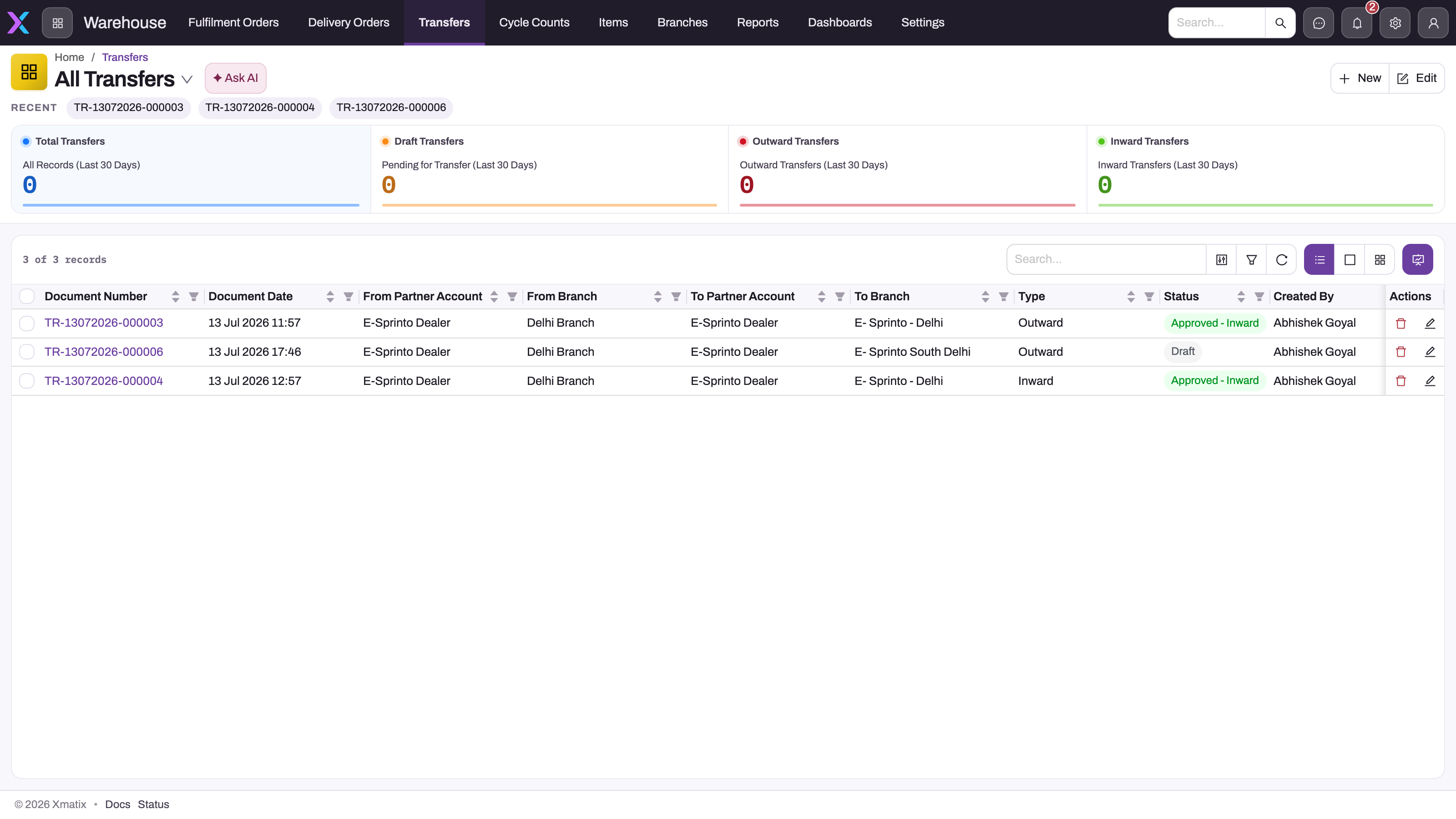
The list is the custody register. Type tells you which side of a movement a row is:
- Outward is the source document.
- Inward is the destination document that release generates.
- Single Step is a move that posts both ends at once, with no in-transit stage.
Status drives the stepper on each transfer. Summary cards count the last 30 days by type.
| Status | Set by | Meaning at the bins |
|---|---|---|
| Draft | The default for a new transfer | Nothing has necessarily moved yet. Check the line quantities. |
| Pending Approval - Outward / Approved - Outward / Pending Approval - Inward / Approved - Inward | Only an approval process your administrator builds. Nothing seeded sets them. | Whatever your process defines. |
| Released | A seeded rule, on save, once every outward line is fully released | All outward quantities have left the source and are in transit. |
| Received | A seeded rule, on save, once every inward line is received (or every outward line is fully closed, or every single-step line is posted) | The goods are counted at the destination. On an inward transfer they reach the bins only after Post Inventory. |
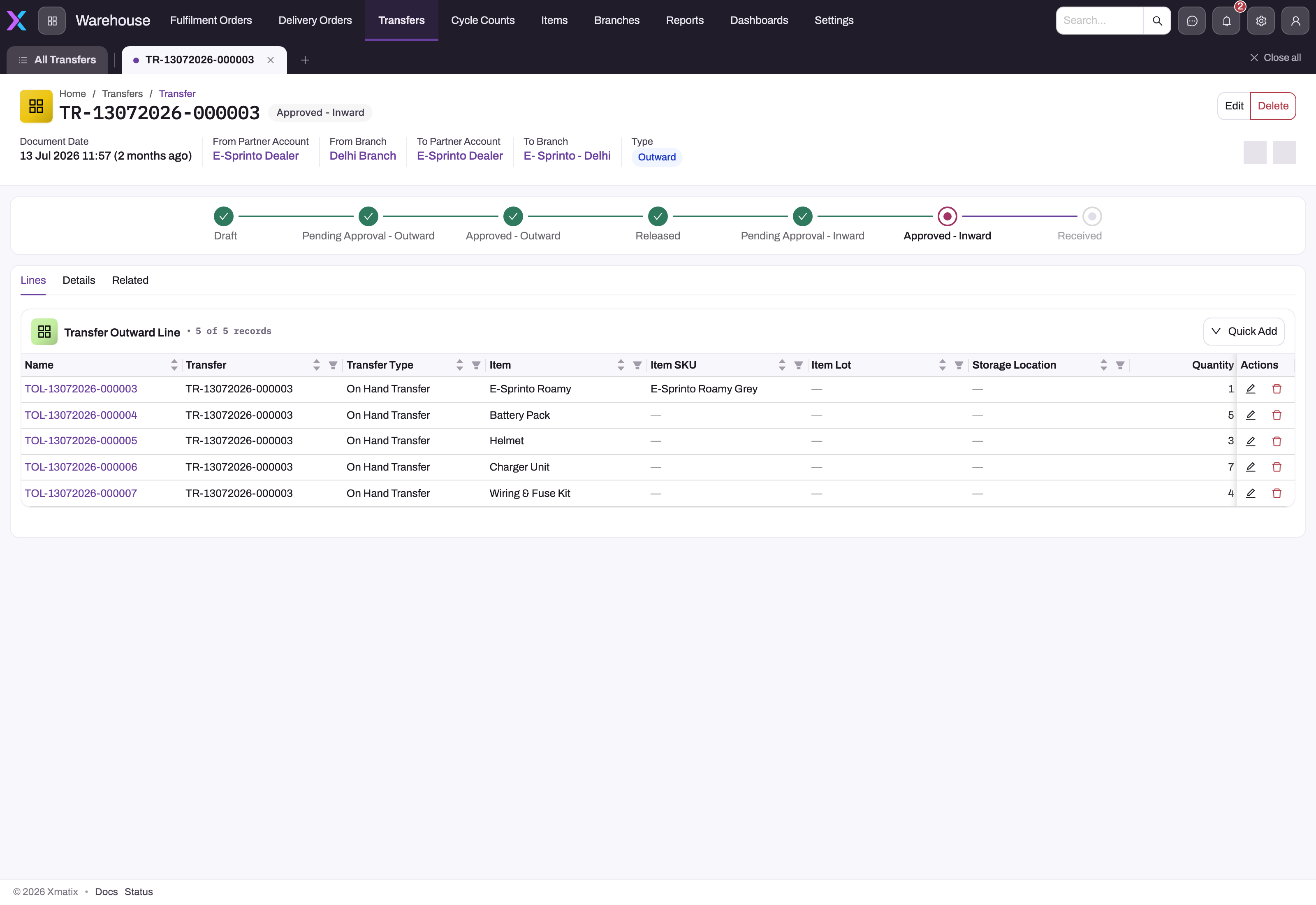
The Lines tab of an outward transfer lists one Transfer Outward Line per item and lot, with the source storage location and the quantity to move. Opening a line shows the quantity trail, which is where partial movements stay explainable:
- Pending Release Quantity: still on the shelf.
- Released Quantity: has gone.
- Pending Inward Quantity: the destination has not yet received it.
On the generated inward transfer the lines are Transfer Inward Lines. They carry Quantity, Received Quantity and Pending Received Quantity, plus the discrepancy fields Damaged Quantity, Shortage Quantity and Excess Quantity.
Each line also has a Transfer Type:
- On Hand Transfer moves stock that is physically in the bin. It is what the in-transit accounting below describes.
- Pending Deliveries Transfer moves stock that is already committed to deliveries, and posts no in-transit quantity.
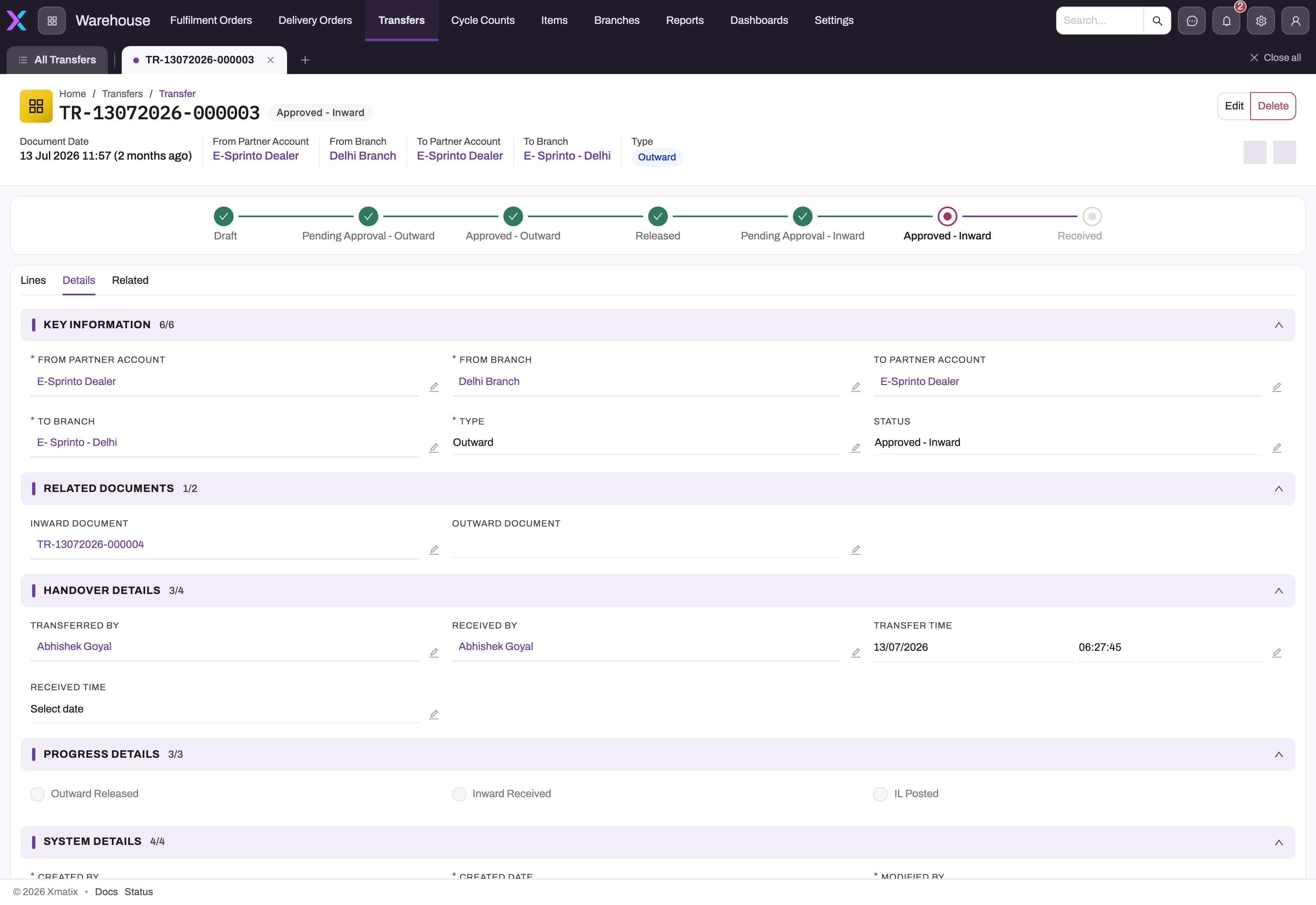
Details proves the lane and the chronology:
- Related Documents links the outward transfer to the inward one it generated, and back.
- Handover Details hold Transferred By, Received By, Transfer Time and Received Time. Received Time is typed by hand.
- Progress Details shows Outward Released, Inward Received and IL Posted. They are calculated from the lines. When reconciling stock, read them and the line quantities rather than the Status label.
Outward: the stock leaves the bin
Releasing outward posts the quantity out of the source location and into transit. From the source warehouse's point of view the shelf is now empty of that quantity, so a count at the source after release should not find it.
You can release the whole transfer, or selected lines with Selective Release Outward. A transfer dispatched over several truckloads therefore stays honest at every step. Plan one line per truckload and release each line in full. The release also generates the inward transfer the destination will act on.
In transit: in no bin at all
Between release and posting, the quantity has no storage location, because goods on a truck are not in any bin. The ledger keeps it in an in-transit balance held against the destination branch with no storage location. For lot-tracked items it also sits in the destination lot copy's in-transit quantity. So the source no longer counts the stock, the destination does not count it yet, and the travelling quantity is visible only as in transit.
A stock check at either end that ignores in-transit will look short by exactly the travelling amount. A Single Step transfer skips this stage entirely: both ends post together and nothing is ever in transit.
Inward: the stock lands in a named bin
The destination warehouse works on the generated inward transfer:
- Choose the Storage Location on each line, and record any Damaged Quantity on the line.
- Receive the quantities that arrived, in full or selectively.
- Post the transfer with Post Inventory.
Receiving records the count. Posting is what puts the stock into the bin named on the line, so deciding which bin the stock lands in is part of receiving, exactly as on a goods receipt.
Where the delivery does not match what was shipped, the line shows it. Receiving less leaves a Shortage Quantity, receiving more leaves an Excess Quantity, and posting records each of them, and any damage, as its own ledger entry. The discrepancy is documented when it is discovered, not reconstructed later.
Vans are transfers too
Loading a van posts an outward transfer from the depot to the van's mobile storage location, and the evening check-in posts the transfer back. The warehouse-side mechanics are the same as for a branch transfer. The operational wrapper is described in Van sales: capacity checks, take-in confirmation and settlement.
Common questions
The truck arrived short — what do I do?
Receive what actually arrived. The line then shows the shortfall as Shortage Quantity, and posting records it as a Shortage entry, separate from the stock that arrived. The books say precisely what happened: released quantity, received quantity and a documented shortage. Never receive the paper quantity "to make it match": that creates stock the destination does not have.
Who runs the inward receive?
The destination warehouse, on the inward transfer that the source's release generated automatically. Nothing needs to be created at the destination, but someone does need to act. A released transfer that nobody receives and posts leaves its stock in transit indefinitely. That is the first thing to check when transferred stock seems to have vanished.
Why does my branch's stock look short during a transfer?
Because in-transit stock belongs to neither branch's bins. The source posted it out at release, and the destination gains it only when the inward transfer is posted. The transfer's released and pending figures, and the Pending Inward Transfers view, are where the travelling quantity is visible. See Troubleshooting inventory.