
xMatix Warehouse is where physical stock is worked: it reserves and picks stock for orders, dispatches it on delivery orders, moves it between branches, and counts it so the books match the shelves. It sits between the selling and buying documents and the inventory ledger. Orders and receipts hand work to the warehouse, and every warehouse step that changes stock posts a ledger movement, so a stock figure is always the sum of posted movements, never a typed number.
Overview
The module has two apps:
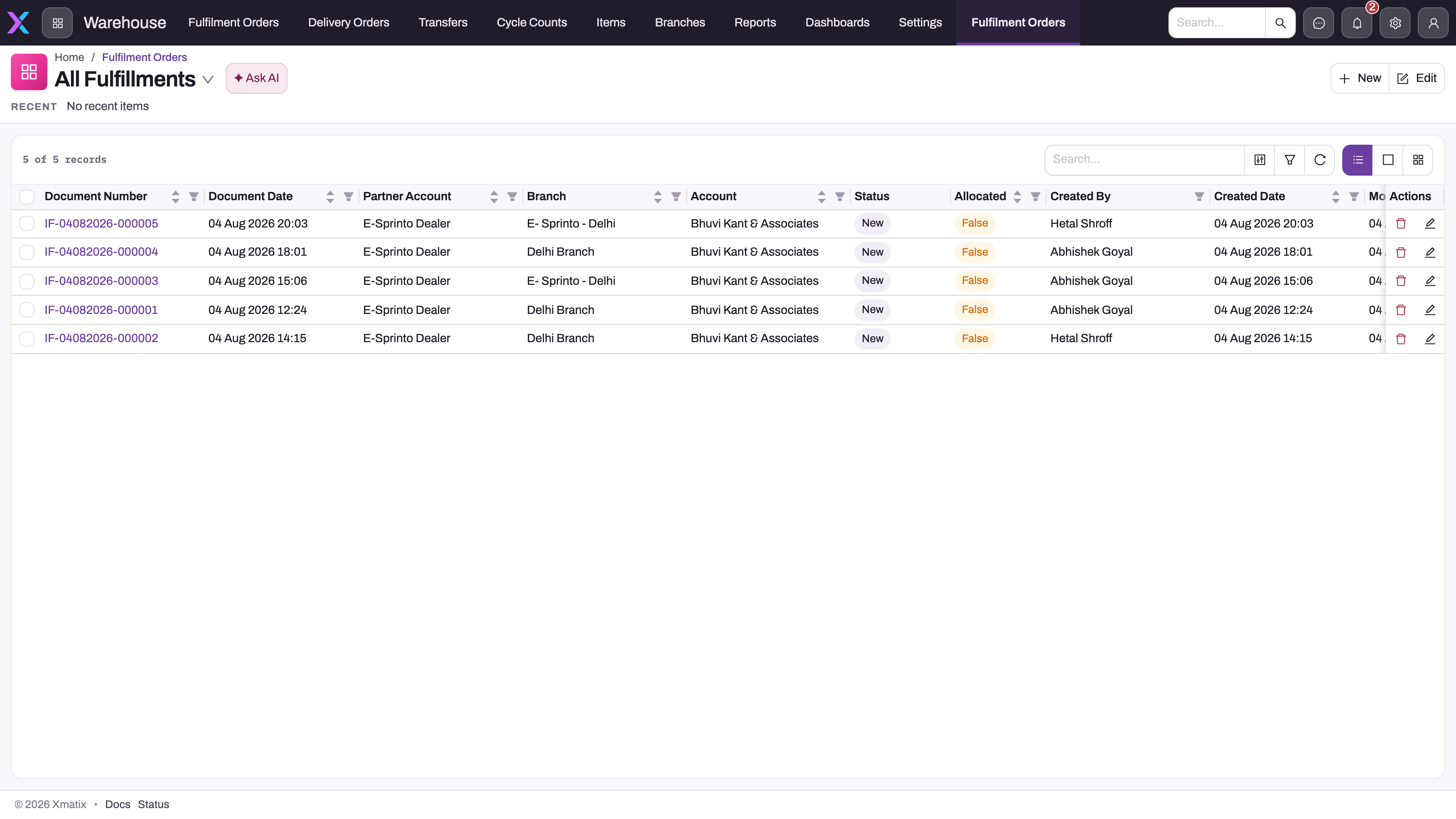
- Warehouse holds the operational documents: Fulfilment Orders, Delivery Orders, Transfers and Cycle Counts, plus Items, Branches, Reports, Dashboards and Settings.
- Warehouse Settings holds the master data the documents run on: Storage Locations and Item Lot Types, in the group Warehouse Masters.
Several of these documents also appear in other apps. Find them here:
| What | Where to find it | Also in | Page |
|---|---|---|---|
| Fulfilments (the outbound work queue) | Warehouse → Fulfilment Orders | Inventory app | Fulfilment picking |
| Delivery orders (dispatch) | Warehouse → Delivery Orders | — | Delivery orders and dispatch |
| Transfers between branches | Warehouse → Transfers | Inventory app | Stock transfers and Branch transfers: the warehouse view |
| Cycle counts | Warehouse → Cycle Counts | Inventory app | Cycle counting |
| Goods receipts (inbound) | Procurement → Goods Receipts | Mobile app | Receiving into the warehouse |
| Storage locations and vans | Warehouse Settings → Storage Locations | Partner Onboarding Settings | Storage locations and vans |
| Item lot types | Warehouse Settings → Item Lot Types | Inventory settings | Item lot types |
The Warehouse Settings app has no tab of its own on the web bar. To reach a settings list, open the App Launcher, type its name (for example Storage Locations) and choose the entity.
When to use it
- Shipping an order. A sales or service order has been released to the warehouse and the stock has to be reserved, picked and sent.
- Moving stock between branches, or loading a van for van sales.
- Checking stock. You want to count a slice of a branch's stock and correct the differences.
- Setting up a branch. A new branch or warehouse needs its storage locations before anyone receives or moves stock there.
Use the Inventory documentation for stock corrections with a known cause (adjustments), lots and valuation, and the procurement documentation for receiving supplier goods.
How xMatix handles it
The outbound flow runs in this order:
- Release. The sales order's Fulfilment action (or Selective Fulfilment, or Fulfilment and Auto Allocate) creates a fulfilment. Service orders release their parts the same way. Fulfilments are not normally typed in by hand.
- Allocation reserves real stock at the fulfilment's branch and partner account, oldest lot first. When stock runs short it reserves what it can and leaves the rest pending. It does not fail.
- Picking lists what to take from which storage location, and Confirm Picking records that the pick happened. If you don't record picks, skip both and use Allocation Delivery.
- Picked Delivery (or Allocation Delivery) creates the delivery order.
- Post Inventory on the delivery order takes the stock out of the branch, and Post General Ledger books the accounting entry. Creating the delivery order moves no stock by itself.
Every step has a selective form, so part of a fulfilment can move on while the rest waits. Progress on a fulfilment shows in its read-only Document State (Draft, Allocated, Picked, Delivered and their Partially forms). Its Status picklist is never written by the warehouse actions. See Fulfilment picking.
Some things are deliberately not separate steps:
- No putaway document. A goods receipt posts straight into the storage location named on each receipt line. To put stock somewhere else afterwards, move it with a transfer.
- No packing document between the picked lines and the delivery order.
- Counts move no stock until the adjustment posts. A cycle count snapshots the book figure, records what was found, and Release For Adjustment creates a draft adjustment. The ledger changes only when that adjustment is posted.
- Transfers travel in two documents. Releasing an outward transfer takes the stock out of the source and puts it in transit, outside any storage location. The generated inward transfer brings it into the destination's location when it is received and posted. A Single Step transfer books both sides at once.
Prerequisites
- The Warehouse Management module is licensed and switched on for your organization (see Configuration).
- Your security profile includes the Warehouse app, or the Inventory app for fulfilments, transfers and cycle counts (see Permissions).
- Branches and storage locations exist for the stock you work with (see Branches and Storage locations and vans).
Example
A distributor's North Depot branch receives a sales order for 30 ceiling fans.
- The sales coordinator releases the order with Fulfilment. A fulfilment appears in Warehouse → Fulfilment Orders with Document State Draft.
- The storekeeper runs Allocation. Two lots cover the 30 fans, and Document State becomes Allocated.
- They run Picking, the picker collects the fans from the named locations, and the storekeeper runs Confirm Picking. Document State becomes Picked.
- Picked Delivery creates a delivery order. The dispatcher opens it from Delivery Orders, records the vehicle and e-way bill details, prints it with Print DO and runs Post Inventory. The ledger shows 30 fans leaving North Depot.
- At month end the supervisor creates a cycle count for the fan's item group, starts and finishes counting, and releases the one-unit difference they found as an adjustment.
Training
Practice exercise
In a sandbox, sign in with a profile that includes the Warehouse app (System Admin is enough).
- Open the Warehouse app. Expected result: the bar shows Fulfilment Orders, Delivery Orders, Transfers, Cycle Counts, Items, Branches, Reports, Dashboards and Settings.
- Open the App Launcher, search for Storage Locations and open the list. Expected result: the storage location list opens as an extra tab on the current bar, and its view selector offers All Active Storage Locations and All Storage Locations.
- Release a sales order for 2 units of a stock item with Fulfilment, then open the new fulfilment from Fulfilment Orders. Expected result: one fulfilment order line with Pending Allocation Quantity 2, and Document State Draft.
- Run Allocation, then Allocation Delivery, and open the delivery order from the fulfilment's Delivery Order grid. Expected result: one delivery line for 2 units, not yet posted. Running Post Inventory posts it.
Quick reference
- Outbound order of work: Allocation → Picking → Confirm Picking → Picked Delivery → Post Inventory.
- No recorded pick: Allocation → Allocation Delivery → Post Inventory.
- Judge fulfilment progress by Document State, not Status.
- A delivery order moves stock only when you run Post Inventory.
- Goods receipts are in the Procurement app. There is no putaway step.
- A count changes stock only through the adjustment it releases.
- Storage locations and lot types: App Launcher search, because Warehouse Settings has no bar tab.
- Undo in reverse: Cancel Picking before Cancel Allocation.
Permissions
Access is set on security profiles in three layers:
- App access. In the shipped profiles, the Warehouse app is granted to System Admin and Sales Executive only, and Warehouse Settings and its Settings page to System Admin only. Standard User and Sales Manager do not get the Warehouse app. They reach fulfilments, transfers and cycle counts through the Inventory app, and delivery orders through the App Launcher's entity search. xMatix ships no warehouse profile. Give your warehouse team a profile that includes the Warehouse app.
- Entity access. Read, create, edit and delete on each document follow the entity permissions on the profile.
- Action grants. Every warehouse action (Allocation, Picking, Post Inventory, Release Outward, Start Counting and the others) needs its own grant on the profile's Actions tab. Sales Executive has only some of them: for example, it can run Allocation and Allocation Delivery but not Picking or Picked Delivery, and it cannot start or finish a count. Each document page lists the shipped grants for its actions.
A user without an action grant cannot run that action. A granted action still appears only when it is in the record layout's page header. For example, the shipped delivery order page does not show Create Invoice or Release Shipment until an administrator adds them.
Configuration
Set Warehouse up in this order:
- Switch the module on. The Warehouse Management module's master switch is Enable Warehouse Management, on by default. When it is off, the module is unavailable to every user, including users with licences, and its apps leave the App Launcher and navigation. Existing records still open from a direct link. The Setup menu has no item for this switch, because the Feature Hub → Warehouse group is empty and shows greyed out. Open it at
/setup/featurehub/modules/warehouse/settingsin Setup. - Branches and storage locations. Create at least one stock-holding storage location per branch, and set up vans as locations with Mobile on. See Storage locations and vans.
- Item lot types, if lines, prices or schemes need to tell grades of stock apart. See Item lot types.
- Numbering. Fulfilments (series IF), delivery orders (DN), cycle counts (CYC) and transfers each have a document name setting under Setup → Feature Hub → Platform → Document Settings. Changes apply to documents created afterwards. See Templates and numbering.
- Profiles. Grant the Warehouse app, the entities and the actions each role needs (see Permissions).
- Record page actions. Add the actions you use to each record layout's page header in the layout designer.
- Status rules and views. Fulfilment Status is yours to drive with a business rule. Delivery order, transfer and cycle count Status are set by seeded rules. Keep those rules active.
- Delivery checklist and van capacity, if you use them. See Warehouse configuration. The Van capacity check on load release setting is in the Sales module settings, in the Van Sales group.
The rules that decide which line posts which stock movement are read-only (Setup → Feature Hub → Inventory → Inventory Ledger Settings). See the inventory configuration reference.
Common problems
I can't find the Warehouse app
Your profile does not include it. In the shipped profiles only System Admin and Sales Executive have it. Ask an administrator to add the Warehouse app to your profile, or use the Inventory app for fulfilments, transfers and cycle counts. If nobody can see it, check that the Warehouse Management module is switched on.
I can't find storage locations or goods receipts on the Warehouse bar
They are not on it. Storage locations are in the Warehouse Settings app, which you reach through App Launcher search. Goods receipts are in the Procurement app.
A warehouse button is missing from a record
Either your profile lacks the action grant, or the action is not in the record layout's page header. Both are needed. See Permissions.
For the exact messages the warehouse actions give, see Troubleshooting warehouse operations and the Common problems section of each document page.
Common questions
Is the Warehouse app available on mobile?
No. The Warehouse app is web only and is not part of a shipped mobile app. On mobile, goods receipts can be worked in the field app, and delivery drivers work through Order Delivery visits created from delivery orders (see Delivery orders and dispatch). Recording a short delivery on a visit does not change the delivery order or stock, so correct it on the delivery order.
Why is there no receiving document in the Warehouse app?
Receiving belongs to the purchase order: the goods receipt is released from the purchase order or an inbound shipment, and it is a Procurement document. The warehouse still controls what matters on it: the received and damaged quantities, the lot, and the storage location each line posts into. See Receive goods against a purchase order.
Does allocating or picking reduce stock?
Not the stock in hand. Allocation moves the quantity into the stock record's Allocation bucket and picking moves it to Picked, so it is no longer available to other orders, but it is still in the building. Stock leaves the branch when the delivery order's Post Inventory runs. See the inventory ledger.
Where does the warehouse end and inventory begin?
The warehouse does the physical work: reserving, picking, dispatching, moving and counting. Inventory owns stock truth: the ledger, adjustments, lots and valuation. The sales side of picking, which is releasing fulfilments and invoicing, is documented under Picking and fulfilment.