
The role guides are short learning paths: each one describes a single job role, then lists the documentation pages that role needs, in the order worth reading them. Read Getting started first for signing in and finding your way around, then pick the guide for the work you do. Each guide points to the full procedures; it does not repeat them.
Overview
xMatix is one platform with many products: sales, field sales, service, support, procurement, warehouse, inventory, finance and more. No one uses all of it. What you can open is decided by three things your administrator controls:
- Licensing: an app whose product your organization has not enabled is hidden from everyone.
- Security profiles: an app appears only when one of your profiles grants view access to it. Within an app, your profiles decide which records you can read, create, edit or delete and which action buttons you can run.
- Record-level security: within an entity you may read, the org structure and sharing decide which records you see.
A role guide assumes that your administrator has given you the access the role needs. If a guide mentions an app, page or button that you cannot find, that is an access question, not a missing feature. See Common problems below.
The guides
| Guide | Who it is for | Where the work happens |
|---|---|---|
| Field sales representative | A rep who works a beat: attendance, visits, orders and van sales, often offline | Mobile app; Field Sales app on the web |
| Sales manager | Order oversight, approvals, trade schemes, credit, dashboards and incentives | Sales, Field Sales, Rewards, Claims, Data Studio |
| Field service technician | Assigned work on mobile, checklists, time sheets and offline recovery | Mobile app; Service app |
| Dispatch manager | The dispatch console, routing, availability and supervisor views | Allocation Console and Route Planner pages; Service and Field Sales apps |
| Warehouse operator | Receive, pick, dispatch, count and transfer stock | Warehouse and Inventory apps |
| Procurement user | Requisition to purchase order to receipt to bill, and the three-way match | Procurement app |
| Finance user | Journals, subledgers, banking, statements and period close | Finance, Banking, Tax Center and Fixed Assets apps |
| Support agent | Cases, SLAs, macros, knowledge and collaboration | Support app (Cases, Accounts, Call Register, Knowledge Base) |
| Tenant administrator | Users, security, licensing, data management and monitoring | Setup |
| Developer | Scripts, workflows, expressions and the developer tools | Setup (Design Studio and Process Studio) |
How to use a guide
Each guide has the same shape:
- The opening paragraph tells you who the guide is for. Read it to confirm the guide fits your job.
- Your path is the reading list. Work through it in order. Every link is a real documentation page, and the line beside it says what you get from it.
- Day to day shows how those pages fit a normal working day.
- Permissions (in most guides) says which grants the role needs, so you can tell your administrator exactly what is missing.
- Common questions answers what people in that role ask first.
If you do more than one job, read more than one guide. Profiles combine, so one person can hold the access for several roles at once.
Procedure
Step 1 — Check what your account can open
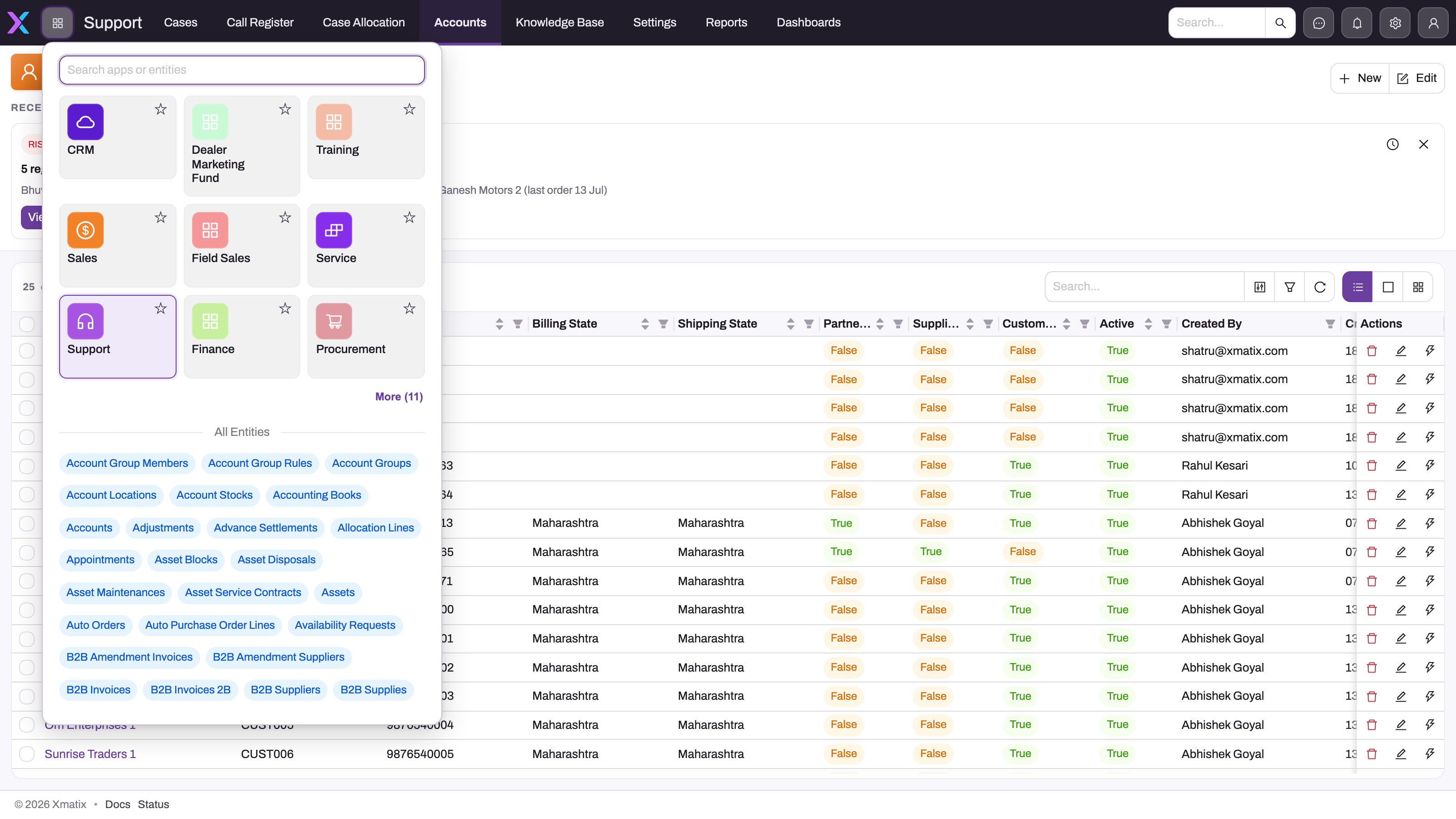
Open the App Launcher from the grid button at the left of the top bar. It lists the apps your profiles let you open and, under All Entities, the record types you can reach directly. Type in the search box to narrow both lists.
- 1
Open the launcher from the grid button in the global header.
- 2
Search narrows both licensed apps and permitted entities for the current account.
- 3
App cards expose the workspaces available to this role; tenants and users can legitimately see different sets.
- 4
All Entities lists the individual record types the account can open even when they are not pinned in an app.
- 5
The actual Account list behind the launcher shows that choosing an entity leads to its saved-view record register.
Step 2 — Pick the guide that matches your work
Compare the apps you see with the Where the work happens column in the table above, and open the guide for your job. If your apps do not match any single guide, pick the guide for the work you do most and use the others as reference.
Step 3 — Ask for anything missing before you start
If the guide names an app, page or action button you cannot see, write down its exact name and ask your administrator for it. Tell them which guide you are following; the Permissions section of that guide lists what the role needs.
The shipped security profiles
A new organization starts with a set of security profiles. Your administrator may use them as they are, clone them, or replace them with profiles named after your own roles. Each profile grants three separate things: access to entities (read, create, update, delete, share, assign, view all, modify all), view access to apps and app pages, and permission to run individual actions.
| Profile | What it grants out of the box | Closest guides |
|---|---|---|
| System Admin | Full access to nearly every entity, view access to every app, including the settings apps, and the widest set of action grants. Its core security capabilities cannot be removed, and the profile cannot be renamed or deleted. Assigned to the mobile app. | Tenant administrator, developer |
| Standard User | Full access to almost every entity, view access to most apps (Sales, Field Sales, CRM, Service, Procurement, Inventory, Finance, Tax Center, Payroll, Data Studio and others) and a broad set of actions, including journal posting and goods receipt. Leads, opportunities, quotes and cases come without View All and Modify All. It is the built-in default for internal users and cannot be renamed or deleted. | Any internal role, until a narrower profile exists |
| Sales Manager | Full access to the sales, field sales, inventory, procurement and finance documents, view-only (Read and View All) access to the commerce records, and view access to Sales, Field Sales, CRM, Rewards, Claims, Commerce, Data Studio, Procurement, Inventory, Finance and several other apps. It cannot run Post or Reverse on a journal. | Sales manager |
| Sales Executive | Full access to most entities, view access to most apps, and a narrower action set than Standard User. For example, it cannot post journals or run Perform Receive on a goods receipt. Leads, opportunities, quotes, accounts and cases come without View All and Modify All. Assigned to the mobile app, with check-in required. | Field sales representative |
| Sales | Full access to about a hundred sales, inventory and item entities, view access to the Sales app only, and one action (Create Credit Note on invoices). Most action buttons are therefore refused. | Starting point for a sales desk profile |
| Service | Full access to the service, asset, case and contract entities and view access to the CRM and Service apps, including the Allocation Console page. It carries no action grants. | Starting point for a technician or dispatcher profile |
| Procurement | Only Accounts and the Generate Template Order action on auto orders. No app is granted. | Starting point only; it needs grants before a buyer can work |
| Parts Manager | Only the statutory statement screens (Form 3CD, MGT-7A, DPT-3, ADT-1) and a few supporting records. Despite its name, it has no warehouse or inventory grants. | None as shipped |
Profiles for external portal users also ship. They are not meant for internal staff.
Two things follow from this table:
- Standard User and Sales Executive are broad. A user who holds either one can read and change most records in the organization. If your roles need to be separated (for example, a buyer who must not post journals), build narrower profiles and stop assigning these two to people in those roles.
- The narrow profiles (Sales, Service, Procurement, Parts Manager) are incomplete. On their own, users see empty apps or buttons that refuse to run. Extend them, or use them only alongside another profile.
Permissions
Each role guide has its own permissions section. The rules that apply to all of them:
- Access is the union of a user's active profiles. There is no deny: to narrow someone's access, move them to a smaller profile.
- An app appears only when a profile grants view access to it, and a page inside an app (a console, a statement, a planner) needs its own page grant.
- New, Edit and Delete follow the entity grant. Every other action button needs its own grant on the profile's Actions tab. System Admin is not exempt from that check; it simply holds the grants.
- Licensing comes first: an app of a product that is not enabled is hidden even when a profile grants it.
See Security profiles and the grant matrix for the full model.
Configuration
This section is for the administrator who sets up access for a role.
Build a profile for a role
- Go to Setup → Access Control → Profiles and open the shipped profile closest to the role (see the table above).
- Select Clone in the page header. Enter a Label (for example "Buyer") and a Name. Under Clone related, keep the collections you want copied: Entity Permissions, Field Permissions, App Permissions, App Page Permissions, Action Permissions, Mobile App Access, Product Entitlements, Feature Entitlements and Capabilities. Then select Clone. User assignments are never copied, so the new profile starts with nobody on it.
- On the new profile, work through the tabs:
- Entity Permissions: remove the entities the role must not touch, and remove View All and Modify All where the role should see only its own records.
- Actions: keep only the actions the role may run, such as posting, releasing or receiving.
- App Permissions: grant the apps named in the role's guide, and the pages (consoles, planners, statements) the role uses.
- Entitlements: grant the products, features and capabilities the role needs. A Setup area stays hidden without its capability.
- Assign the profile to users on their Profile Assignments tab (Setup → Access Control → Users). Remove broader profiles such as Standard User from those users, because access is additive.
- For field roles, open Setup → Design Studio → Apps → Mobile Apps, open the mobile app record, and on its Profiles tab assign the new profile and choose whether its users must check in. See Mobile app configuration.
- Ask a user in the role to sign out and back in, then check the user's Access Diagnostics tab if something is still missing.
A change to a profile reaches every user who holds it straight away, so test on a cloned profile and a test user before you change one that is in use.
Example
A distributor is rolling out xMatix to three teams: four field reps, two buyers and an accountant. The administrator does the following:
- Field reps keep the shipped Sales Executive profile, which is already assigned to the mobile app with check-in required. They read the field sales representative guide.
- For the buyers, the administrator clones Standard User as "Buyer", keeps the Procurement and Inventory apps, removes the Finance, Payroll and Tax Center apps, and removes the journal posting actions. The buyers read the procurement user guide.
- For the accountant, the administrator clones Standard User as "Accountant", keeps the Finance, Tax Center and Fixed Assets apps and the posting actions, and adds the Banking app, which Standard User does not grant. The accountant reads the finance user guide.
- The administrator removes Standard User from the buyers and the accountant, so the narrower profiles actually take effect.
Each person opens the App Launcher on their first day and sees only the apps their guide names.
Training
Practice exercise
In a sandbox, as an administrator:
- Clone Sales Executive as "Practice Rep".
- On the clone's App Permissions tab, remove every app except Sales and Field Sales.
- Create a test user, or use an existing one, and give it only the "Practice Rep" profile.
- Sign in as that user and open the App Launcher.
Expected result: the launcher shows only Sales and Field Sales. The user can still open other record types through All Entities, because the entity grants were not changed. That is the point of the exercise: app visibility and entity access are separate grants.
Quick reference
- Open the App Launcher to see what your account can use.
- Pick the guide whose apps match yours; read Your path in order.
- A missing app or button is an access question for your administrator.
- Access is the union of all your profiles; there is no deny.
- Apps and pages need their own view grants; entity access is not enough.
- New, Edit and Delete follow the entity grant; every other button needs an action grant.
- Standard User and Sales Executive are broad; build narrower profiles to separate duties.
- Clone a profile to start a new role; user assignments are not copied.
Common problems
"The guide talks about an app I don't have"
Cause: none of your profiles grants view access to that app, or your organization has not enabled the product that owns it. Fix: ask your administrator to grant the app on your profile's App Permissions tab, or to check licensing. Why can't a user see something? walks through the checks in order.
"I can see the app, but a button is missing or refuses to run"
Cause: the action needs its own grant. The narrow shipped profiles (Sales, Service, Procurement) carry almost no action grants. Fix: ask your administrator to allow that action on your profile's Actions tab, and give them the button's exact label.
"I can see everyone's records, not just mine"
Cause: you hold a profile with View All on that entity. Standard User, Sales Executive and Sales Manager have it on most documents. Fix: this is a configuration choice. If the role should see only its own records, the administrator removes View All and Modify All from the role's profile, and record-level security then applies.
"We gave a user a narrow profile, but nothing changed"
Cause: the user still holds a broader profile, such as Standard User, and access is the union of all profiles. Fix: remove the broader profile from the user's Profile Assignments tab.
"A field user can't use the mobile app"
Cause: the mobile app record is assigned only to the profiles on its Profiles tab. As shipped, that is Sales Executive and System Admin. Fix: assign the user's profile to the mobile app in Setup → Design Studio → Apps → Mobile Apps.
Common questions
Which guide should I read if I do two jobs?
Read both. The guides are reading lists, not separate products, and many pages appear in more than one of them. Start with the guide for the work you do most, then skim the second guide's Your path and read only the pages you have not seen yet. Your administrator can give you the access for both roles at once, because a user can hold several profiles and their grants add together.
Why does a colleague in the same role see different apps?
Access comes from the profiles each person holds, not from their job title. Two people in the same role can hold different profiles, or one of them can hold an extra profile from an earlier job. Both of you can open the App Launcher and compare. If the difference is not intended, ask your administrator to compare your Profile Assignments.
Are the shipped profiles meant to be used as they are?
They are starting points. System Admin is for administrators. Standard User and Sales Executive give broad access that suits a small team where everyone does a bit of everything. The narrower profiles (Sales, Service, Procurement, Parts Manager) need extra grants before anyone can work with them alone. Most organizations clone the closest profile for each role and adjust it.
Do the guides change when my organization customizes xMatix?
The guides describe the standard product. If your organization has renamed apps, added fields or changed forms, the names on your screen can differ from the guide. The steps and the rules behind them stay the same. Your administrator can tell you which custom screens replace the standard ones.
Related topics
- Getting started with xMatix: signing in, navigation and mobile setup.
- xMatix platform concepts: the ideas underneath every product.
- The security model: how profiles, record security and licensing fit together.
- Security profiles and the grant matrix: every grant a profile can carry.
- Record-level security and sharing: which records a user sees.
- Licensing: products, features and seats.
- Invite a user: creating an account and assigning profiles.
- Why can't a user see something?: the access checklist.