
This guide is for the person who decides who goes where. Your xMatix day is the allocation console: incoming work on one side, resources and their calendars on the other, and your job is matching them — by skill, by capacity, by location — while keeping promises the business already made. When routing runs itself, you handle the exceptions.
Where you work
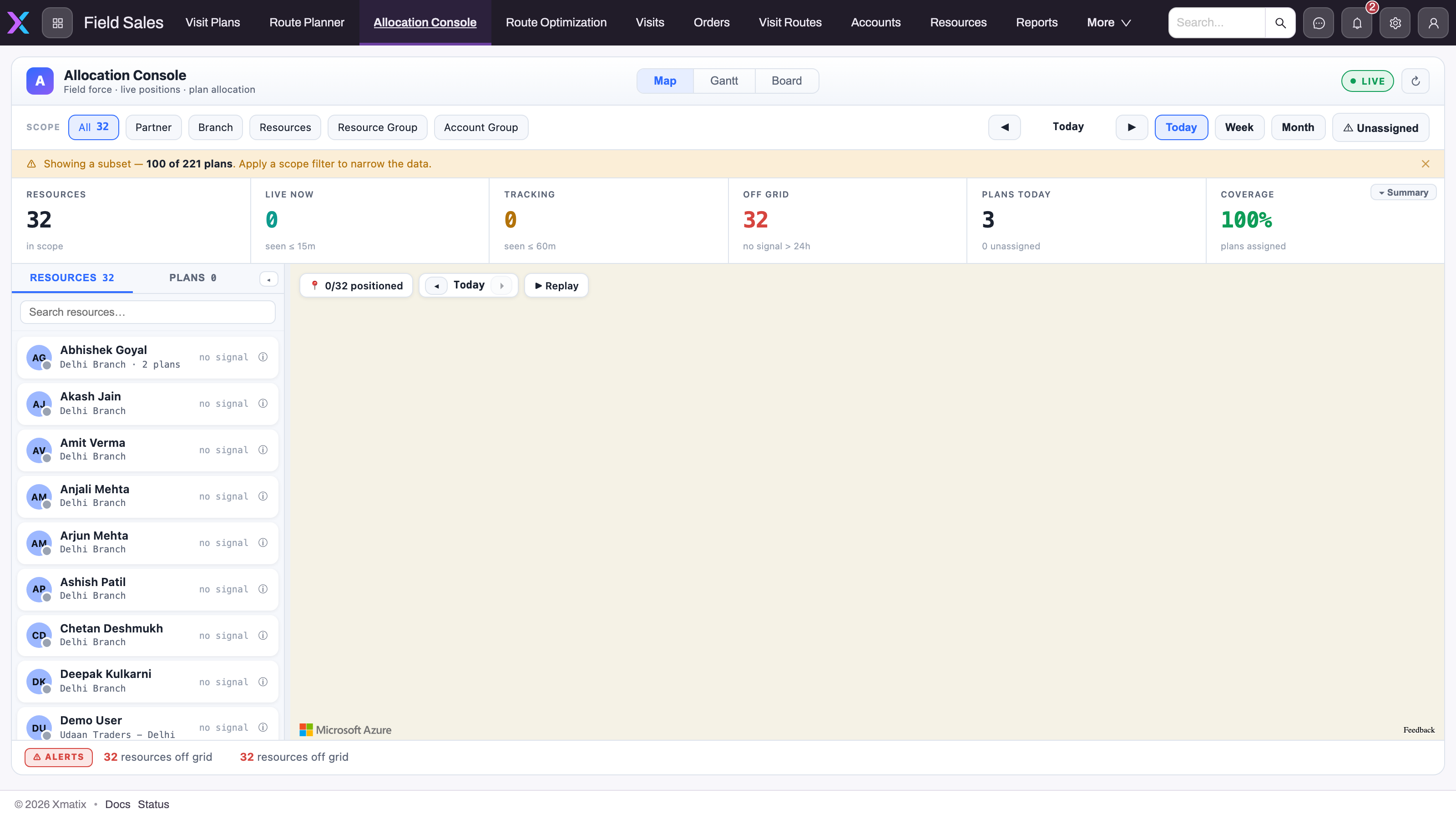
The Allocation Console is an app page your administrator places in an app and points at one kind of work record — visit plans, cases, service orders or another entity — so the bar it sits on depends on your tenant. In the field-sales configuration shown below it lives in the Field Sales app beside Visit Plans, Route Planner, Route Optimization, Visits, Orders, Visit Routes, Accounts and Resources; a service configuration places it in the Service app next to Service Orders. Whichever app hosts it, the console has the same parts: a Map / Gantt / Board toggle, scope chips, a Today / Week / Month horizon with an Unassigned filter, a health strip, a resource pane and the live map. Everything it does is deterministic — drags write assignments, drops write schedule times, Optimize day fills free slots by fixed rules — and nothing is placed by AI.
- 1
Map, Gantt and Board are three views of the same allocation problem — where, when and who-does-what. Drags on the Board and Gantt write real assignments and schedule times.
- 2
Scope chips — All, Partner, Branch, Resources, Resource Group, Account Group — decide whose work and whose calendars the console shows. Set scope first; an empty board is usually the wrong scope or date.
- 3
Today, Week and Month choose the horizon; Unassigned isolates work that routing and assignment rules did not place.
- 4
The health strip counts resources in scope, live and tracked devices, resources off grid, today's plans with the unassigned remainder, and coverage — the dispatcher's morning exceptions list.
- 5
The resource pane lists each resource with branch, plan count and signal state; Plans switches the pane to the work side, and search finds one person quickly.
- 6
The console caps what it loads — here 100 of 221 plans — and says so; narrow the scope rather than assuming the missing plans do not exist.
Read the console in this order: scope, then horizon, then the health strip. Resources, Live now, Tracking, Off grid, Plans today (with the unassigned remainder) and Coverage are the morning's exceptions list; a console that looks empty is more often scoped to the wrong branch or date than genuinely idle, and the console tells you when it has capped what it loaded. Only then move work — on the Board for who-does-what, on the Gantt for when, on the Map for where.
The work itself is created and executed in the Service module: the service order is the job card, time sheets record the labour, checklists the inspection, and the technician's day runs on mobile. Field Service is the allocation layer on top — it decides who and when, then follows the resource through the day.
Access you need
Two grants make a dispatcher. First, the console page itself: app pages are allowlisted per security profile, so your profile must hold view access to the hosting app and to the Allocation Console page. Second, the work entity: placing a job is an update to the record (and often a change of owner), so you need Update — and Assign where ownership moves — on visit plans, service orders or cases, with View All if you dispatch work you do not own. There is no shipped dispatcher profile. The broad shipped profiles (Standard User, Sales Executive, Sales Manager) carry visit plans and service orders in full but cases without View All, and the page grants differ: Standard User and the shipped Service profile include the Allocation Console page, while Sales Executive and Sales Manager include Route Planner. Your administrator usually builds a dispatcher profile from one of them (how). Live positions on the Map appear only where your organization has enabled location tracking on the mobile app, and the travelled path is subject to the same setting. If the page or an entity is missing from your navigation, start with Troubleshooting: a user can't see something.
Your path
- xMatix Field Service — the product overview; where Field Service ends and Service begins.
- The dispatch console — your home screen: scoping, the Board, the Gantt, Optimize day and the Map.
- Skills, capacity and work routing — the eligibility ladder and routing models that place queued work on their own.
- Automatic owner assignment — the rules that assign owners before you ever see the job.
- Resource availability and slot holds — dated availability, branch-slot booking, holds, and why a technician still shows on the Gantt.
- The service order lifecycle — the record every dispatched service job lives on: lines, status and the Work Completed gate.
- The technician's day — what your decisions look like from the van, and which actions need a live connection.
- Location and the travelled path — seeing where the team actually went.
- The supervisor console — live oversight of your team's calls, where telephony is in use.
Day to day
The morning starts on the console: overnight work has been placed by routing and assignment rules, so your first pass is the exceptions — the unassigned, the overbooked, the job whose slot no longer holds against availability. Through the day you rebalance as reality drifts: a job overruns (the time sheet shows work paused or still open), a technician calls in sick, an urgent ticket jumps the queue. A service order that cannot be completed usually names its own reason — Troubleshooting service lists the refusals — and the travelled path tells you how the field is really doing, not just what the board says.
Common questions
A job didn't get assigned automatically — why?
Usually no resource passed the ladder: not in the queue's resource group, not linked to a user, not marked available, no matching skill name, or no capacity left. Check the job against skills and routing and the assignment rules in force; Troubleshooting field service lists the frequent causes.
Can two jobs end up in the same slot?
Where the booking path uses holds, a hold reserves the slot from the moment it is offered; not every channel uses holds, and the console's drags do not check them. Resource availability and slot holds explains which paths do what.
Why is a technician on leave still shown on the Gantt?
Because the console shows the resource and marks availability separately — and the resolver treats any leave row not Rejected or Cancelled as leave, while half-day and absent values are not excluded the same way. Read the markers before dragging; The dispatch console spells out the current behaviour.
Can I see where a technician is right now?
You can see the last known position and the travelled path, subject to what your organization has enabled — the Map's Live now and Off grid counters tell you how much of the fleet is actually reporting. Location and the travelled path covers what's captured and who can see it.
Related topics
- Field service configuration reference — resources, skills, resource groups and the console page settings.
- Service checklists — what the technician fills in on site.
- Dashboards in xMatix — tracking first-time-fix, utilization and backlog.
- Role guide: field service technician — the day you're scheduling.