
This guide is for the person on the warehouse floor. Your xMatix day is physical stock and the documents that move it: trucks to receive in the morning, pick lists against the day's orders, delivery orders out the gate, counts to keep the system honest, and transfers when another branch needs what you have.
Where you work
Open the Warehouse app from the App Launcher — it sits behind More when it is not pinned. Its bar carries the four operational documents, Fulfilment Orders, Delivery Orders, Transfers and Cycle Counts, plus Items, Branches, Reports, Dashboards and Settings. Two things you use are deliberately elsewhere: goods receipts live in the Procurement app, because they are released from purchase orders, and storage locations and lot types live in the Warehouse Settings app, reachable through the launcher's entity search. The flow is lean by design — goods are received straight into the storage location named on each receipt line (no separate putaway document), and dispatch goes straight from picked lines to a delivery order (no packing document) — so the steps you perform are exactly the ones that change stock truth: receive, allocate, pick, deliver, count.
- 1
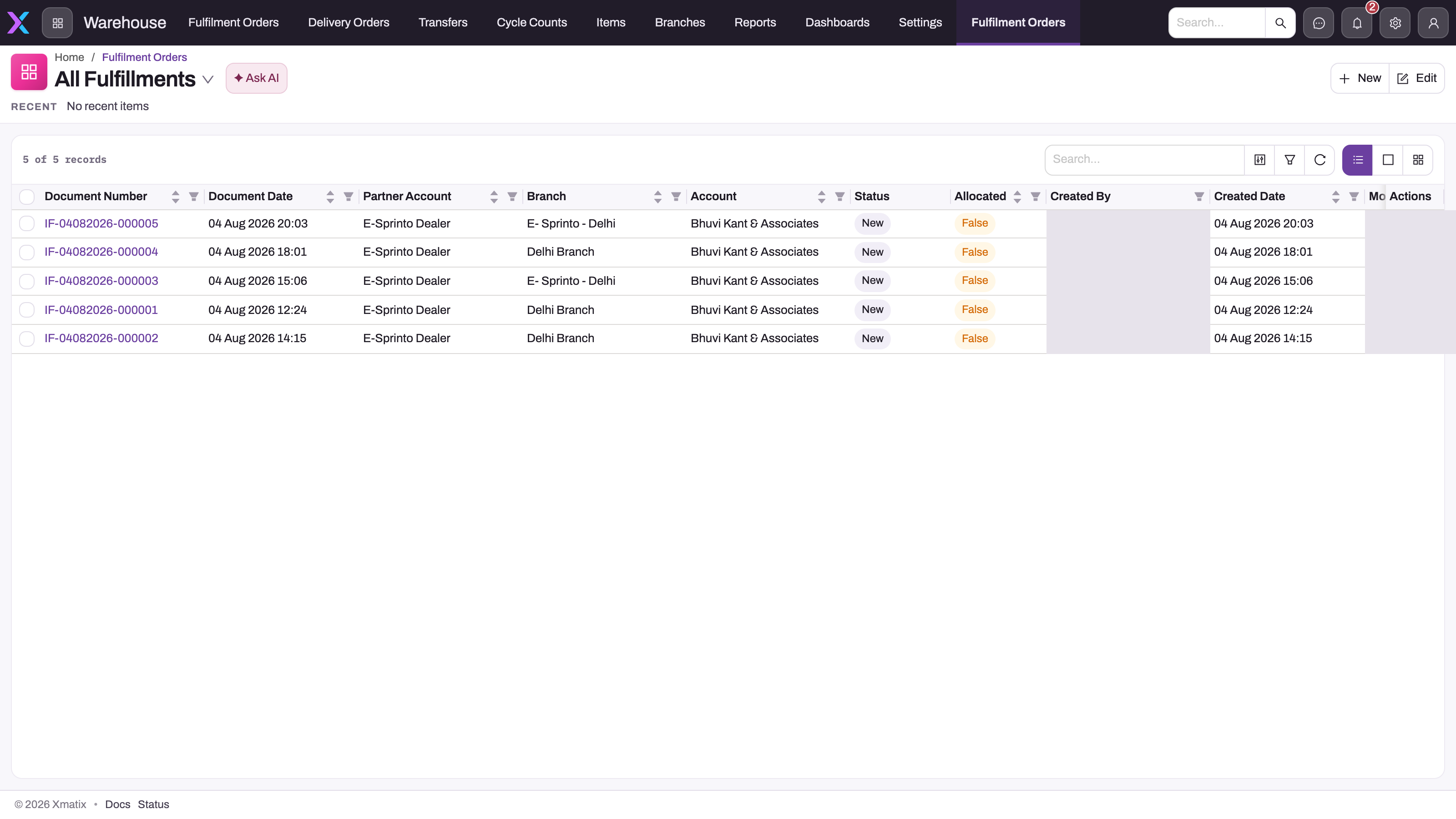
The Warehouse bar carries the four operational documents — Fulfilment Orders, Delivery Orders, Transfers, Cycle Counts — plus Items and Branches. Goods receipts live in Procurement, storage locations in Warehouse Settings.
- 2
All Fulfillments is the active saved view; confirm the view before treating a released order as missing.
- 3
Partner Account and Branch say whose stock moves from where; Account is the customer the order is for.
- 4
Status and Allocated show how far each document has gone; user columns are hidden in this capture.
- 5
Search, column filters and refresh narrow the queue by branch, source or state before you open a row and work its lines.
The All Fulfillments list is the outbound work queue and the natural landing page. Each row is one fulfilment document released from a sales or service order: partner account and branch say whose stock moves from where, the customer account says for whom, and Status with Allocated say how far it has gone — a row that is New with Allocated = False is work nobody has started. Filter by branch or status, open the document, and work its allocation, picking and delivery lines in order; do not create a fulfilment by hand to force stock out when the source order cannot be found.
Access you need
Warehouse work is governed by ordinary security profiles, and the actions are the sensitive part: allocate, perform picking, confirm picking, picked delivery, the delivery order's release shipment and create invoice, the cycle count's start, finish and variance release, and the goods receipt's perform receive are each an entity action a profile can allow or withhold, so an operator can be allowed to pick without being allowed to release the delivery, or to count without being allowed to post the variance. A working operator profile needs read on Items, Branches and Storage Locations; read, create and update on Inventory Fulfilment (with its order, allocation and picking lines), Delivery Order, Transfer and Cycle Count; read and update on Goods Receipt if you receive; and the specific actions above. Every posting writes the inventory ledger, and a closed inventory period refuses postings regardless of permission. xMatix ships a Parts Manager profile, but despite its name it carries no warehouse or inventory grants (only the statutory statement screens). The broad Standard User and Sales Executive profiles do carry the warehouse documents, but Sales Executive cannot run Perform Receive. Your administrator builds the operator profile (how); if a document or button is missing, start with Troubleshooting: a user can't see something.
Your path
- xMatix Warehouse — the product overview; the documents your day runs on and where Warehouse ends and Inventory begins.
- Storage locations and vans — the map of your warehouse: branch, type, hierarchy, and the vehicle attributes that make a location a van.
- Receiving into the warehouse — inbound stock, from the procurement goods receipt to the shelf.
- Fulfilment picking — allocate, perform and confirm picking, release the delivery, and undo in the right order.
- Delivery orders and dispatch — the delivery checklist, transport details, releasing the shipment, creating the invoice.
- Cycle counting — scope a count, start it (optionally locking the counted stock), record quantities, finish, release the variance as an adjustment.
- Branch transfers: the warehouse view — outward release, in-transit and inward receive, and what each means for the bins at both ends.
- The inventory ledger — why every action you run leaves a posted entry, and how to read the balance it produces.
Day to day
The day usually opens inbound: receive the morning's deliveries into their locations — the buyer's goods receipt is the document you complete. Then outbound takes over — work the fulfilment documents, stage the stock, and close each delivery order as the vehicle leaves. In the gaps, the cycle count schedule tells you which bins to count today, and any branch transfer in either direction gets released or received like any other movement. Lot-tracked items carry their lot through every step. Every one of these actions posts to the ledger — nothing moves off the books, and a correction is a new entry, never an edit.
Common questions
The system says we have stock I can't find — what now?
Trace it first, then correct it: the inventory ledger shows every movement that produced the number, and if the shelf is right and the system wrong, an adjustment — or a targeted cycle count that releases its variance as one — puts it straight. Troubleshooting inventory is the method.
I'm receiving against a purchase order — is that different?
The floor work is the same, but the receipt is matched to the purchase order line by line and Perform Receive is what posts the stock — Receive goods against a purchase order covers the three quantities on a line and short or excess delivery; Receiving into the warehouse covers what the warehouse controls on it.
A receipt, pick or dispatch won't post?
The action tells you why in its own words — "no pending picking quantities", "cannot create delivery for picking lines that are not confirmed", "no branch found for account" — and Troubleshooting warehouse operations translates each message into the step you skipped or the document that is in the wrong state.
Related topics
- xMatix Inventory — the stock ledger and rules underneath every warehouse document.
- Transferring stock between branches — the transfer document end to end.
- Picking and fulfilment — the sales-order side of what you pick.
- Item lots and lot types — when stock is tracked lot by lot.
- Warehouse configuration reference — locations, lot types, numbering, delivery checklist templates and the van capacity check.