
This guide is for the person handed the requests configuration can't satisfy. Your xMatix work lives at the top of the customization ladder: expressions and business rules where declarative tools still reach, scripts and workflows where they don't, and the developer surface — data API, MCP endpoint, CLI — when xMatix has to talk to the rest of the stack.
Where you work
Almost everything you build is authored inside Setup, in two studios:
| Setup area | What you do there |
|---|---|
| Design Studio → Entities | The data model: entities, fields, relations, record types, views, actions and layouts — the contract every script, rule, API call and MCP tool runs against |
| Process Studio → Business Rules | Declarative save-time logic: conditions, set-value and validation actions, ordered and prioritized per entity |
| Process Studio → Scripts | Automation scripts: C# lifecycle hooks and server actions, each with versions and an active version |
| Process Studio → UI Components | Custom components when the standard widgets cannot express the experience |
| Process Studio → Workflows | Long-running, multi-step orchestration in the visual designer |
| Process Studio → Approvals | Approval processes and their steps |
| Platform → Integrations / Sync Profiles | Connected systems and the sync engine's profiles |
| Platform → Monitoring | Jobs, Tracing, Audit Trail, Message Log and the Sync Monitor — where you read what your logic actually did |
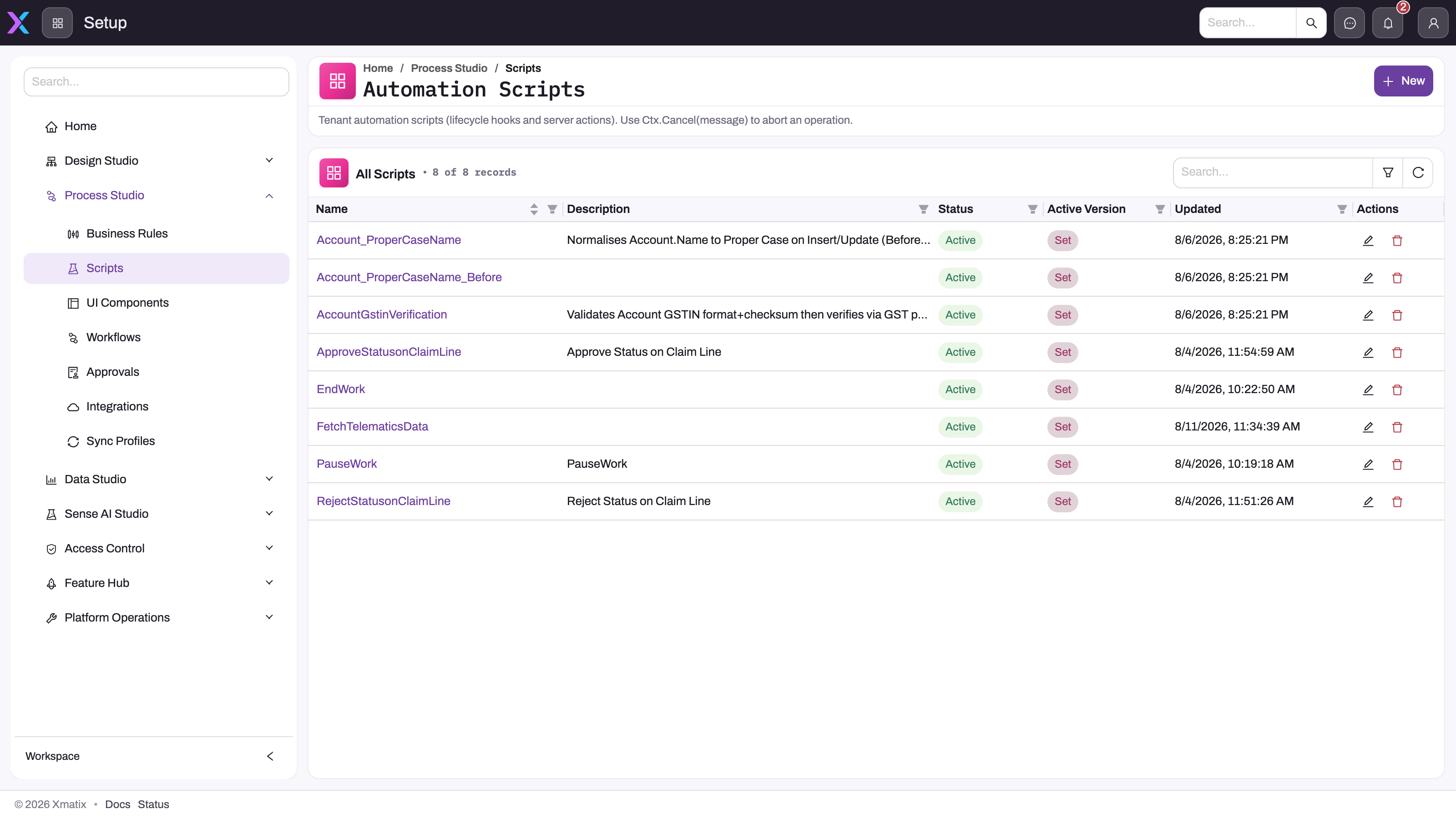
- 1
Process Studio groups the extension mechanisms by intent: Business Rules, Scripts, UI Components, Workflows, Approvals, Integrations and Sync Profiles — pick the lowest rung that solves the request.
- 2
Automation Scripts are C# lifecycle hooks and server actions; the page description reminds you that Ctx.Cancel(message) is how a script aborts an operation.
- 3
Status and Active Version decide whether a script runs at all: it must be Active and have a version set active. Updated shows when the definition last changed.
- 4
Search, filter and refresh the register before adding anything — a script with the same purpose may already exist under another name.
- 5
New creates a script definition; open it afterwards to write and activate a version.
The Scripts page is the register of every automation script in the tenant. Each row carries a name, a description, a lifecycle Status and an Active Version — a script only executes when it is active and a version has been set active, which is why the two columns sit side by side. Before you create anything here, prove that a business rule or workflow cannot meet the requirement; when code is warranted, describe it precisely, version changes deliberately and keep the active version traceable to reviewed source.
Outside Setup, the developer surface is the same platform reached from your own tools: the data API (REST over every entity, invoking the same actions and firing the same automation as the UI), the MCP endpoint (the platform's tools exposed to AI clients) and the CLI (a git-friendly round trip of scripts, rules, workflows, dashboards and metadata). None of them grants more than the signed-in user is permitted.
Access you need
Setup areas are gated by named capabilities, granted per security profile on the profile's Entitlements tab (Setup → Access Control → Profiles). The seeded SystemAdmin profile holds the whole catalog; a dedicated developer profile needs the keys for the areas it works in:
| Area | Capability key |
|---|---|
| Design Studio → Entities, Localization | setup.metadata.model.manage |
| Apps, app pages, mobile app | setup.metadata.apps.manage |
| Business Rules | setup.automation.businessrules.manage |
| Scripts | setup.automation.scripts.manage |
| Workflows | setup.automation.workflows.manage |
| UI Components | setup.automation.customcomponents.manage |
| Approvals | setup.metadata.approval.manage |
| Integrations, Sync Profiles, Sync Monitor | setup.integration.manage |
| Jobs, Tracing | setup.diagnostics.jobs.view, setup.diagnostics.tracing.view |
| Data Import, Data Export | setup.data.import.manage, setup.data.export.manage |
A capability belongs to a feature, so the profile must hold the owning feature too, and a Setup entry simply disappears from navigation when its capability is missing. Capabilities do not replace entity grants: to read or write the records your script or API call touches, the identity you test with still needs the ordinary profile grants on those entities, and API, MCP and CLI calls inherit exactly that identity's rights. The developer surface has no separate license; it follows the products your organization has licensed.
Your path
- The customization ladder — where code sits, and why it's the last resort, not the first.
- What runs when you save a record — the execution pipeline your logic plugs into; read this before writing any of it.
- The data model — entities, fields, relations and record types: the schema everything targets.
- Expressions: formulas and query filters — the shared expression language used across rules, filters and formulas.
- Business rules: automating the save — declarative save-time logic; exhaust this before scripting.
- Your first automation script — the script runtime, from zero to a working handler.
- Build a workflow in the visual designer — long-running, multi-step orchestration beyond a single save.
- xMatix developer documentation — the section index for the data API, the MCP endpoint and the CLI; several pages there (the CLI set among them) are in preview, so start from the index.
- The xMatix data API — programmatic access to records from outside the platform.
- The MCP endpoint — exposing your tenant's data and actions to AI tooling.
Day to day
Real developer work here starts with placement, not code: given a request, the ladder and the execution order decide whether it's an expression, a business rule, a script or a workflow — and everything you build runs inside that same save pipeline, so debugging means reading it. When a module team reports that an action refuses — a fulfilment that won't allocate, a service order that won't complete, a bill the match blocks — the module troubleshooting pages (sales, service, procurement, warehouse, inventory, support, payroll) list the built-in refusals, so you can tell a product guard rail from your own rule before opening a script. Integration work moves you to the developer section: the data API for records in and out, the MCP endpoint for AI tooling, and the CLI — documented in preview from the section index — for scripting the platform itself.
Common questions
Business rule, script or workflow — how do I choose?
By reach, then by lifetime: if declarative business rules can express it, stop there; a single-save behavior beyond them is a script; anything long-running or multi-step is a workflow. The customization ladder is the fuller decision guide.
Something fires on save and I don't know what — how do I debug it?
Read the pipeline in order — What runs when you save a record lists every stage (validations, rules, scripts, workflows) in the sequence they execute, which is usually enough to name the culprit. Then check the Business Rules register for overlapping enabled rules on the entity, and the Scripts register for an active version you did not expect.
I can see Process Studio but not the Scripts entry — why?
Your profile lacks setup.automation.scripts.manage, or holds it without the owning feature; Setup hides entries the API would refuse. Ask an administrator to grant the capability on the profile's Entitlements tab, then refresh your session.
How do I move what I build between environments?
With the CLI's metadata tooling — the CLI docs are in preview, so start from the developer section index for the current state of workspaces, seed-packs and CI recipes.
Related topics
- Entity behavior — views, validations, actions and mappings on an entity.
- Outbound integration — how data leaves xMatix, webhook by webhook.
- Extending Sense with your own capabilities — teaching the platform's AI your custom operations.
- Troubleshooting the developer surface — sign-in, workspace, push and API symptoms.
- Role guide: tenant administrator — the other half of the customization conversation.