
Read the entity Execution Plan
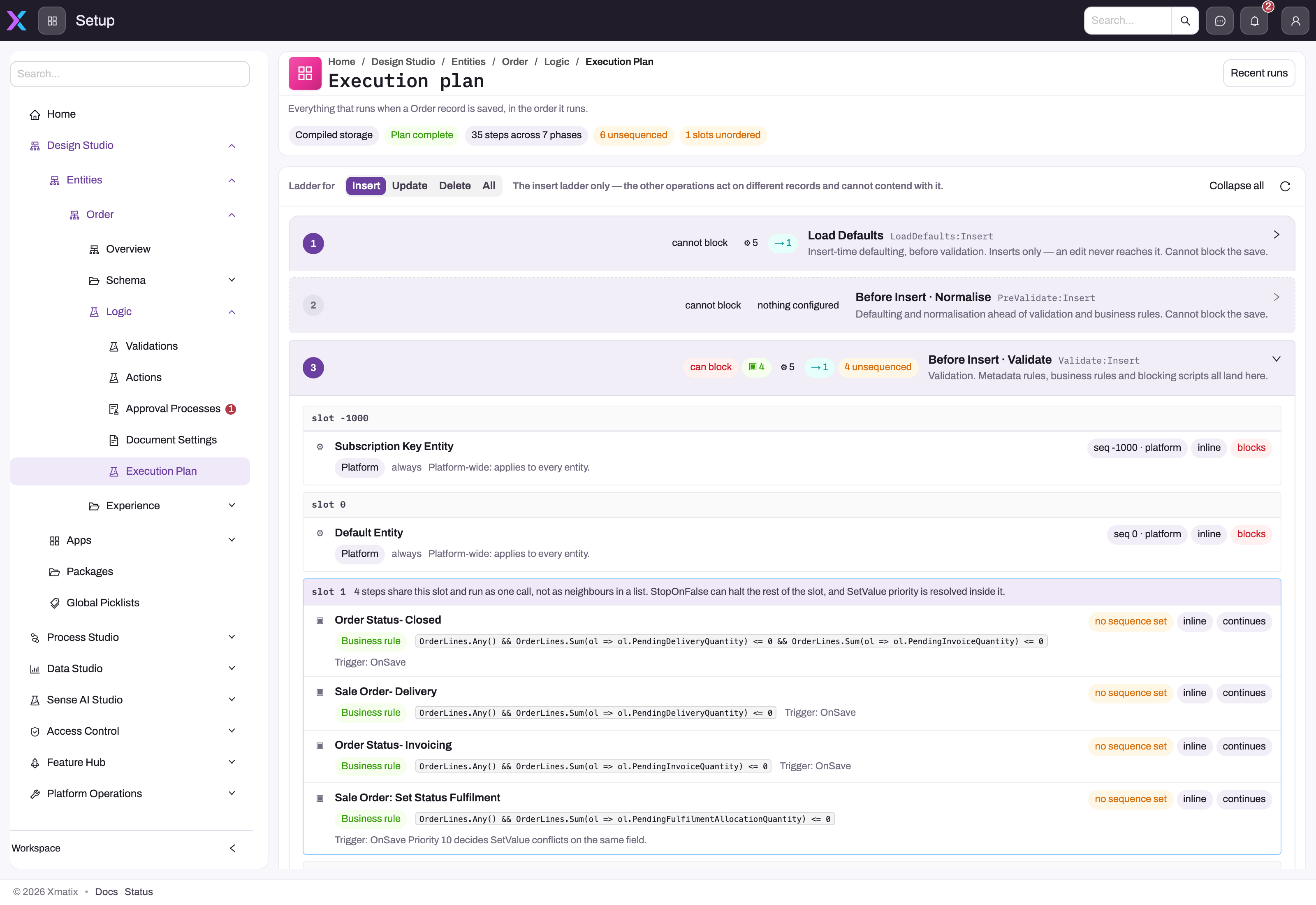
- 1
Storage kind, Plan complete, step and phase counts, and the unsequenced / unordered warnings tell you whether the ladder can be trusted as exhaustive before you read it.
- 2
Ladder for Insert, Update, Delete or All — diagnose one operation at a time; the other operations act on different records and cannot contend with it.
- 3
Each numbered phase states whether it can block the save and how many steps it holds; Before Insert · Validate is where metadata rules, business rules and blocking scripts land.
- 4
A sequence slot is the cross-surface ordering unit — the four business rules in slot 1 run as one engine call, where StopOnFalse and SetValue priority are resolved together.
- 5
Per-step badges show the sequence origin (no sequence set = the surface's default slot), whether it runs inline, and whether a failure blocks or continues.
- 6
Recent runs shows what actually executed on real saves; the plan shows what is configured to run.
The Execution Plan (Setup → Design Studio → Entities → the entity → Logic → Execution Plan) is the implementation-backed answer to “what runs when this record is saved?” The example shows the Order entity with the Insert ladder selected. The header sums up your own configuration in one line — for example 12 of your steps across 5 phases · 31 platform — and, when something needs it, offers N need attention: select it to show only the steps whose order is not what it looks like (a slot with no defined order, async and inline steps interleaved, or a sequence the run time ignores). A Plan incomplete tag appears when a source could not be read, and Custom storage when the entity is stored without EF. Each numbered phase places business rules, workflows and scripts on the sequence slots they occupy.
The ladder shows your steps by default. The platform's own handlers, integration events and saved triggers are folded into one line per phase — + 9 platform steps — and Platform steps in the ladder's header shows them. Steps are tagged only when something is unusual: async, blocks (a failure aborts the save), or no sequence set. All details brings back every badge on every row — sequence origin, inline, continues, timeouts and notes. Both switches are remembered in your browser.
Always choose the operation you are diagnosing — Insert, Update or Delete — before reading the ladder. Expand the affected phase, inspect every step in its slot, and treat warning badges as part of the contract. Recent runs answers what happened on actual saves; the plan answers what is configured to happen.
How it works? (top right) opens the screen's own guide: what each phase does, how to read the ladder, what runs where, ordering, Recent runs, the dry run, and step-by-step scenarios such as My rule did not fire. A small ? beside the things people misread — the async line, a dry-run verdict, Outside the save — opens it at the part that explains them.
Your own steps link to where they are edited — a business rule to its editor, a script to the script, a workflow to the designer. The other way round, under the Sequence of a saved business rule or script binding, the editor says where the step lands for the number you type — for example Lands in Validate · Update, slot 10 000 — after 3 steps, before 2 steps — with See where it runs on the Execution Plan and Dry run with a record. Search steps narrows the ladder to the steps whose name, condition or configuration mentions what you type, and All kinds to the kinds you pick — business rules, scripts, workflows, platform steps, saved triggers, integration events. Picking Platform shows platform steps even while they are folded.
Some platform steps apply your configuration for this entity, and they stay on the ladder even when platform steps are folded. N configured under such a step lists what it applies, in the order it applies it: the platform default handler's default value formulae, field mappings, assignment rules and document-number series in Load Defaults; calculated fields, required and unique fields and validation rules in Validate; and the document number itself in Before Save. The approval auto-submit handler lists the approval processes that submit on their own, and the assignment handler the assignment rules it runs. The integration hub's entity-event step lists the integration flows a save of this kind starts (a flow with a record filter never starts on delete, so it is not listed there), and the scorecard step lists the templates a new record can get its scorecard from — highest priority first; a record gets one scorecard, from the highest-priority template whose condition it meets.
Outside the save, below the ladder, lists work a save does not run inline: rules run when an approval decision is made, rules the hourly sweep evaluates (OnSchedule), delayed runs, and the scheduled Data rules and Archive rules of the entity. A Data rule changes the records its filter selects through the normal save, so the ladder runs for each of them; an Archive rule retires old records directly in the database, so nothing on the ladder runs for them. A delayed rule appears in the ladder only under After commit, as the booking of its run — the save itself never runs it; its condition is checked again and its actions run when it is due.
Which writes follow the plan
The plan describes saves made from the screens, the API (single, bulk and composite), entity actions, data import, the mobile app, background jobs and the record steps of scripts and workflows. A few writes skip all or part of it — Not every write runs it, in the header, opens the full table in How it works?:
- Integration flow record writes and Sense AI / agent writes run validation, business rules (including their Create record and Create activity actions) and the platform's handlers, but not automation scripts or workflows.
- Restoring a custom-storage record from the recycle bin runs only its after-save steps.
- Deleting a record with custom-storage child records runs the parent's delete ladder, not the children's.
- Integration bulk sync (bulk merge) and archive rules write or delete rows directly in the database: nothing on the ladder runs for those rows.
- Fields the platform keeps itself — an activity's reminder-sent time, a fiscal day's status, received and pending quantities on purchase order lines, an appointment slot's booked flag, amounts in words, a resource's last known location — change without a save, so a rule watching them does not fire.
xMatix does not run each customization surface as one isolated global stage. It uses shared lifecycle phases, and the configured steps from several surfaces can appear together inside a phase. The Execution Plan is therefore more reliable than a memorized rule such as “all business rules run before all scripts.”
The lifecycle phases
| Phase | Purpose | Can it prevent the operation? |
|---|---|---|
| Load Defaults | Insert-only audit stamps, defaults, numbering and other initial values | No; it prepares a new row before validation |
| PreValidate | Insert/update normalization that must happen before metadata validation | No; failures are treated as non-blocking by this phase |
| Validate | Metadata validation, blocking business rules, validation scripts and workflow steps mapped to validation | Yes |
| Before Save | In-transaction work immediately before an insert or update is written | Yes |
| Before Delete | Delete-specific in-transaction checks and effects | Yes |
| After Save | Work after the row is written while the enclosing transaction may still be open | Yes; a propagated failure can still roll back the save |
| After Delete | Delete-specific post-write work while the transaction may still be open | Yes for the same transactional reason |
| PostCommit | Saved triggers, post-save rule actions and deferred workflow/integration work after commit | No; the record is already committed |
| OnFailure | Compensation and failure observers when the save itself failed | It reacts to the failure rather than deciding the original save |
Not every operation uses every phase. Load Defaults is insert-only; delete uses its delete-specific phases; PostCommit runs only after a successful commit; OnFailure appears only on failure.
Sequence slots are shared within a phase
Within one phase, steps are ordered on a shared numeric sequence line. An explicitly sequenced script, workflow or other supported step can therefore be placed relative to a step from another surface in that same phase. A sequence does not move work into a different phase: a Validate step cannot be sequenced into PostCommit.
Three details matter:
- Unsequenced means the artifact uses its surface's default slot. Make the sequence explicit when another step must reliably run before or after it.
- Shared slot means multiple steps have the same effective sequence. Some, such as business rules sharing a slot, deliberately run as one engine call so
StopOnFalseand SetValue priority can be resolved together. Other slots may be marked unordered, meaning their relative order is not defined. - Sequence not enforced means the plan can display the requested position but the current runtime path does not honor it. Business rules are enforced at their sequence wherever saves run through the lifecycle executor, which is the default; the badge appears only when an operator has switched back to the legacy rule loop. Treat it as a release blocker for any dependency on the shown order.
Business-rule Sequence positions a rule's slot on this cross-surface line where runtime support is active. Rules within the same slot are evaluated together; their Order supplies the intra-slot order and Priority resolves competing SetValue actions on the same field. Those fields are not interchangeable.
Platform logic, workflows, approvals and scripts
First-party module behavior is represented as platform or C# handler steps in the same phases. This is where sales, inventory, finance and other feature validation or derivation appears; it is not a single opaque “module logic after rules” stage.
Workflows and automation scripts are mapped to the phase configured for their binding. A validation-phase step can block; a PostCommit continuation cannot undo the committed row. Asynchronous steps can finish later, so never make the next synchronous save step depend on their completion.
Approval is not an automatic universal phase that every eligible save enters. A record reaches approval only through a configured entry point—for example a Request Approval rule action, an explicit record action, a workflow or feature-specific handler. Inspect that entry artifact and the entity's Approval Processes alongside the Execution Plan.
See what an action adds to the ladder
An entity action — Submit, Approve, a conversion — runs its own work between Validate and Before Save of the update it makes: first the action's predefined values, then every server-action handler and automation script that claims the action. Select the Update ladder and choose the action in With an action…: an Action phase appears in that position, listing the predefined values and each handler or script in the order they run. An asynchronous action is marked: in a real run its handlers run on the worker after the save commits.
Dry-run a save before you change anything
Dry run (top right of the Execution Plan) simulates one save through the real lifecycle and rolls it back. Choose what to simulate:
- A new record — the entity's own Create form opens; fill it in as you would and select Dry run.
- An existing record — pick it, then re-save it as it is, change fields first, or simulate deleting it.
- An action on a record — pick the record and the action; the action's own form opens with its predefined values filled in.
The result starts with the verdict — Would save, Would be blocked (with the reasons and messages the user would see), Would fail, Stopped as asked or Inconclusive — and always says Nothing was saved. Below it:
Below the verdict, one tab per question:
- What happened — Steps that ran: each step in order, how long it took and how many fields it changed. Expand a step to see Changed by this step (before and after), and for business rules a row per rule: whether it matched, its condition, the value of each field the condition read (with the earlier value when this save changed it), and what each of its actions did. Platform steps that did nothing worth reading fold into a count; Platform steps shows them. Switch to On the plan to see the ladder you were reading with what happened on every row — ran, skipped, failed, would run, not reached or not seen — and a business rule's own verdict: matched, not matched, skipped, error, not evaluated or blocked. Rows the save never reached are listed under it.
- Record — the record as it was stored, as you submitted it, and as each stage left it (Load Defaults, Validate, Before Save, After Save, and Action handlers for an action), one column per point, with Written by naming the step that last wrote each changed field (Your input, Predefined value, or the rule, script or handler; hover for every writer). Changed values are highlighted; hover one for what it was before. Switches show unchanged and system fields. Other records the save touched, such as lines, are listed below.
- Rules — every business rule the save reached, in one table: where it ran, whether it matched, the values it read, and what it did. For a condition joined with
&&or||, each part is shown with its own true or false, so you can see which part decided it. - Action — for an action: its predefined values and each handler, with what each changed.
- After commit — what a real commit would start (saved triggers, OnSavedChanges rules with which would match and what they would do, workflows, asynchronous scripts, jobs), what was held back (email, notifications, outbound calls, history), and the document numbers the save would take. Saved triggers that can describe themselves say what they would do for this record — KPI accrual (which measures, and whether the fields they read changed), record-change emails (how many followers and collaborators would hear), agent workflows (which would start), Sense nudges (whether a recompute would be queued), security assignment (whose profiles and teams would be re-evaluated, and why); the others are named only. When an OnSavedChanges rule would trigger an entity action, the dry run follows it: the action runs too, inside the same rolled-back transaction, and the rule's line lists whether it would succeed or be refused (and why), the fields it would change, what it would hold back, and its own after-commit work — where a rule triggers another action, that one is followed as well, two actions deep. An action that a real save would queue in the background is run at once, and says so.
Download JSON saves the whole result as a file, and Copy JSON puts it on the clipboard — useful for attaching to a support request. To see what a change did, run again: the result gains a Compared tab with the previous run — the verdict, the steps that now run or no longer run, each rule whose verdict changed, and where fields ended up. Compare… does the same against a result you downloaded earlier. A delayed rule's forecast says when its run would be due.
Nothing a dry run does survives it. Its database changes are rolled back, nothing is sent, workflows are reported rather than started, document numbers are read without being reserved, and the run does not appear under Recent runs. Two limits follow from that. Workflows are named, not run: the result lists each workflow the save would start, by name and on its own row of the ladder, and warns when one runs before the save and contains a Cancel entity operation step — a workflow like that could refuse the save, and Would save does not account for it. And a step that must call another system to continue makes the result Inconclusive rather than wrong. Under Advanced you can stop after a chosen phase, hide the platform's own handlers, or Run as another user: the dry run then runs with their permissions, record access, field security, profiles and roles — what happens when they save — and the result says Ran as who. A value you may not see stays hidden even when they could see it.
Dry runs are available on every tenant, production included. A dry run saves nothing and records no activity: the records it changes along the way are rolled back with it, and everything that would leave the database — email, notifications, messages, background jobs, workflows, outbound calls, file uploads, cache writes, telemetry — is held back and listed in the result instead. Your operator can close dry runs on production if needed.
Preview an action before running it
Every action dialog has Preview beside Save. It runs the same check as a dry run on the record in front of you, with the values you entered, and answers in plain terms: whether the action would succeed or be refused (and why), which fields would change and what changed them, and what would follow — messages, background work, workflows. Nothing is saved; close the preview and decide. Preview appears only where dry runs are available.
Diagnose a blocked save or changed value
- Open Design Studio → Entities, select the exact entity, expand Logic, and open Execution Plan.
- Select Insert, Update or Delete to match the failed operation.
- Confirm Plan complete. If a source is unavailable, fix that visibility problem before assuming the ladder is exhaustive.
- Expand the phase named by the error or trace. If none is named, start at Validate for a rejected save and work forward for an unexpected value.
- Read slots from lowest to highest sequence. Inspect every artifact in a shared slot and every warning badge.
- For a value change, identify each writer and find the last successfully executed in-transaction writer. PostCommit work can create later effects, but it cannot rewrite the already committed transaction without starting a separate operation.
- Open Recent runs and match the entity, operation and timestamp — or paste the record's id to see only its runs. Compare observed steps with the plan before changing configuration; Re-run as a dry run simulates the same record's save again, as it is now. Recent runs normally holds only the latest saves on the server that handled them; if you are chasing a problem that comes and goes, select Keep runs for 24 hours first, so every save of the entity is kept on every server until the window ends (or you select Stop). When saving is slow rather than wrong, Slowest steps above the list names the steps that took longest across those runs, with each one's average, worst run and number of runs. A run tagged loop guard did less than its rules asked: a guard stopped a triggered action that would have run again on the same record or gone more than three actions deep, or a create-record or push-field-mappings chain at its depth limit — open the run to see which rule and why.
- Dry run the same record to see, step by step, which rule blocked it or which step wrote the value — before and after your change.
- Test the smallest safe change with both a passing and failing record, then restore the intended sequence documentation.
Common questions
A business rule and a script both set the same field—which wins?
There is no safe category-wide answer. Compare their lifecycle phase, effective sequence and slot behavior in the entity's Execution Plan. A later in-transaction writer normally supplies the stored value, unless an earlier step blocks the save or the steps share an engine slot whose own priority rules decide the conflict.
Can I put a script before a business rule?
Yes only when both map to the same lifecycle phase and their runtime paths enforce the configured sequence. Set explicit sequences, then verify the plan shows the intended slots without a sequence not enforced or unordered warning. A sequence cannot cross phase boundaries.
Can After Save fail the save?
Yes. The row may have been written to the database context, but the enclosing transaction can still be open. A propagated After Save or After Delete failure can roll the transaction back. Only PostCommit is definitively too late to block the committed operation.
Does every qualifying record enter approval automatically?
No. Approval requires a configured entry action or feature path. The process definition describes what happens after entry; it does not by itself submit every record that happens to match its entity.