
xMatix decides what a user can do with layered checks, and each layer answers a different question. Licensing answers what exists for this organization and this user at all. Security profiles answer what operations the user may perform on each entity, field, app and action. Capabilities answer which Setup areas the user may administer. Record-level security answers which specific records the user may reach. Company scoping, where it is switched on, answers which company's books the user may see and post into. An operation succeeds only when every applicable layer agrees — and because every grant is additive, the model stays predictable: to restrict something you narrow a grant, never add a deny.
- 1
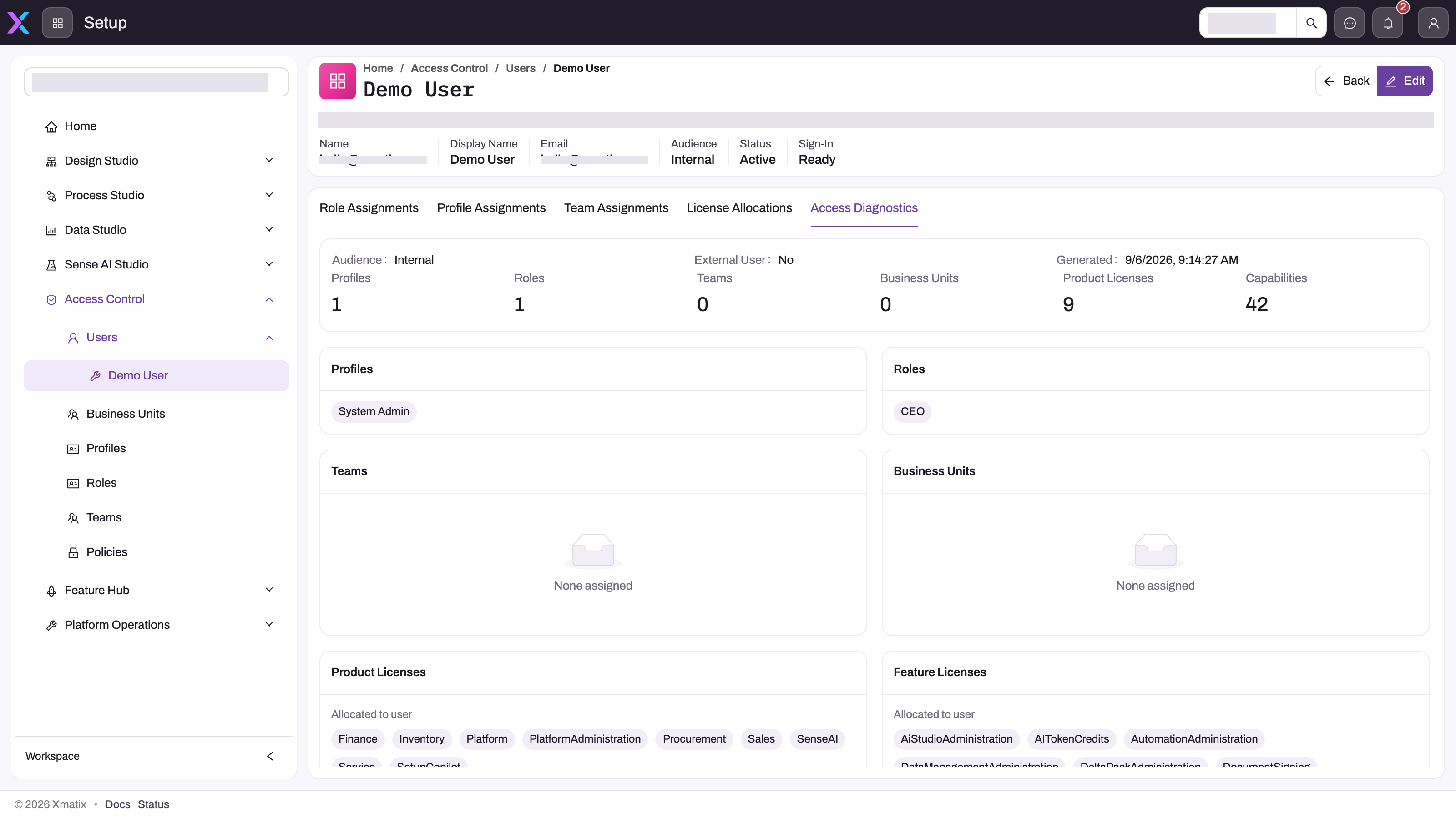
Access Diagnostics is read-only evidence; the tabs to its left — Role, Profile and Team Assignments, License Allocations — are where each layer is changed.
- 2
Audience (Internal or External) is the first gate: a profile whose audience scope does not match the user is ignored entirely.
- 3
Profiles answer what the user may do — entity and field permissions, app and action grants, capabilities and license entitlements are all carried here.
- 4
Roles grant no permissions; the role places the user in the hierarchy so records owned by people below roll up to them.
- 5
Teams and Business Units are additional record-access paths, only for entities whose policy allows team access and sharing; none assigned is a normal state.
- 6
Product Licenses and Capabilities are what licensing makes available: a capability counts only when a profile grants it and the user holds the feature license it belongs to.
The one screen that shows all of these layers together for a person is the user's Access Diagnostics tab (Setup → Access Control → Users, open the user). It lists the audience, the resolved profiles and roles, teams and business units, and — for product licenses, feature licenses and capabilities — what is allocated to the user beside what the profiles require. When someone asks "why can't I see this?", start there; Troubleshooting: a user can't see something walks the checks in order.
Permission and access are two different questions
Most confusion about security disappears once you separate two decisions. Permission means a user is authorized to perform an operation in principle — "may update orders", "may read the credit-limit field". Access means the user may operate on one specific record — "may see this order, because they own it or it was shared with them". Both must be true: a user with update permission on orders still cannot edit an order they have no access to, and a user who can see a record cannot edit it without update permission. "I can see it but can't change it" and "I have the permission but can't find the record" point at the two different layers.
Security profiles: what a user may do
A security profile (Setup → Access Control → Profiles) is a reusable, named bundle of grants with an Audience Scope — Internal, External or Both — and an active flag. A user can hold several profiles; only active profiles whose scope matches the user's audience count, and the effective permission set is the union of everything they grant. The bundle has several parts:
- Entity permissions — per entity, any combination of Read, Create, Update, Delete, Share and Assign, plus the elevated View All and Modify All, which step around record-level scoping for that entity.
- Field permissions — per field, whether it may be read, set on create, or changed on update; this is how sensitive fields stay hidden or read-only.
- App and App Page permissions — which apps and custom pages appear in the launcher and navigation.
- Action permissions — which server actions (custom buttons) the user may invoke.
- Entitlements and capabilities — the product and feature licenses the profile requires, and the Setup capabilities it grants (next two sections).
- Reports and dashboards — visibility of shared analytics.
A user with no matching profile, or whose profiles grant nothing on an entity, is denied outright — there is no implicit baseline. The step-by-step guide is in security profiles.
Capabilities: rights over Setup areas
Data permissions do not cover everything an administrator does — opening Design Studio, managing licenses, tuning Sense AI, running data imports. These are governed by capability keys of the form setup.<area>.<action> (for example setup.security.manage, setup.metadata.model.manage, setup.diagnostics.jobs.view). Each Setup screen is gated by one key, and a key is granted to a profile like any other permission. Two rules matter: a capability takes effect only when the user also holds the feature license the capability belongs to, and a user with no profile or no feature license has an empty capability set — which is why a freshly invited administrator sees no Setup menu until both are in place. Keeping capabilities separate from data permissions means granting someone a Setup right never widens their data access, and vice versa.
Licensing: what exists at all
Licensing sits above the other layers. Products (Sales, Service, Finance, Sense AI…) and the features inside them are licensed to the organization with seat counts and expiry, and users are allocated seats. A user's effective products are the intersection of three sets — what their profiles require, what the organization has licensed, and what has been allocated to them — with the same intersection for features. Features marked free are granted automatically to every user whose profile holds the owning product, so purely administrative capability bundles need no seat. A feature the organization has not licensed, or a user without a seat where seats are enforced, is simply not offered: no profile can grant what licensing has not made available. See licensing.
Record-level security: which records a user reaches
For each entity, a security policy (Setup → Access Control → Policies) decides how record access is computed. It carries an ownership model, a default access level for internal and for external users (Private, Read Only or Read Write), and three switches — Grant Access Using Hierarchy, Allow Manual Share and Allow Team Access. First-party entities ship with a policy that is User Owned, Private by default and has all three switches on; an entity with no policy is treated the same way. Given a policy, the server resolves access for a query in this order:
- If nobody is signed in, the query returns nothing — access fails closed.
- If the entity is Organization Owned, every record is visible to anyone with Read permission. (Team Owned is not yet enforced and evaluates as User Owned.)
- If one of the user's profiles grants View All on the entity, reads see every record; Modify All does the same for updates and deletes.
- If the policy's default access for the user's audience is Read Only (for reads) or Read Write (for writes), every record is visible without further checks.
- Otherwise the user reaches records they own; records owned by users in roles beneath theirs (hierarchy, when the switch is on); records shared with them directly, with a team they belong to, or with the business unit their role sits in (when sharing and team access are on).
- Rules attached to the policy then run: an access grant rule widens the set for records matching its expression and its target principals (owner, team, role, business unit, all internal or external users…); an access filter rule narrows what is visible. Each rule names the operations it applies to, an audience, a priority and an enabled flag.
Ownership, hierarchy, teams, business units and shares are all additive — a record is reachable if any one path grants it. The how-to for shares and policies is record-level security; scoping visibility with rules is in restriction rules.
Roles, teams and business units
Roles form the reporting hierarchy that record visibility rolls up through: a manager's role lets them reach records owned by users in roles beneath it, on entities whose policy allows hierarchy access. Roles grant no permissions of their own. Teams are working groups a record can be shared with, and business units group roles organizationally and can also be the target of a share. All three are assigned per user under Setup → Access Control → Users; see roles, teams and business units.
Company scoping: a separate boundary inside the tenant
Organizations that transact through several companies can restrict users to particular companies, with view access for reporting and transact access for posting. This is a distinct layer from record-level security: it is switched on per organization and enforced by deployment configuration, and a profile flag (Access to all companies, seeded on the built-in System Admin profile) or a per-user flag bypasses it for consolidation and administration. Tenants and companies explains when it applies.
Common questions
A user has the right profile but cannot see a record — why?
The profile granted permission; what is missing is access. Check the entity's policy first: if the entity is User Owned with Private default access, the user needs a path to that record — ownership, a role above the owner (with hierarchy access on), membership of a team the record is shared with, a business-unit or direct share, or a grant rule. Also confirm the mechanism you expect is switched on in the policy: a team share does nothing on an entity whose policy has team access off. Access Diagnostics shows the user's resolved roles, teams and business units so you can see which paths could apply.
Do roles grant permissions?
No — and the separation is deliberate. Roles define whose records roll up to whom; profiles define what may be done. A manager who can see a subordinate's order still needs Update on Order from a profile before editing it.
Can I deny a specific user something their profile grants?
Not with a deny rule — the model has no explicit deny, and every grant is additive. To restrict, narrow what is granted: split a broad profile into narrower ones and assign the narrower set, remove the field permission rather than masking the field in a layout, or tighten the entity's policy so fewer access paths apply. Additive-only resolution is what keeps the outcome traceable: any access a user has can be followed back to a specific grant.
Why does an external (portal) user see nothing even with a profile?
Two likely causes. The profile's audience scope is Internal, so it is ignored for an external user — external users need a profile scoped External or Both. Or the entity policy's external default access is Private and no share or rule reaches the portal user's records; external access is decided by the external default and rules, separately from the internal one.
How quickly does a security change take effect?
Profile, role, team, license and capability resolution is cached per user for a short interval, so a change may take a few minutes to reach an already signed-in user; a fresh sign-in picks it up immediately.