
This guide is for the buyer. Your xMatix day follows one chain — requisition, purchase order, goods receipt, supplier bill — and your job is keeping that chain moving and honest: ordering what the business actually needs, chasing what hasn't arrived, and only paying for what was ordered and received.
Where you work
The first-party Procurement app carries the whole document chain on its bar: Requisitions, Auto Orders, Purchase Orders, Shipments, Goods Receipts and Bills, plus Reports, Dashboards and a Settings entry that opens the procurement masters (items and the module settings). Documents connect through release actions rather than through a wizard — a requisition releases into a purchase order (or a stock transfer), a purchase order releases into a goods receipt or a bill, and a goods receipt can release a bill — so most of your work happens on a document's detail page and its action buttons. Supplier balances and the bills' accounting side are read in the Finance app's AR and AP subledgers; the stock a receipt creates is read in the Inventory app's ledger.
- 1
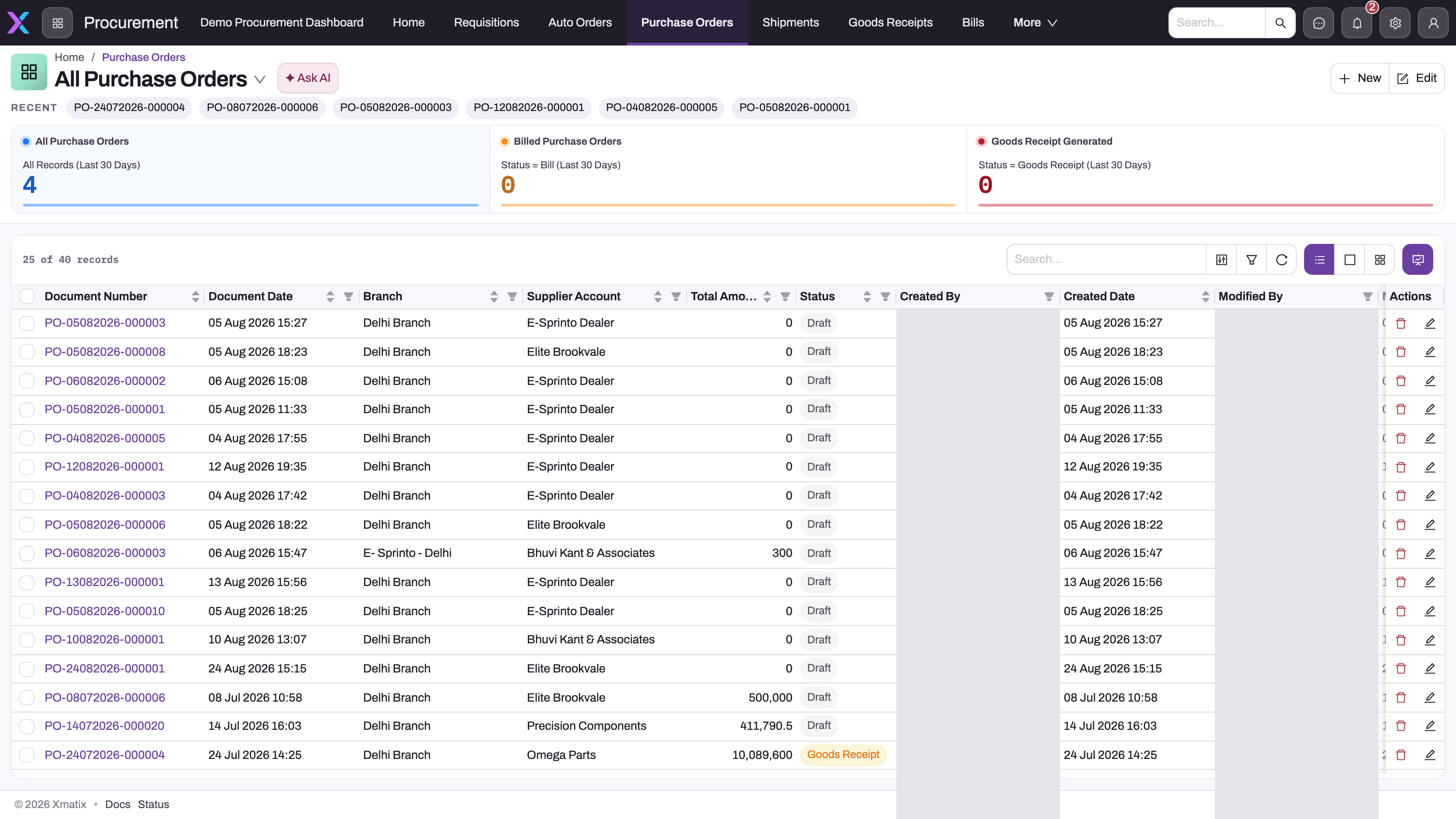
The Procurement bar carries the whole chain — Requisitions, Auto Orders, Purchase Orders, Shipments, Goods Receipts, Bills — so each document is one click from the one it was released from.
- 2
All Purchase Orders is the active saved view; the Recent strip underneath reopens the orders you were last working.
- 3
The cards count last-30-day orders and how many have progressed to a bill or a goods receipt — a quick read of how much is still open.
- 4
Search, column filters and refresh scope the queue by supplier, branch or status before you open an order or raise a new one.
- 5
Status is the release trail — Draft until a downstream document exists, then Goods Receipt or Bill — and Total Amount shows the commitment; user columns are hidden in this capture.
The All Purchase Orders view is the buyer's queue. The cards above the register count the last 30 days' orders and how many have progressed to a goods receipt or a bill; the register underneath carries document number and date, branch, supplier account, total amount and status. Status here is the release trail — Draft until a downstream document exists, then Goods Receipt or Bill — so filter by status and supplier to find what is still open, open the order, and read its lines' pending quantities before creating anything new.
Access you need
xMatix ships a profile named Procurement, but out of the box it grants only Accounts and the Generate Template Order action, and no app. The broad shipped profiles (Standard User, Sales Executive, Sales Manager) do carry the procurement entities in full. Either way your administrator builds a working buyer profile (how) that grants read, create and update on Requisition, Purchase Order, Shipment, Goods Receipt, Bill, Auto Order and their lines, view access to the Procurement app, and the release and receive actions explicitly: each of Release Purchase Order, Release Goods Receipt, Release Bill, Perform Receive and the inspection actions is an entity action a profile can allow or withhold. That separation is deliberate — a buyer can be allowed to raise and release orders while only the warehouse may run Perform Receive, and only finance may post. Purchase-order approval, where your organization uses it, is an approval process on the order rather than a permission. Procurement is licensed as its own product; if the app or an action is missing, start with Troubleshooting: a user can't see something.
Your path
- xMatix Procurement — the product overview; the document chain your day runs on.
- Requisitions: from request to purchase order — where demand enters, what is pending, and the release to an order or a transfer.
- The purchase order lifecycle — the central document: header, lines, how line quantities drive the lifecycle, and the two release paths.
- Receive goods against a purchase order — the three quantities on a line, receiving into stock, inspection, releasing the bill, posting the accrual.
- Supplier bills — recording what the supplier is asking to be paid, and where it lands in finance.
- Match orders, receipts and bills — checking a bill against the order and the receipt with the line counters, and why bills should be released from the order.
- Auto-order: rules-based purchase suggestions — letting reorder rules draft the routine buying for you.
- Frequently ordered item suggestions — faster lines on the orders you place by hand.
- Receiving into the warehouse — what the floor does with your order when the truck arrives.
Day to day
Mornings start with the queue: new requisitions to review and release, and auto-order suggestions to accept or trim before they become purchase orders. As deliveries land, goods receipts record what arrived against the order — the warehouse's receiving puts it into a storage location — and as bills arrive, the order and receipt counters let you match each one and see which agree and which need a conversation with the supplier. Orders still in Draft status with pending quantities on their lines are your chasing list. Stock questions — did the receipt really land, what did it cost — are answered in the inventory ledger and valuation.
Common questions
A bill disagrees with the order — why isn't it blocked?
Because xMatix has no automatic match: nothing holds a bill or a payment for a quantity or price difference, so the check is yours before posting. Match orders, receipts and bills shows which counters to compare. Release bills from the order once the receipt exists, so each bill line is linked to both the order line and the receipt line.
Does a goods receipt change stock, or just paperwork?
Both, in two steps: creating the receipt stages quantities, and Perform Receive posts real stock into the storage location named on each line. Receive goods against a purchase order walks the three quantities on a line; the inventory ledger shows the movement it creates.
Why does a line still show pending quantity after we received?
Pending counters are derived from downstream line quantities, and the order's receipt progress reads the receipt line's ordered quantity — staging, not proof of posting. Check the receipt's own status and lines; The purchase order lifecycle and Troubleshooting procurement cover the exact refusals and counters.
Who approves my purchase orders?
Whoever the approval process names — orders can be gated the same way any record is. Approval processes explains the mechanics; the thresholds are your organization's own configuration.
Related topics
- Procurement configuration reference — the settings behind numbering, matching and approvals.
- AR and AP subledgers — where your bills land in finance, and the view to check when a supplier balance looks wrong.
- Inventory valuation and costing — how your purchase prices become stock cost.
- Transferring stock between branches — the alternative to buying when another branch already holds the item.
- Role guide: warehouse operator — the team receiving what you order.