
This guide is for the person who runs xMatix for everyone else. Your day is arrivals and departures (users, seats, access), the security model that decides who sees what, the data that needs loading or extracting, and the quiet monitoring that catches problems before users report them. You'll also field every "can xMatix do X?" — so knowing the customization ladder is part of the job.
Where you work
Almost all of it is under Setup, which the App Launcher opens like any other app. The groups you live in:
| Setup group | What you administer there |
|---|---|
| Access Control | Users, Business Units, Profiles, Roles, Teams, Policies — the whole security model |
| Feature Hub → Administration | Licenses (tenant entitlements and seats), License Usage, Organization Settings, Themes |
| Feature Hub → each module | The module's own Settings entry — master switches and behaviour options for Sales, Service, Inventory, Procurement, Finance, Portals, Sense AI |
| Platform → Monitoring | Jobs, Tracing, Audit Trail, Message Log, Sync Monitor |
| Platform → Data → Import / Data Export | Bulk loads with per-row history, and extracts |
| Design Studio / Process Studio | The customization ladder — usually the developer's ground, but you decide when a request climbs there |
Business configuration that is not security — document numbering, storage locations, payroll components, SLA policies — lives in each module's own setup list rather than in Setup, and each module's configuration reference tells you where: Sales, Procurement, Warehouse, Inventory, Service, Support, Payroll.
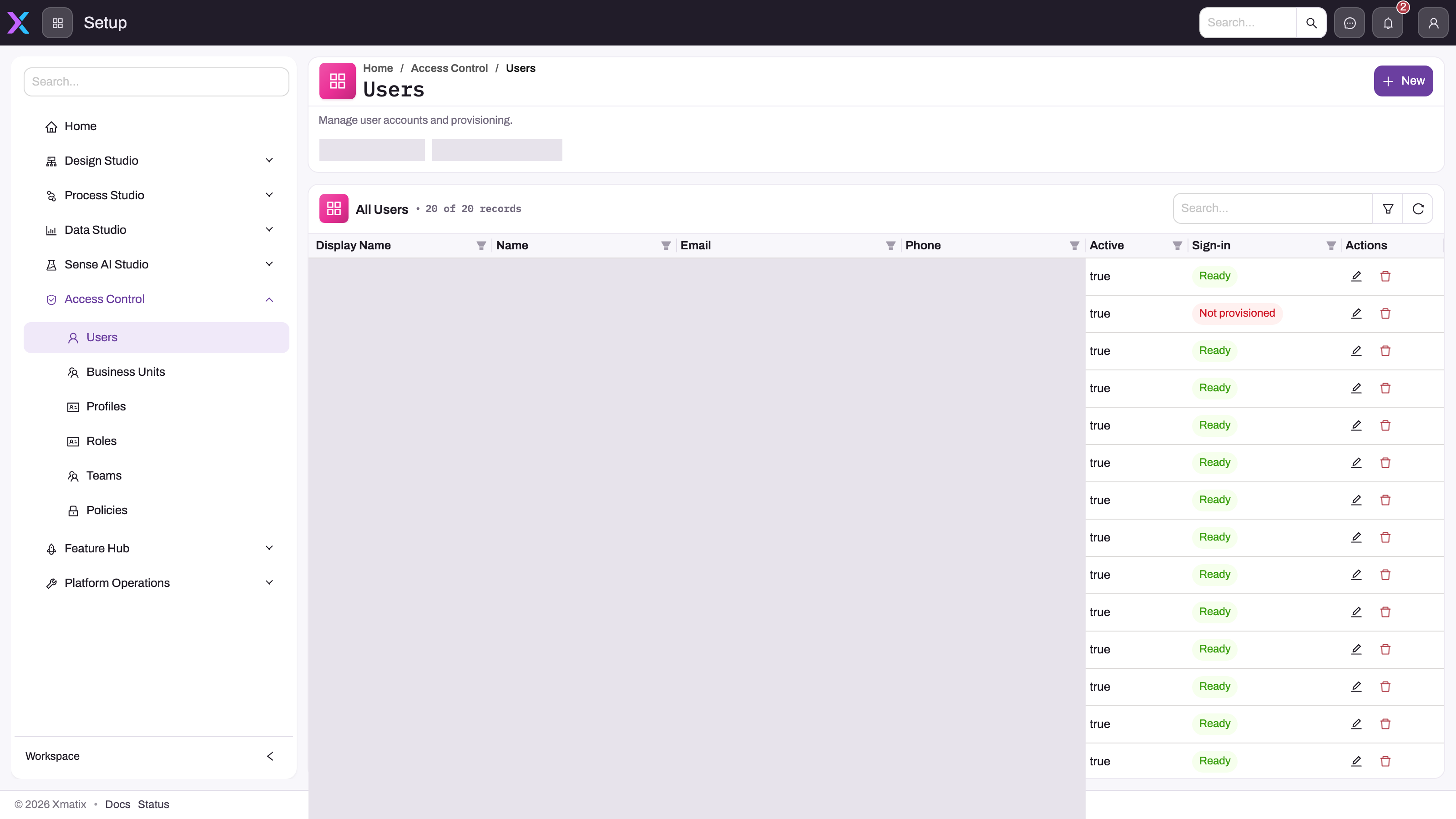
- 1
Access Control gathers the layers you administer: Users, Business Units, Profiles, Roles, Teams and Policies. A user's effective access is the composition of all six.
- 2
Users is the account register — open a row to reach its Profile, Role and Team Assignments, License Allocations and Access Diagnostics tabs.
- 3
New creates the account and sends it for identity provisioning; it does not assign a profile, so the invite is only half done until you do.
- 4
Search, column filters and refresh distinguish a missing account from one hidden by the current filter before you create a duplicate.
- 5
Active and Sign-in are the two state columns: Sign-in shows Ready or Not provisioned for the identity. Active is not a sign-in suspension for an already provisioned user — offboard with the Delete action instead.
- 6
The recently viewed strip (obscured here) reopens the accounts you last worked on.
The Users register is where most days start. Each row carries the account's Active flag and its Sign-in state — Ready once identity provisioning has completed, Not provisioned until then — and opening a row reaches the tabs that decide what the person can actually do: Profile Assignments, Role Assignments, Team Assignments, License Allocations and Access Diagnostics. New creates the account and sends it for provisioning but assigns nothing, so an invitation is only finished when at least one active profile is attached. Clearing Active is not a sign-in suspension for an already provisioned identity; offboarding uses the row's Delete action after work and seats have been reassigned.
Access you need
Setup areas are gated by named capabilities, granted per profile on the Entitlements tab. The built-in SystemAdmin profile holds the entire catalog and its core security capabilities cannot be revoked, so there is always a recovery hatch; a narrower administrator profile needs the specific keys:
| Task | Capability key |
|---|---|
| Users (create, edit, delete accounts) | setup.security.users.manage |
| Profiles, roles, teams, business units, policies | setup.security.manage |
| Audit Trail | setup.security.audit.view |
Log in as another user (time-boxed, audited; on unless the org setting security / loginAs.enabled is false) | setup.security.users.loginAs |
| Licenses, License Usage, seat allocations | setup.licensing.admin |
| Module settings under Feature Hub | setup.featurehub.settings.manage (the Feature Hub group itself also needs setup.licensing.admin) |
| Organization Settings, Themes | setup.org.settings.manage |
| Data Import, Data Export | setup.data.import.manage, setup.data.export.manage |
| Jobs, Tracing, Message Log | setup.diagnostics.jobs.view, setup.diagnostics.tracing.view, setup.messaging.log.view |
| Sync Monitor and integrations | setup.integration.manage |
Two built-ins are worth knowing by name: SystemAdmin and StandardUser cannot be renamed or deleted, and StandardUser is the default for ordinary internal users. As shipped, StandardUser is broad: every operation on almost every entity, view access to most apps and a wide set of actions, so a user who holds it can read and change most records in the organization. Build narrower role profiles and remove StandardUser from those users when duties must be separated; the role guides overview summarizes every shipped profile. Access is additive across profiles with no deny, so narrowing someone means moving them to a smaller profile, not adding a restrictive one.
Your path
- xMatix administration guide — your home section; skim it to know what's where.
- Invite a user — the most common task, end to end: account, provisioning, profile, seats.
- How the xMatix security model works — the mental model everything else builds on.
- Security profiles and the grant matrix — what a user may do, entity by entity, plus fields, apps, actions and capabilities.
- Roles, teams and business units — the org structure access flows through.
- Record-level security and sharing — who sees which records, and why.
- Licensing: products, features and seats — what your organization has bought, who holds a seat, and how licensing composes with profiles.
- Offboard or suspend a user — the checklist that Active does not replace.
- Import data with the import wizard — loading records in bulk, safely.
- Monitoring mobile sync failures — the field team's problems, visible before they call.
- The customization ladder — which tool fits which request, from setting to script.
Day to day
Most days are user lifecycle — invites, seat and license changes, offboarding — and access questions, which nearly always resolve inside the security model: a profile grant, an org-structure position, or record-level sharing. Module owners bring you their configuration asks — a new document number series, a payroll component, an SLA policy — and the module configuration references (procurement, warehouse, inventory, service, support, payroll) say what each setting does before you change it. Data work comes in waves (import at rollout, export forever after), and a periodic look at mobile sync health and the background job ledger keeps you ahead of trouble. Change requests go up the customization ladder — settings before configuration, configuration before code.
Common questions
A user says they can't see a record — where do I start?
With the user's Access Diagnostics tab and the checklist, not with guesswork — Troubleshooting: a user can't see something walks the causes in the order they're likely: license, profile grant, org scope, record sharing, restriction rules, view filters. Have the user refresh their session after any fix before you conclude it failed.
How do I set up access for a new team or region?
Copy a working pattern: Worked security scenarios shows complete, tested setups — territory scoping, manager rollups, cross-team sharing — you can adapt rather than invent. The role guides for sales managers, warehouse operators, buyers and support agents each list the entities and actions their profile needs.
Someone's asking for a change — settings, configuration or developer?
Climb the ladder from the bottom: The customization ladder tells you which tool fits, and Customizing xMatix is the section to hand over when the answer is configuration.
I revoked a capability and lost my own Setup access — now what?
The core security capabilities cannot be removed from the SystemAdmin profile, so any SystemAdmin holder can restore yours; keep at least one active SystemAdmin at all times. For anything else, Security profiles explains which capability opens which area.
Related topics
- Setup Copilot: configuring xMatix by asking — describe the change; it drafts the configuration.
- AI Studio: governing Sense in your organization — the admin's controls over AI features.
- Configuring the mobile app — what the field team's app shows, decided by you.
- Troubleshooting access and sign-in — the consolidated triage when someone cannot get to their work.
- Role guide: developer — for the requests that reach the top of the ladder.