
A member quota (an Incentive Resource Target record) is the number one plan member must reach on one incentive target in one period. A member's achievement on a target is a percentage of this quota, and the line's compensation slabs pay on that percentage. Quotas come after the plan, its members and its targets are set up, and before performance is scored with Process Compensation. This page covers where quotas come from, how to check and change them, and how each one is used.
Overview
A quota holds four things:
- Incentive Target: what is measured, such as Sale Amount on the "Brand focus" line.
- Incentive Resource: the plan member the quota belongs to.
- Incentive Period: the time slice, such as May on a monthly plan.
- Value: the number to reach.
So a monthly plan with 10 members and 2 targets needs 240 quotas a year: one per member, per target, per period. A quota also carries a KPI Configuration, which groups quotas on the plan's target grids.
Quotas reach a plan in one of two ways. The target generates them from its own Value, or you load them with a data import. You can then type over individual values in the plan's Targets by Resources grid.
When to use it
- Everyone has the same number, or an equal share. Let the target generate quotas (Fixed Value, Value Across Periods or Value Across Resources). You do nothing per member.
- Most members share a number, with a few exceptions. Generate the quotas, then type the exceptions into Targets by Resources. Remember that the next regeneration overwrites them (see Business rules).
- Every member has their own number. Set the target's Target Value Type to Resource Target and import the quotas from a spreadsheet. Nothing then overwrites them.
How xMatix handles it
- Generation runs in the background. Saving a target whose type generates quotas, or adding or removing a plan member, queues the Generate incentive target quotas job. It writes or updates one quota per member, per target, per open period.
- Scoring reads the quota of the compensation line's period. When Process Compensation scores a member, each target looks up that member's quota for the target and period. Several quotas for the same member, target and period are added together.
- Other screens read quotas too. Performance KPI rows record the member's quota as their Target Value. The partner portal derives each partner's goal from it, and the field app's target cards and day-end scores show it.
Prerequisites
- An incentive plan with its periods and members. Both are normally created when the plan is saved (see Incentive plans).
- At least one target on an incentive line.
- To import quotas: access to Setup → Platform → Data → Import, and create access to Incentive Resource Target (see Permissions).
Procedure
Step 1 — Generate quotas from the target
- Open the incentive plan, go to the Related tab and edit the target's row in the line builder, or open the target's record page and click Edit.
- Set Target Value Type to one of these values:
- Fixed Value: every member gets the Value in every period.
- Value Across Periods: each member gets the Value divided by the number of periods.
- Value Across Resources: each member gets the Value divided by the number of members.
- Enter a Value greater than zero. For Value Across Resources, the line builder row has no Value box, so enter it on the target's record page.
- Save.
After a few moments, the quotas appear in Targets by Resources (Step 3). Periods with Status Approved or Posted are not changed, and periods with a Simulation Type get no quotas.
Step 2 — Import individual quotas
Use this route for targets set to Resource Target, Resource Target Percentage or Resource Target Last Period. It also works for a target with no Target Value Type. None of these types generate anything, and they have no other effect.
- Prepare a spreadsheet with one row per member, target and period. Give it these columns:
IncentiveTarget.Name: the target's number, such as the INT number shown in the line's target list.IncentiveResource.Name: the member's number, the INRE number shown in the plan's Incentive Resource list.IncentivePeriod.Name: the period's name, as shown in the plan's period list.Value: the quota.KPIConfiguration.Name: the same KPI configuration as the target. Leave the column empty when the target has none.
- Go to Setup → Platform → Data → Import, click Start Import, upload the file and choose Incentive Resource Target as the entity.
- Check the column mapping, run a Dry Run, then Run Async or Import Now. See Import data.
Each imported row gets an INRT number as its Name, so you do not need a Name column. To change imported quotas later, export them, edit the Value, and import the file again with the id column. A file without id creates a second quota, and the two are added together when the member is scored.
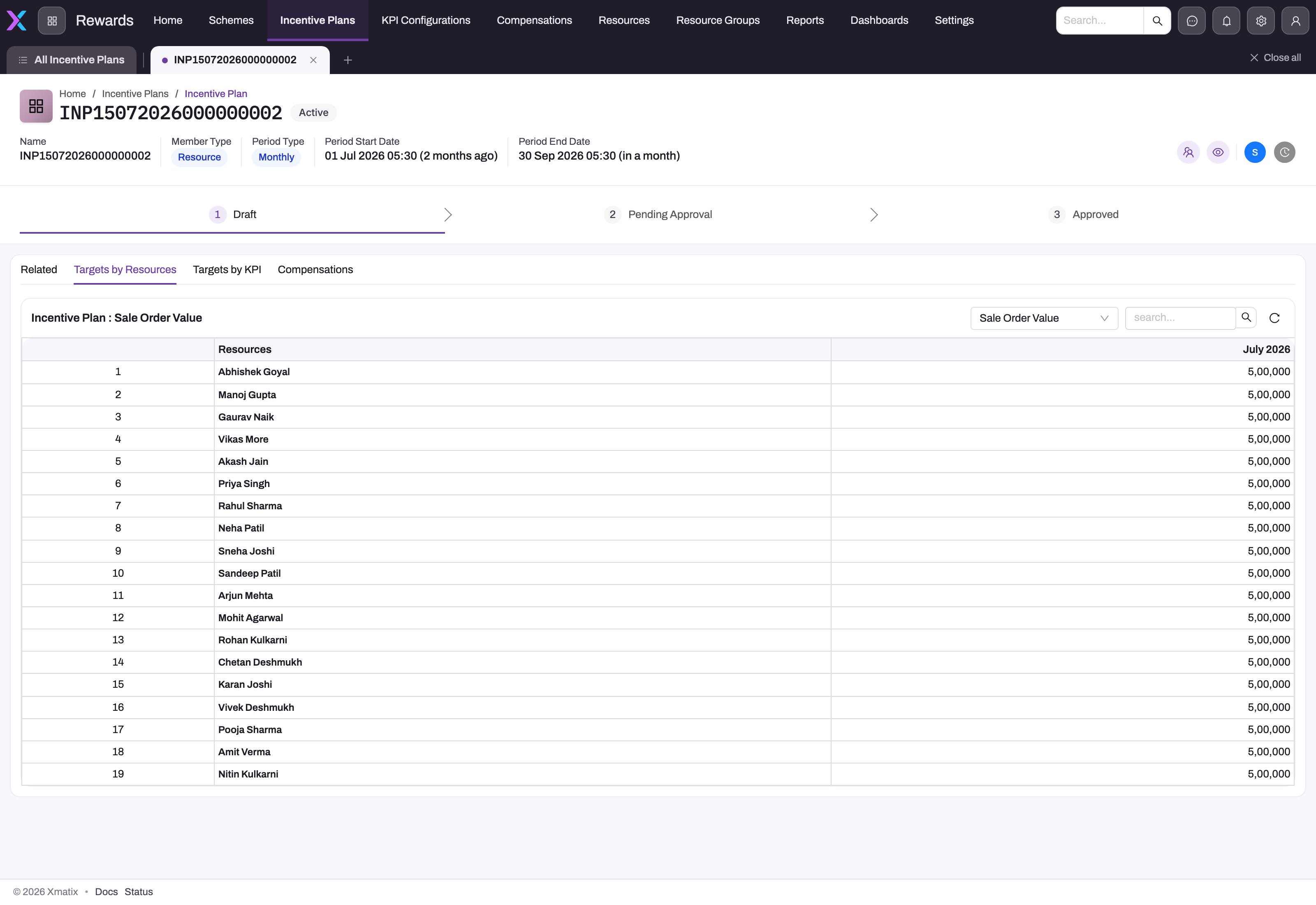
Step 3 — Check and adjust quotas in Targets by Resources
- Open the incentive plan and click the Targets by Resources tab.
- Pick a KPI configuration in the drop-down. The grid shows members as rows and periods as columns, oldest period first.
- To change a quota, click its cell, type the new value, and repeat for other cells. The Save (n) button counts your pending changes.
- Click Save (n). The message Saved n change(s) appears and the grid reloads.
A cell showing — has no quota, and you cannot type into it. To add the missing quota, generate it (Step 1) or import it (Step 2).
Targets by KPI shows the same quotas one member at a time: pick the member in the drop-down, and each KPI configuration becomes a row.
Step 4 — Regenerate quotas after a change
Quotas regenerate on their own when the target's Value, Target Value Type, KPI Configuration, plan or line changes, and when members are added or removed. They do not regenerate when you add a period. To regenerate by hand, for example after adding a period:
- Go to Setup → Platform → Monitoring → Jobs and open the Schedules tab.
- Create a schedule with Job type Generate incentive target quotas and Payload JSON
{"PlanIds":["<plan id>"]}. The plan id is the last part of the plan page's web address. Use{"TargetIds":["<target id>"]}to regenerate only one target. - Click Run now on the schedule, then read the run's summary on the Jobs screen. The summary says how many quotas were created, updated, left unchanged or removed as duplicates, and why any target was skipped.
Fields
The quota form and record page show these fields, in this order. The page is read-only in the standard layout.
| Field | What it means | Notes |
|---|---|---|
| Incentive Target | The target this quota is for | Required. The picker lists the targets of every plan, so pick one from the plan you are working on |
| Incentive Resource | The plan member who must reach the quota | Must be a member of the same plan as the target. A quota without a member is never used for scoring |
| Value | The number the member must reach in the period | Default 0. A quota of 0 never qualifies a percentage slab. Up to two decimals |
| Incentive Period | The period the quota applies to | Must be a period of the same plan. Scoring ignores a quota with no period. Only the partner portal reads one |
| KPI Configuration | Groups the quota on Targets by Resources and Targets by KPI | Generated quotas copy the target's configuration. Scoring reads the target's configuration, not this one |
| Name | The quota's number | Read-only. Set on save from the Incentive Resource Target numbering: series INRT, the date as day, month and year, and a nine-digit counter |
Business rules
- One quota per member, target and period. Nothing refuses a second one. Scoring, the Performance KPI rows and the plan grids treat duplicates differently. Scoring and the Performance KPI rows add them together. The grids show only one of them per cell.
- Generation rules.
- Divided quotas are rounded to two decimals.
- The divisors are the plan's full period count (excluding simulation periods) and full member count.
- Existing quotas are updated in place, so a hand-typed value on a generated target goes back to the generated figure.
- On generated targets, duplicate quotas in open periods are removed, keeping the oldest.
- A removed member's quotas are kept but are no longer scored.
- Closed periods are frozen. Generation never changes quotas in a period whose Status is Approved or Posted. Typing in the grid or importing still changes them.
- Scoring a target without a KPI configuration. The member's achievement is their achieved value divided by their quota, rounded down to a whole percentage. If the member has no quota for the target and period, the target does not qualify. If the line uses Use Slab Absolute Value, the slab bands compare the achieved value directly, but the quota row must still exist.
- Scoring a target with a KPI configuration. The quota is used when it is above 0. Otherwise the target's own Value is used. Either figure is then scaled by the target's Value Percentage when that is set. See KPI configurations.
- Plan consistency is not checked. Nothing stops a quota from pairing a target of one plan with a member or period of another. Such a quota is never scored.
- Performance KPI Target Value. When a document's KPI calculation records performance for a member, the matching Performance KPI row gets the member's current quota as its Target Value. This happens only for members linked to a resource. A later change to the quota reaches the row only when another document for that member and period is calculated.
- Partner portal goals. On an Approved Partner plan, the portal goal for a member and period is that period's quota. If there is none, the member's quota with no period is used, and then the target's Value.
- Field app.
- The Target pace card adds up all of a rep's quotas for the current period on targets that have no Item or Item Group. It does this whatever their target type. If a rep has no such quotas, the card adds up their quotas on targets with an Item instead.
- The visit plan's Day end and Progress scores take a daily revenue target from the quota. They use a quota whose KPI configuration sums Order values, spread over the period's working days, Monday to Saturday.
Example
A distributor runs a quarterly plan for four regional managers. The plan has one Sale Amount target with Target Value Type Resource Target, linked to the KPI configuration Regional sales. The managers' regions differ in size, so the sales administrator imports a file with 16 rows, one per manager per quarter. For Q1, the North manager has a quota of 2,400,000 and the East manager 1,800,000.
In Q1 the East manager's region books 1,980,000. Process Compensation scores the target at 110% of 1,800,000 and pays the slab that covers 101–120%. Halfway through Q2, the East manager takes over a new territory. The administrator opens Targets by Resources, picks Regional sales, changes the East manager's Q2 cell to 2,100,000 and clicks Save (1). Because the target is Resource Target, no regeneration overwrites the change.
Training
Practice exercise
In a sandbox, on a monthly test plan with at least two members and one target:
- Set the target to Fixed Value with Value 50,000, save, and check that Targets by Resources shows 50,000 for every member in every open period.
- Change one member's cell for next month to 65,000 and click Save (1).
- Change the target's Value to 55,000 and save.
Expected result: after a moment, every open-period cell shows 55,000, including the cell you set to 65,000. The Jobs screen shows a Generate incentive target quotas run whose summary counts the updated quotas.
Quick reference
- One quota = one member × one target × one period.
- Fixed Value, Value Across Periods and Value Across Resources generate quotas. Resource Target types are imported.
- Regeneration overwrites typed values on generated targets.
- A — cell has no quota. Generate or import it, because the grid cannot create one.
- Duplicate quotas are added together when scored.
- Approved and Posted periods are never regenerated.
- Adding a period does not regenerate quotas. Run the job for the plan.
- Set the target's KPI configuration on imported quotas so they appear in the grid.
Permissions
Incentive Resource Target follows the entity permissions on each security profile. In the seeded profiles, Sales Executive, Sales Manager, Standard User and System Admin have full access (read, create, edit and delete). A user without edit access can open the grid, but Save ends with Failed to save some changes.
Because reps have full access in the seeded profiles, a rep could change their own quota in the grid or by import. If only administrators should set quotas, reduce Incentive Resource Target to read-only on the Sales Executive and Standard User profiles. The quota generation job is not affected by profiles.
Configuration
- Numbering. Quota names come from the Incentive Resource Target Document Name Settings (series INRT, active by default). See Configure document numbering.
- Quota generation. Generation is controlled by each target's Target Value Type and Value (see Incentive targets). There is no switch to turn the job off. To stop a target overwriting quotas, change it to Resource Target.
- Grid grouping. Targets by Resources and Targets by KPI group quotas by KPI configuration. Give each plan's targets their own KPI configuration so that each drop-down entry shows one plan's quotas (see Common problems).
- Show quotas in an app. Incentive Resource Target is in no app's navigation, and the quota lists on the target and member pages are not limited to that target or member. To give administrators a quota list, add the entity to the Rewards app under Setup → Design Studio → Apps with Manage Items (see Create an entity). To limit an embedded list, set its Relation in the layout designer.
- Edit and Delete buttons. The quota record page header has no buttons in the standard layout. To edit or delete single quotas from the page, add the Edit and Delete actions to the header of the Incentive Resource Target View layout.
Common problems
Targets by Resources shows quotas from another plan
The standard grid is not limited to the plan you are viewing. It shows every quota with the chosen KPI configuration, up to 500 quotas. Give each plan's targets their own KPI configuration, and the drop-down then separates them.
My imported quotas do not appear in the grid
Two things to check:
- The quotas have no KPI configuration. The grid shows only quotas whose KPI configuration matches the drop-down. Quotas without one are hidden while any other quota has one. Re-import them with
KPIConfiguration.Nameset to the target's configuration. - Two targets share a KPI configuration. If the grid shows a value you did not expect, two targets with the same configuration can share a cell, and the cell shows only one of their quotas. Give each target its own KPI configuration.
A member scores nothing on a target
Check that the member has a quota for that target and period, and that it is above 0. Check also that the quota's target, member and period all belong to the same plan. The troubleshooting page has the full checklist.
A member's achievement is half what I expect
The member probably has two quotas for the same target and period, for example from importing a file twice without the id column. Duplicates are added together, so the quota is doubled. Delete the extra rows, or regenerate a generated target, which removes duplicates in open periods.
My typed quota went back to the old figure
The target generates its quotas, and something triggered a regeneration: a change to the target, or a member joining or leaving. Use Resource Target and import the quotas when values must stay as typed.
A new period has no quotas
Generation runs when targets or members change, not when a period is added. Run the job for the plan (Step 4).
Common questions
Can I give a member a quota with no period?
Yes, but only the partner portal reads it. On an Approved Partner plan, the portal uses a member's quota with no period when that member has no quota for the period itself. Scoring always looks for the quota of the compensation line's period. Without one, a target that has no KPI configuration does not qualify. A target with a KPI configuration falls back to its own Value instead. Give every quota a period unless you only need a standing portal goal.
Does changing a quota change pay that is already calculated?
Not by itself. Compensation lines are written when someone clicks Process Compensation on the period. After you correct a quota, run Process Compensation again on that period, as long as the period is still open. A period whose Status is Approved or Posted cannot be processed again. Generation never touches its quotas, but a grid edit or import still can. Avoid changing quotas in closed periods so the record of what was paid stays consistent.
Why does the Target pace card in the field app show a strange total?
The card adds up all of a rep's quotas for the current period on targets without an item filter, whatever the target type. A rep with a Sale Amount quota of 100,000 and a No Of Sale Orders quota of 40 sees a target of 100,040. Keep count-type targets on a separate plan, or give them an item group, if reps use the card.
Related topics
- Incentive targets: target types, filters and scoring
- Plan members: who gets quotas
- Incentive periods: open and closed periods
- Incentive plans: the plan page and its target grids
- KPI configurations: measures and the KPI fallback
- Import data
- Incentive Resource Target reference