
A KPI configuration defines a measure that an incentive plan can pay on: which records count, which field gives the value, which date places a record in a period, and who gets the credit. You set it up after you create an incentive plan and before you process compensation. Once a target on an approved plan uses the configuration, every qualifying record you save adds to that member's KPI Data for the period. Process Compensation then scores the target from those figures.
Overview
A KPI configuration does one of two jobs. Which one depends on whether Trigger Object Name is filled in:
- A measure. The configuration is active and names an object, such as
Invoice,OrderorServiceOrder. xMatix reads that object's records and accrues them into KPI Data rows. There is one row per configuration, plan, period and member. Each row holds the sum, the record count and the reward sum. One detail line per source record shows what that record contributed. - A grouping label. The configuration has no Trigger Object Name. It labels targets and quotas, so the plan's Targets by Resources and Targets by KPI grids can group them. It accrues nothing. A target linked to it still scores from its KPI Data, so that target reaches 0 unless an import or script writes KPI Data rows for it.
Incentive targets that have no KPI configuration are scored differently. They use Performance KPI rows and the target's Incentive Target Type (see What scores a target without a configuration).
When to use it
Use a KPI configuration when the built-in target types don't measure what the plan pays for. For example:
- posted invoice value per sales executive, counting only some item brands;
- closed service orders per technician;
- the number of different outlets each executive billed;
- a commission that each source record already carries in a numeric field.
If a built-in target type such as Sale Order Amount already measures it, you don't need a configuration.
How xMatix handles it
- A record is saved. After the save commits, xMatix checks for an active configuration that names the record's object and whose Trigger Event covers the save. An update is only picked up when it changes a field the configuration reads: the date, member, value or reward field, or a rule field. New and changed configurations take effect on the next save.
- A background job runs. The job Accrue KPI configuration data (category Incentives) handles the saved records, usually within seconds. You can follow it under Setup → Platform → Monitoring → Jobs. Its summary gives the records read, the contributions written and removed, and the reason for any configuration it skipped.
- The record is placed. The job re-reads the record and checks it against the configuration's KPI rules. It reads the date, the member and the values by field name. It then puts the record in the KPI Data row of every approved plan that uses the configuration in a target, for the period that contains the record's date.
- Saving again corrects the totals. If the record changes member, moves to another period or stops passing the rules, its old contribution is removed. A record never counts twice. Deleting a record also removes its contribution, whatever the Trigger Event.
- Closed periods are protected. Periods with status Approved or Posted are never changed. What was paid stays paid.
- Scoring. Process Compensation on an incentive period scores each target that has a configuration from the member's KPI Data row. It also writes the result to the compensation line's Achieved Value.
Nothing accrues for a plan that isn't Approved. Records saved before the configuration was active, or before the plan was approved, are not picked up until you run Recalculate KPI Data.
Prerequisites
- The Rewards app, and read access to KPI Configuration, KPI Rules and KPI Data in your security profile. Create and edit access is needed to set them up.
- An incentive plan with periods and members, and a target that will use the measure. The plan must be Approved before anything accrues.
- The technical names of the fields you will read, not their screen labels. An administrator can look them up under Setup → Design Studio → Entities → (the entity) → Fields. For example, the invoice's Executive field is
SalesExecutiveResourceId. - The picklist values your measure needs. The standard picklists offer only some of the values the engine understands (see Configuration).
Procedure
Step 1 — Open KPI Configurations
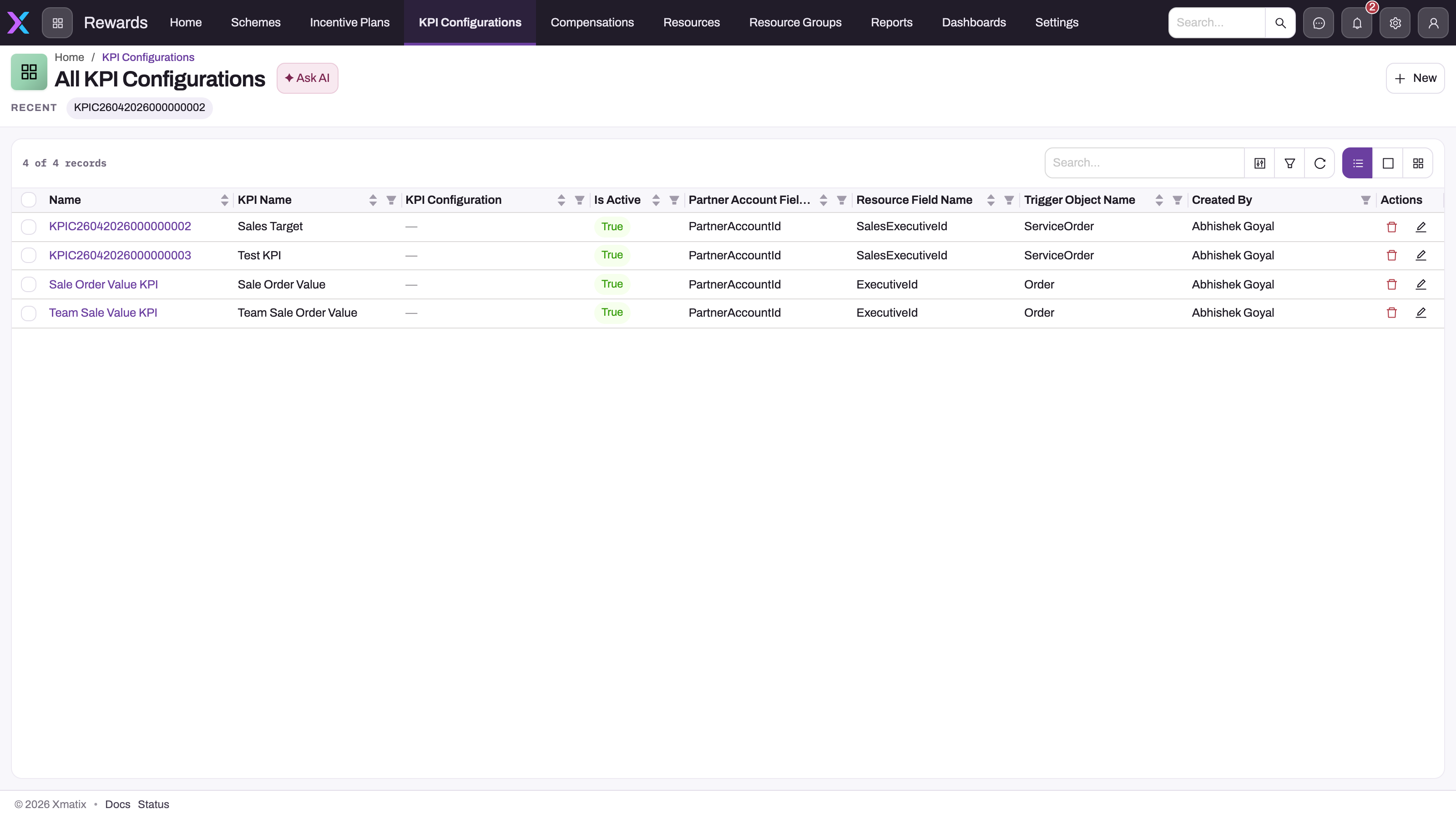
Open the Rewards app and choose KPI Configurations. The All KPI Configurations list shows Name, KPI Name, KPI Configuration (the parent), Is Active, Partner Account Field Name, Resource Field Name, Trigger Object Name and Created By. Use the search box to check whether the measure already exists before you create another one.
Step 2 — Create the configuration
Select New. The form has seven collapsible sections: Information, Trigger Configuration Details, Calculation Fields (Decimal), Data Fields, Filters, Result Fields and Rule Criteria.
- KPI Name: the name plan authors will see, for example Posted invoice value.
- Leave Is Active off for now. You turn it on in Step 5, once everything else is set.
- Trigger Object Name: the technical name of the object to measure, for example
Invoice. - Trigger Event: when a save should accrue (see Fields). Leave it empty and saves accrue nothing.
- Member Type: who gets the credit. It must be the same as the plan's Member Type.
- The member field for that type: Resource Field Name, Partner Account Field Name, Branch Field Name or Account Field Name.
- Date Field Name: the date that decides the period, for example
DocumentDate. - Value Field Name: the second box with this label, on the right. Enter the numeric field to add up, for example
TotalLineAmount. - Value Function: how the values combine. Leave it empty to add them up.
- Select Save.
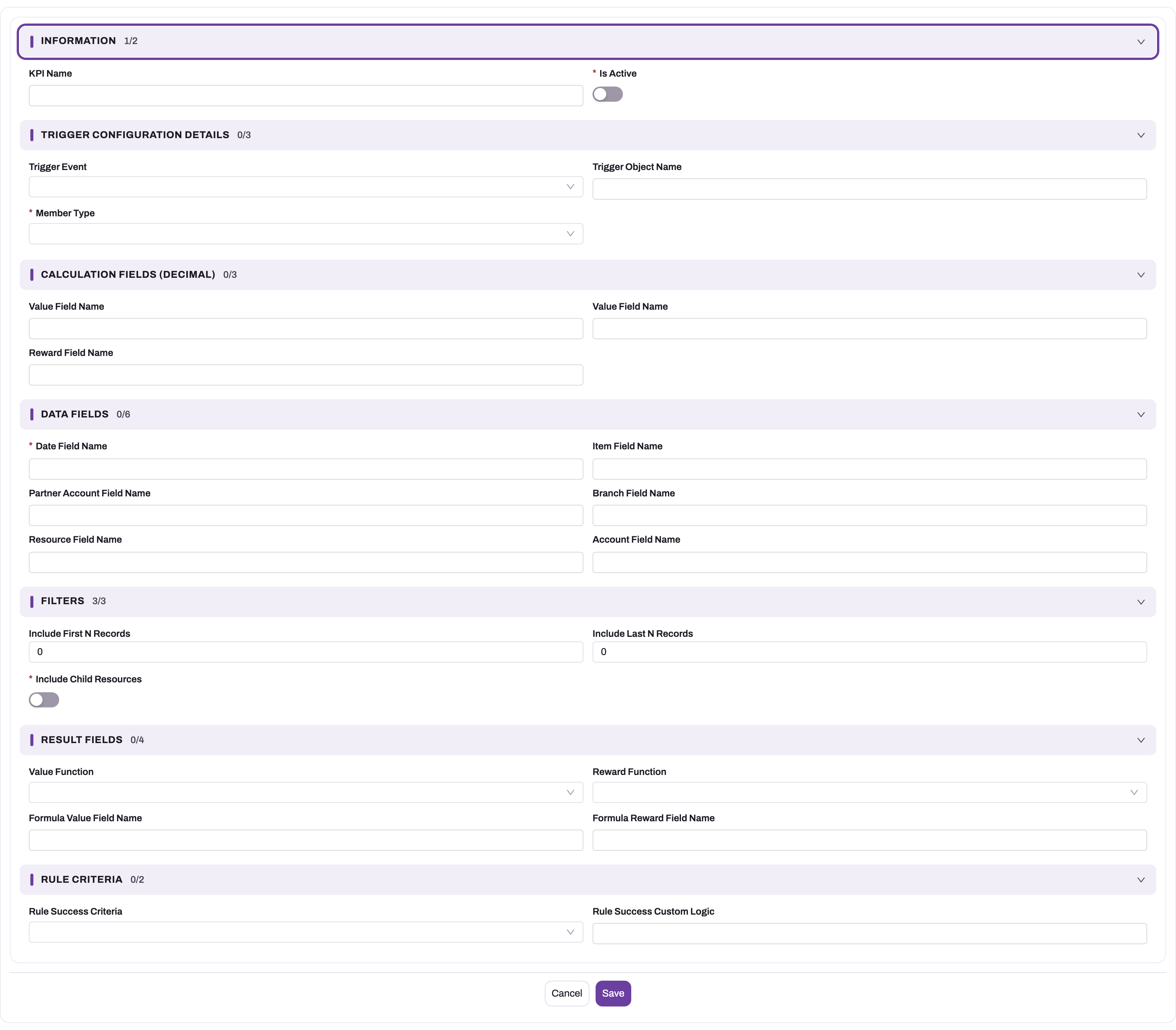
The record's Name comes from document numbering (the series starts with KPIC) only when that numbering is switched on for KPI Configuration. In a standard setup it is off, and the form has no Name box, so saving fails with Name is required. An administrator can fix this by switching the numbering on (see Configuration).
A field name can also follow a lookup. Write the lookup's field name, then a dot, then the field on the related record. For example, InvoiceId.DocumentDate on an Invoice Line measure reads the invoice's date. Custom fields keep their _c suffix, for example ItemId.Brand_c.
Step 3 — Add KPI rules to limit which records count
KPI rules decide which records of the object count. Each rule has a Field Name, an Operation, a Field Value and a Sequence Number. A rule field can follow a lookup in the same way, for example InvoiceId.Status on a line measure.
The standard KPI Configuration page has no list of rules and KPI Rule has no standard form. So add rules in one of these ways:
- import them with Import data into KPI Rule, setting KPI Configuration, Field Name, Operation, Field Value and Sequence Number;
- ask the Setup Copilot to create them;
- ask an administrator to add a KPI Rules list to the KPI Configuration page in the form layout designer. Some tenants show one as All KPI Rules.
Then set Rule Success Criteria on the configuration:
- empty or Always (No Criteria): the rules are ignored and every record of the object counts;
- All Rules Are Met: every rule must pass;
- Any Rule Is Met: one passing rule is enough;
- Custom Logic Is Met: the rules combine as written in Rule Success Custom Logic, for example
{0} AND ({1} OR {2}).{0}is the first rule by Sequence Number.
Only Always (No Criteria) is in the standard picklist, so an administrator must add the other three before you can use rules.
Step 4 — Link the configuration to the plan's target
Open the incentive plan and edit the target that should score on this measure. Set KPI Configuration on it. Generated member quotas take the target's KPI configuration automatically. For quotas typed by hand, set the same configuration so the Targets by Resources grid groups them. See Incentive plans.
Once a target has a KPI configuration, its Incentive Target Type no longer decides what is measured. The configuration does.
Step 5 — Activate the configuration
Edit the configuration from the pencil icon on its row in the list, turn Is Active on and save. From then on, every qualifying save of the object accrues. Saves of records that existed before don't count until you run Step 6.
To check it works, save one qualifying record. Then open the job on the Jobs screen and read its summary, or look at the KPI Data list on the configuration's page.
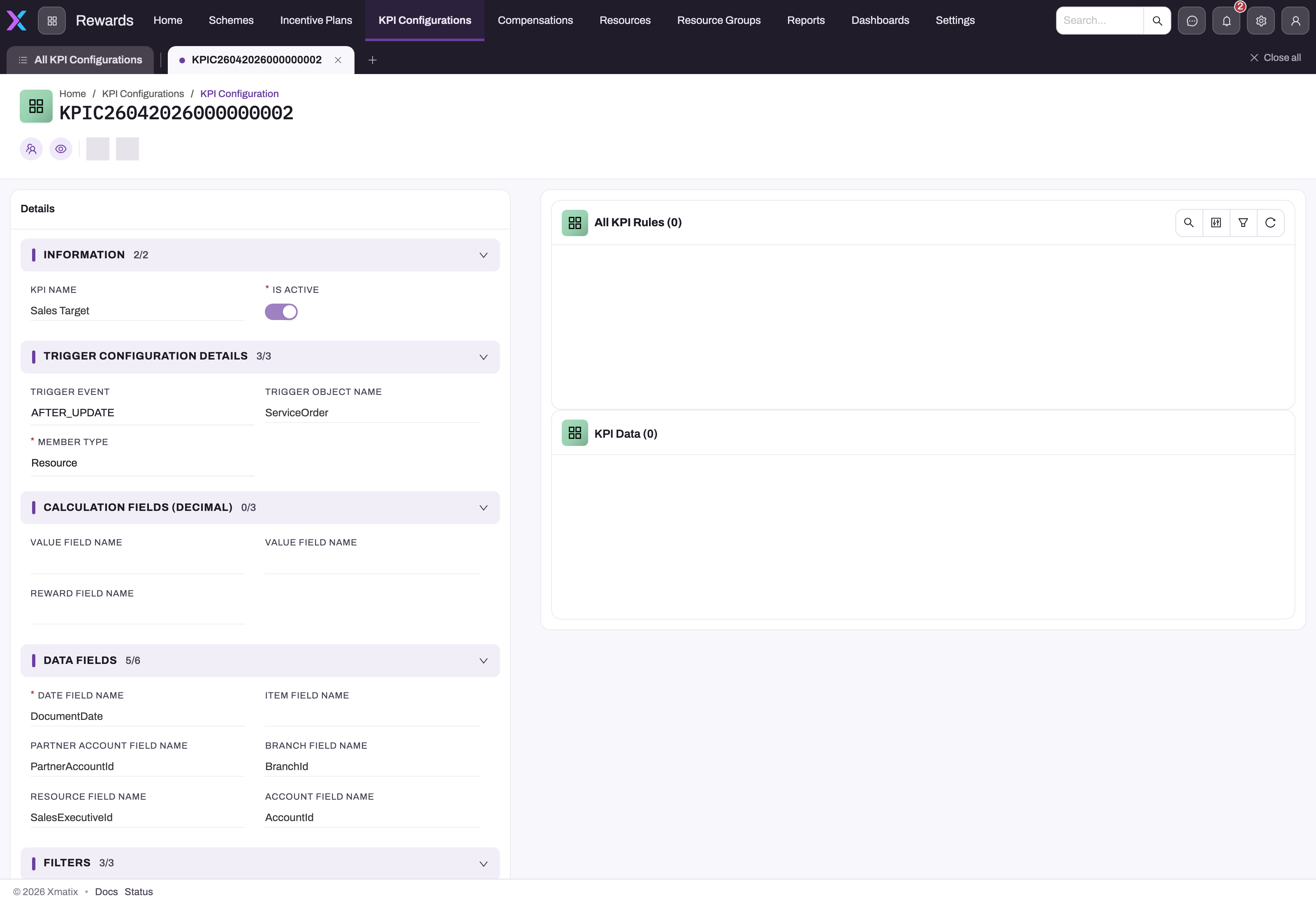
The record page shows the configuration's details and a KPI Data list. On the standard layout the page header has no buttons, and the KPI Data list isn't filtered to this configuration. Check the KPI Configuration on each row. To change the configuration, use the pencil icon on its row in the list.
Step 6 — Recalculate KPI Data for existing records
Recalculate KPI Data rebuilds a configuration's KPI Data in every open period of every approved plan that uses it. It clears those periods' contributions, then re-reads every record of the object that passes the rules. Run it:
- after creating a configuration over records that already exist;
- after changing its rules or field names;
- after a header change that should affect line measures (see Common problems);
- after a failed accrual job.
The action exists on KPI Configuration, but the standard setup has no button for it. An administrator has to add one (see Configuration). When you run it, it checks four things first:
- Activate the KPI Configuration before recalculating its KPI Data.
- Set Trigger Object Name: only a measure configuration (one that names an object) has KPI Data to recalculate.
- Set Date Field Name: it decides which period each record falls in.
- Set Member Type and its member field (Resource / Partner / Branch / Customer Field Name).
If all four pass, it queues the job and replies KPI Data recalculation is queued. Follow it on the Jobs screen ("Accrue KPI configuration data"). Clicking twice within the same minute queues just one rebuild.
Step 7 — Process compensation
Run Process Compensation on the incentive period. It reads KPI Data as it is at that moment, so finish any recalculation first. Each member's compensation line shows the measure in Achieved Value. See Running an incentive cycle and Compensation.
Step 8 — Trace a KPI Data figure to its records
Every KPI Data row is built from KPI Data Detail lines. There is one line for each source record that the row counts. Use them to explain a figure to a member or an auditor.
- Open the KPI configuration's page and find the member's row in the KPI Data list. Check the KPI Configuration on the row, because the list isn't filtered to this configuration. Select the row's Name to open it.
- The KPI Data page opens on its Related tab, which lists KPI Data Detail lines. This list isn't filtered to the row either. It shows the lines of every KPI Data row, so check the KPI Data column of each line and keep only the lines that name this row.
- Select a line's Name to open it. The page shows Source Record, the ID of the record that contributed, and KPI Value, its contribution.
- To check the record, open the configuration's object and find the record with that ID.
Each line's Name is the configuration's name followed by the source record's ID. The Details tab of the KPI Data page shows the row's totals: KPI Value Sum, KPI Value Count and Reward Value Sum. KPI Value Sum is the total of the lines' KPI Values, KPI Value Count is the number of lines, and Reward Value Sum is the total of their Reward Values.
On the standard screens, detail lines are read-only. The list and the line's page have no buttons.
Fields
| Field | What it means | Notes |
|---|---|---|
| KPI Name | The name plan authors see | Also used as the label of new KPI Data rows |
| Is Active | Whether the configuration accrues | Required. Only active configurations with a Trigger Object Name accrue. Turning it off stops accrual and keeps the existing KPI Data |
| Trigger Event | Which saves accrue | AFTER_INSERT: new records only. AFTER_UPDATE: changes only. Scheduled: never on save, only from a scheduled job. The engine also understands AFTER_UPSERT and AFTER_ALL (both new and changed records), but they aren't in the standard picklist. AFTER_DELETE and an empty value accrue nothing on save. Deletes always remove contributions, whatever this is set to |
| Trigger Object Name | The technical name of the object to measure | Typed, not picked from a list. Leave it empty for a grouping label |
| Member Type | Who gets the credit | Standard values: Branch, Customer, Resource. The engine also accepts Partner (not in the standard picklist). It must match the plan's Member Type, because scoring looks up the member by the plan's type |
| Value Field Name (first box) | A second numeric value | Stored on each contribution but not used for scoring |
| Value Field Name (second box) | The value to measure | A numeric field. For Count Distinct, the key whose different values are counted, such as AccountId |
| Reward Field Name | A numeric reward carried on each record | Added up into the KPI Data row's Reward Value Sum. Pays out through slabs of type KPI Reward Value |
| Date Field Name | The date that places a record in a period | Required. A record with no date counts nowhere |
| Item Field Name | The item on the record | Not used by the accrual |
| Partner Account Field Name | The company field, for Member Type Partner | Technical name, for example PartnerAccountId |
| Branch Field Name | The branch field, for Member Type Branch | Technical name, for example BranchId |
| Resource Field Name | The person field, for Member Type Resource | For example SalesExecutiveResourceId on Invoice |
| Account Field Name | The customer field, for Member Type Customer | For example AccountId |
| Include First N Records, Include Last N Records | Sampling limits | Default 0. Not used by the accrual |
| Include Child Resources | Roll subordinates' figures up to a manager | Required on the form. Not used by the accrual |
| Value Function | How the row's figure is worked out from its contributions | Empty or Sum: the total. Count: the number of records. Average: the total divided by the count. Formula: the KPI Data field named in Formula Value Field Name. Count Distinct: the number of different key values. Standard picklist: Average, Count, Formula. Add Sum and Count Distinct if you need them listed |
| Reward Function | How the reward figure is worked out | Same choices as Value Function. Standard picklist: Sum |
| Formula Value Field Name, Formula Reward Field Name | The KPI Data field to read when the function is Formula | The accrual fills only KPI Value Sum, KPI Value Count and Reward Value Sum, so Formula only helps with one of those or with a field your own automation fills |
| Rule Success Criteria | How the KPI rules combine | See Step 3 |
| Rule Success Custom Logic | The combination for Custom Logic Is Met | Only {N}, AND, OR, NOT and parentheses are allowed |
These fields exist on the record but are on no standard form: Account Group, Item Group, Is Group, the parent KPI Configuration and Job Queue. None of them is used by the accrual. Last Executed System Modstamp is the progress marker for scheduled runs.
KPI rule fields
| Field | What it means | Notes |
|---|---|---|
| KPI Configuration | The configuration the rule belongs to | |
| Field Name | The field to test | The technical name, or a lookup path such as InvoiceId.Status |
| Operation | The comparison | The engine understands Equals, Not Equal, Greater Than, Greater Or Equal, Less Than, Less Or Equal, In and Contains. The standard picklist has Greater Than, In and Not Equal |
| Field Value | The value to compare with | In takes a comma-separated list. Contains works on text fields only. An empty value with Equals means "is empty", and with Not Equal it means "has a value" |
| Sequence Number | The rule's position | Decides which rule is {0}, {1} and so on. Default 0 |
KPI Data fields
The accrual creates and updates KPI Data rows. You don't create them yourself. There is one row for each configuration, plan, period and member. The record page has a Related tab with the detail lines and a Details tab with the fields below. The page header has no buttons, but you can edit fields in place.
| Field | What it means | Notes |
|---|---|---|
| Name | The row's name | The configuration's name, a dot, then an internal code for the period. Use Incentive Period to see which period it is |
| Incentive Period | The period the row covers | Records are placed in the period whose dates contain their Date Field Name value |
| KPI Configuration | The measure the row belongs to | The KPI Data list on a configuration's page isn't filtered, so check this field |
| Incentive Plan | The approved plan the row counts for | A record that counts for two plans has a row in each |
| Account | The member, when Member Type is Customer | Shown under Resources |
| Resource | The member, when Member Type is Resource | Shown under Resources |
| Partner Account, Branch | The member, when Member Type is Partner or Branch | Filled in by the accrual but not on the standard page. An administrator can add them to the layout |
| Custom KPI Value | A value that overrides the computed figure | Whole numbers only, default 0. Scoring uses it in place of the Value Function when it is above 0. For Count Distinct the accrual writes the distinct count here, so a value you type there is overwritten the next time the accrual updates the row |
| Custom Reward Value | A reward that overrides the computed reward | Whole numbers only, default 0. Scoring uses it in place of the Reward Function when it is above 0 |
| KPI Value Sum | The total of the detail lines' KPI Value | Recalculated by the accrual every time one of the row's lines changes |
| KPI Value Count | The number of detail lines | Used by the Count and Average functions |
| Reward Value Sum | The total of the detail lines' Reward Value | Used by the Sum reward function |
Document Date isn't on the standard page either. The accrual sets it to the latest date of any record that has contributed, and it doesn't go back when that record leaves the row. Scoring doesn't read it. Employee, Incentive Resource Target and RNAKpiValue exist on the record, but nothing fills them. Incentive Resource and Target Value aren't stored at all. Target values come from the plan's targets and quotas, never from the KPI Data row.
KPI Data detail fields
The accrual writes these lines. Nobody fills them in.
| Field | What it means | Notes |
|---|---|---|
| Name | The line's name | The configuration's name, a dot, then the source record's ID |
| KPI Data | The KPI Data row the line counts towards | One line per source record and row. A record that counts for two plans has one line in each plan's row |
| Source Record | The ID of the record that contributed | Plain text, not a link |
| KPI Value | The record's value, from Value Field Name (second box) | This is what KPI Value Sum adds up. For Count Distinct it is 1 when the record has a key and 0 when it has none |
| KPI Value (second) | The record's value from Value Field Name (first box) | It has the same label as the scored value. It isn't added to any total and isn't scored |
| Reward Value | The record's value from Reward Field Name | Added up into the row's Reward Value Sum. 0 when the configuration has no reward field |
| Sale Doc | The record's key, for Count Distinct only | The row counts the different keys. Empty for every other Value Function |
| Detail Name, Incentive Plan | Not stored | On the record but never saved. Detail Name is always empty on the line's page |
| Bill No | Not filled in | The accrual never writes it. Use Source Record to find the record |
The standard detail list shows KPI Value, Name, Reward Value, KPI Data and Created By. Its KPI Value column is the second, unscored value. To see the value that counts, open the line.
Business rules
- What accrues. Only active configurations with a Trigger Object Name accrue. They accrue only for approved plans that use them in a target, and only into open periods, meaning any status except Approved and Posted.
- Placement. A record goes into the period whose date range contains its date, for each approved plan that uses the configuration. A record outside every period counts nowhere.
- Totals. Each KPI Data row is recalculated from all of its contributions every time one changes. Re-saving a record changes its own contribution and never adds to it.
- Detail lines. A record has at most one detail line in each KPI Data row. A re-save overwrites the line's values, and it moves or deletes the line when the record moves to another row or stops counting. Lines in Approved or Posted periods are never changed or removed. Recalculate KPI Data deletes every line of the configuration in the open periods, then writes them again from the records.
- Totals come only from the lines. After the accrual writes a row's lines, it recalculates the row's totals from all of them. A line added, changed or deleted any other way, for example by an import, changes nothing until the accrual next touches that row. A recalculation then deletes any line that no record supports.
- A typed value wins. If someone types a Custom KPI Value or Custom Reward Value above 0 on a KPI Data row, scoring uses that value instead of the function. For Count Distinct the accrual itself stores the count in Custom KPI Value.
- Invalid rules. A rule that names a missing field, uses an unknown operation or has a value of the wrong type makes the whole configuration skip. The reason appears in the job summary, for example Rule field 'X' is not a field of Invoice. Records are never counted without their rules.
- Required settings. A configuration with no member field or no Date Field Name is skipped with set Member Type with its field and Date Field Name. Count Distinct without a Value Field Name is skipped too.
- Scoring a target that has a configuration. The target value is the member's quota for the period when it is above 0. Otherwise it is the target's own Value. Either way it is multiplied by Value Percentage when that is set. The target's Operation, when set, must hold between the achieved and target values, for example Greater or Equal. Then the slab bands decide. A slab tied to a KPI configuration qualifies only through a target with that configuration.
- Size limit. One rebuild or scheduled run reads at most 200,000 records.
- One writer at a time. Accrual runs for a tenant wait for each other. A run that can't start within a minute fails and retries by itself.
Example
The sales team is paid on posted invoice value per executive, by month.
- The administrator adds Sum to Value Function and All Rules Are Met to Rule Success Criteria, and switches on KPI Configuration numbering.
- You create a configuration with these settings:
- KPI Name Posted invoice value
- Trigger Object Name
Invoice - Trigger Event
AFTER_UPDATE - Member Type Resource
- Resource Field Name
SalesExecutiveResourceId - Date Field Name
DocumentDate - Value Field Name (second box)
TotalLineAmount - Value Function Sum
- Rule Success Criteria All Rules Are Met
- You import one KPI rule: Field Name
Status, Operation In, Field ValuePosted, Sequence Number 0. - On the approved plan Sales incentive FY27, you set the target's KPI Configuration to the new configuration. Each executive's monthly quota is 500,000.
- You turn on Is Active and run Recalculate KPI Data to pick up invoices that are already posted.
- On 12 May an executive posts invoice INV-0412 with a total line amount of 120,000. The job adds it to the executive's May row. If the invoice is cancelled later, its next save takes the 120,000 back out.
- At month end, May's KPI Data row for the executive shows a KPI Value Sum of 540,000. Process Compensation writes 540,000 to Achieved Value, which is 108% of the quota, and pays the slab that covers that band.
Training
Practice exercise
In a sandbox with an approved plan that has a monthly period covering today, do the following:
- Create a configuration on
Orderfor Member Type Resource. Set Resource Field Name to the order's executive field, Date Field Name toDocumentDate, Value Function to Count and Trigger Event toAFTER_INSERT. - Link it to a target on the plan and turn on Is Active.
- Create one order for a plan member.
Expected result: within a minute, the Jobs screen shows Accrue KPI configuration data with a summary of one contribution written. A KPI Data row for that member and this month shows a KPI Value Count of 1. After you process compensation for the period, the member's line shows an Achieved Value of 1.
Quick reference
- Measure = Is Active on + Trigger Object Name filled in.
- Field names are technical names. Follow a lookup with a dot:
InvoiceId.Status. - Member Type must match the plan's Member Type.
- Nothing accrues until the plan is Approved.
- Empty Trigger Event = no accrual on save.
- Use the second "Value Field Name" box. The first one isn't scored.
- Existing records need Recalculate KPI Data.
- Approved and Posted periods never change.
- One bad rule skips the whole configuration. Read the job summary.
- Stop a measure by deactivating it. Don't delete its KPI Data.
- To explain a figure, open the KPI Data row. The Related tab lists the detail lines, one per record.
Permissions
| Task | What you need |
|---|---|
| See, create, edit or delete configurations, rules and KPI Data | Access to KPI Configuration, KPI Rules and KPI Data in your security profile. The shipped Standard User, Sales Executive, Sales Manager and System Admin profiles have full access to all three |
| See KPI Data detail lines | Read access to KPI Data Detail. The same four shipped profiles have full access. The accrual writes the lines whatever the profile of the user who saved the record |
| See the menu entry | Access to the Rewards app in your profile |
| Recalculate KPI Data | A grant for that action on the profile's Actions tab, once an administrator has added the action |
| Follow or schedule the accrual job | Access to Setup → Platform → Monitoring → Jobs |
Configuration
- Document numbering for the Name. Go to Setup → Design Studio → Entities → KPI Configuration → Logic → Document Settings. The standard KPI Configuration setting uses the series KPIC and is switched off. Switch it on, or add the Name field to the create form, so that New can save. See Email templates and document numbering.
- Picklist values. Under Setup → Design Studio → Entities, open the entity, then use Manage PickList Values on the field's row to add the values the engine understands but the standard picklists lack:
| Field | Values to add |
|---|---|
| KPI Configuration → Value Function | Sum, Count Distinct |
| KPI Configuration → Member Type | Partner |
| KPI Configuration → Trigger Event | AFTER_UPSERT or AFTER_ALL |
| KPI Configuration → Rule Success Criteria | All Rules Are Met, Any Rule Is Met, Custom Logic Is Met |
| KPI Rule → Operation | Equals, Greater Or Equal, Less Than, Less Or Equal, Contains |
Type the stored value exactly as shown. See The data model.
- The Recalculate KPI Data button. Under Setup → Design Studio → Entities → KPI Configuration → Logic → Actions, add a server action that runs
RecalculateKpiData. Then add it to the KPI Configuration page header in the form layout designer, because the standard header shows no buttons. Finally, grant it on the Actions tab of the profiles that should run it. See Entity behaviour. - A KPI Rules list on the page. Add a list of KPI Rules, linked by KPI Configuration, to the KPI Configuration view layout so authors can see the rules of each configuration.
- Scheduled measures. For objects loaded in bulk or by integrations, set the configuration's Trigger Event to
Scheduled, then:- Open Setup → Platform → Monitoring → Jobs.
- On the Schedules tab, add a schedule with Job type Accrue KPI configuration data, a Frequency and a Time.
- In Payload JSON enter
{"Mode":"Scheduled"}. That runs every active Scheduled configuration. To run just one, add"ConfigurationId"with its record ID. - Use Run now on the schedule to run it straight away.
Each run reads the records changed since the configuration's previous successful run, then moves that marker to the run's start time. A failed run leaves the marker where it was.
- Scheduled rebuilds. The same job type also rebuilds one configuration on a schedule. Use the Payload JSON
{"Mode":"Rebuild","ConfigurationId":"…"}, with the configuration's record ID in place of the dots. This works like Recalculate KPI Data and needs no button. It suits line measures whose rules read the header. - Field app. In the field app, the visit plan's Day end and Progress scores take a rep's daily revenue target from their quota on a target whose KPI configuration measures
Orderwith Sum (or an empty Value Function). The quota for the period is spread over its working days.
Common problems
KPI Data stays empty after I save a record
Check these in order:
- the configuration is active and has a Trigger Object Name;
- its Trigger Event covers the save, because an empty Trigger Event accrues nothing;
- a target on an Approved plan uses it;
- the plan has an open period that contains the record's date;
- the member field on the record is filled in.
Then open Accrue KPI configuration data on the Jobs screen. A skipped configuration is named there with the reason. A save that changed none of the fields the configuration reads queues nothing.
Older records are missing from the totals
Accrual starts with saves made after activation. Run Recalculate KPI Data to pick up records that already existed.
The member's line shows 0 although KPI Data has a figure
The configuration's Member Type must be the same as the plan's Member Type. Otherwise the member's row isn't found. A member with no quota and a target with no Value also scores nothing on percentage bands. Check the target's Operation too: Greater or Equal blocks a 90% achievement.
A line measure didn't change when the invoice header changed
Rules and fields that read through a lookup, such as InvoiceId.Status, are checked when the line is saved. A change to the header alone doesn't re-read its lines. Run Recalculate KPI Data, or schedule a regular run for such measures.
Saving a new configuration says "Name is required"
KPI Configuration numbering is switched off and the form has no Name box. Ask an administrator to switch the numbering on (see Configuration).
The rules seem to be ignored
If Rule Success Criteria is empty or Always (No Criteria), every record counts whatever the rules say. Set it to All Rules Are Met, Any Rule Is Met or Custom Logic Is Met.
The job summary says "not a field of" or "is not supported"
A rule names a field that doesn't exist on the object, or uses an operation or value the engine can't read. Fix the rule and run Recalculate KPI Data.
The KPI Data row's Related tab lists lines from other rows
The detail list on the standard KPI Data page isn't filtered to the row you opened. It shows every detail line. Check the KPI Data column and use only the lines that name your row. An administrator can link the list to its row: in the form layout designer, set the list's relation to KPI Data Details.
The detail line's KPI Value doesn't match the list
The list's KPI Value column shows the second value, from Value Field Name (first box). The line's page shows the scored value. Both have the same label. Open the line to see what counted.
A KPI Data row shows 0 and has no detail lines
KPI Data rows are never deleted by the accrual. When every record leaves a row, or Recalculate KPI Data clears an open period before it rebuilds, the row stays with KPI Value Sum, KPI Value Count and Reward Value Sum at 0. Such a row scores 0 unless someone typed a Custom KPI Value above 0. Check that value first, then check the member's records against the rules.
A KPI Data row doesn't show who it belongs to
For a configuration whose Member Type is Partner or Branch, the member is stored in Partner Account or Branch. The standard KPI Data page shows only Account and Resource. An administrator can add the other two fields to the KPI Data page in the form layout designer.
Common questions
What is the difference between KPI Data and Performance KPI?
KPI Data is the result of a KPI configuration. There is one row per configuration, plan, period and member, and a detail line for each source record that contributed. Targets linked to a configuration are scored from it. Performance KPI rows are built from sales and purchase documents, and they score targets that have no configuration, by the target's Incentive Target Type. To explain a figure, look at whichever one the target uses.
Can one KPI configuration serve several plans?
Yes. Every approved plan whose targets use the configuration gets its own KPI Data rows, placed by that plan's periods. One saved record can contribute to several plans at once. The configuration itself belongs to no plan.
What happens to KPI Data when I deactivate a configuration?
New saves stop accruing, and the existing rows stay as they are. Targets linked to it still score from those rows, so a paid figure remains explainable. Deletes are only picked up while an active configuration measures the same object, so after you deactivate, a deleted record may stay counted until you reactivate and recalculate. Deactivate a measure rather than deleting its KPI Data. A deleted row can't be rebuilt for a closed period.
Can I count distinct customers instead of records?
Yes. Set Value Function to Count Distinct, after adding it to the picklist, and set Value Field Name (second box) to the key, such as AccountId. Each member's row then holds the number of different customers in Custom KPI Value. KPI Value Count still counts the records.
Can a measure pay a commission that each record carries?
Yes. Set Reward Field Name to the numeric field and Reward Function to Sum, then run Recalculate KPI Data. On the plan, use a slab whose compensation type is KPI Reward Value to pay the summed reward. Use KPI Reward Value Percentage with an amount percentage to pay a share of it; the plan's slab builder has no box for that percentage, so it has to be set on the slab record (see Compensation). The slab must qualify through a target linked to the measure.
Can I correct a KPI figure by changing its detail lines?
No. The standard screens show detail lines read-only. A line changed by an import doesn't move the row's totals until the accrual next writes that row, and the next Recalculate KPI Data rebuilds the lines from the records anyway. Correct the source record instead and save it. The accrual then rewrites that record's line and the row's totals. For a one-off adjustment to the score, type a Custom KPI Value on the KPI Data row. Scoring uses a value above 0 in place of the function. In an Approved or Posted period nothing is recalculated, so the paid figure stays as it was.
Why is the KPI Configurations tab showing under a different app?
The current app is a per-user preference, so the screens open under whichever app you used last. To get the Rewards navigation, switch to the Rewards app from the app launcher.
What scores a target without a configuration
A target with no KPI configuration is scored from Performance KPI rows. These are written when the Perform KPI Calculation action runs on a sale order or invoice (see Performance KPI records). The target's Incentive Target Type picks the figure: No Of Sale Orders, No Of Unique Invoices, No Of Unique Items, Sale Order Amount, Sale Amount, Sale Order Quantity, Purchase Order Amount or Purchase Order Quantity. Custom KPI reads the Performance KPI field named in Custom KPI Field Name, for example TotalBillAmount, but documents never record Performance KPI rows for a Custom KPI target, so it counts only rows you import. For a custom measure, link the target to a configuration instead. Other target types in the picklist contribute nothing. See What each target type counts for the full list.