
A macro is a named list of ordered steps that an agent runs against the open record in one click. Typical uses are a triage routine, a canned reply or a closing routine, where several small edits become one action. An administrator builds macros centrally for one entity at a time, usually Case. Agents run them from the Macros drawer in the workspace status bar while working a case. Each run adds an entry to the record's timeline and reports, step by step, what was applied and what was skipped.
Overview
A macro has a header (its name, category, target entity and run mode) and one or more steps. Each step is one operation:
| Step | What it does | Can be undone before saving? |
|---|---|---|
| Set field | Writes a value into one field of the record | Yes, it is a field change |
| Change status | Writes a value into the Status field | Yes, it is a field change |
| Add note | Adds a note to the record's timeline | No |
| Create task | Adds an open task to the record's timeline | No |
| Send email (template) | Renders an email template against the record, then drafts it or sends it | No |
| Send email (compose) | A message you write (To, From, Cc, Subject, Body), drafted or sent | No |
| Call server action | Calls a named action on the entity | No |
Steps run from top to bottom. A step that can't apply is skipped with a reason, and the macro carries on with the next step. A skipped step doesn't stop or undo the others.
When to use it
- Use a macro for a routine that agents repeat by hand many times a day. For example: set the priority, add a standard note and create a follow-up task.
- Use a business rule instead when the change must happen every time a condition is met, without anyone clicking. See business rules.
- Use a case action instead (Close, Escalate, Route, Pause SLA) when you need that action's own logic. A macro step can't run those actions — see How xMatix handles it.
How xMatix handles it
- One entity per macro. A macro is built for one entity (Case unless you choose another). It is listed only on records of that entity. Running it on any other entity is refused.
- Where agents run it. On a standard setup, agents run macros from the Macros drawer in the status bar at the bottom of the screen. The drawer appears only in the desktop browser, and only for users who can take routed work. See Prerequisites.
- What gets saved. When you run a macro from the Macros drawer, its field and status changes are applied and the record is saved straight away. This happens in either run mode. The notes, tasks and emails are created in the same run.
- Run mode. The builder's When run choice is Apply for review or Run & save. Apply for review only makes a difference when the macro is run from a Macros widget on the record page. That widget puts field and status changes into the open form and waits for the agent to save. No shipped layout includes the widget, and the layout designer doesn't offer it. On a standard setup, both modes therefore behave like Run & save.
- Layout scope. The Layout choice also applies only to that record-page widget. The Macros drawer lists the macro on every record of its entity, whatever layout the record uses.
- Call server action runs scripts only. This step runs the automation scripts bound to the action you name. It does not run the action's built-in logic. Calling Close, Escalate, Pause SLA or Route on a case therefore changes nothing unless your organisation has bound a script to that action. The step still reports Called server action '…'.
- Merge tokens. A merge token is a field name written inside double curly braces, for example the field name ContactEmail. Only the Send email (compose) step replaces merge tokens with the record's values, in To, Subject and Body. Notes, task subjects and field values are used exactly as typed.
- Timeline. Every run adds a Ran macro '…' (n step(s)) entry to the record's timeline. Notes, tasks and emails appear on the timeline as ordinary items. Field changes follow the entity's normal auditing.
Prerequisites
- To build macros: the Service product enabled for your organisation, which shows Setup → Feature Hub → Service → Macros. You also need create and edit access to the Macro and Macro Step entities through your security profile.
- To see the Macros drawer: the Telephony (CTI) module enabled, and your user linked to a routing resource that belongs to a resource group with an active queue. This is the same gate as the softphone — see queues and routing and calls and recordings. Use the desktop browser; the status bar isn't shown on mobile devices.
- To run a macro: an active Run Macro action on the entity (Case has one), the Run Macro action granted in your security profile, and at least one active macro for that entity.
- For email steps: an active email template for Send email (template). Sending, rather than drafting, also needs outbound email to be set up for your organisation.
Procedure
Step 1 — Open the Macros screen
Go to Setup → Feature Hub → Service → Macros. The table lists the macros of one entity: Case is chosen when the screen opens. To work on another entity's macros, pick it in the Entity box above the table. The table shows Name, Category, When run and Active for each macro, with search and refresh in its header.
Step 2 — Start a new macro
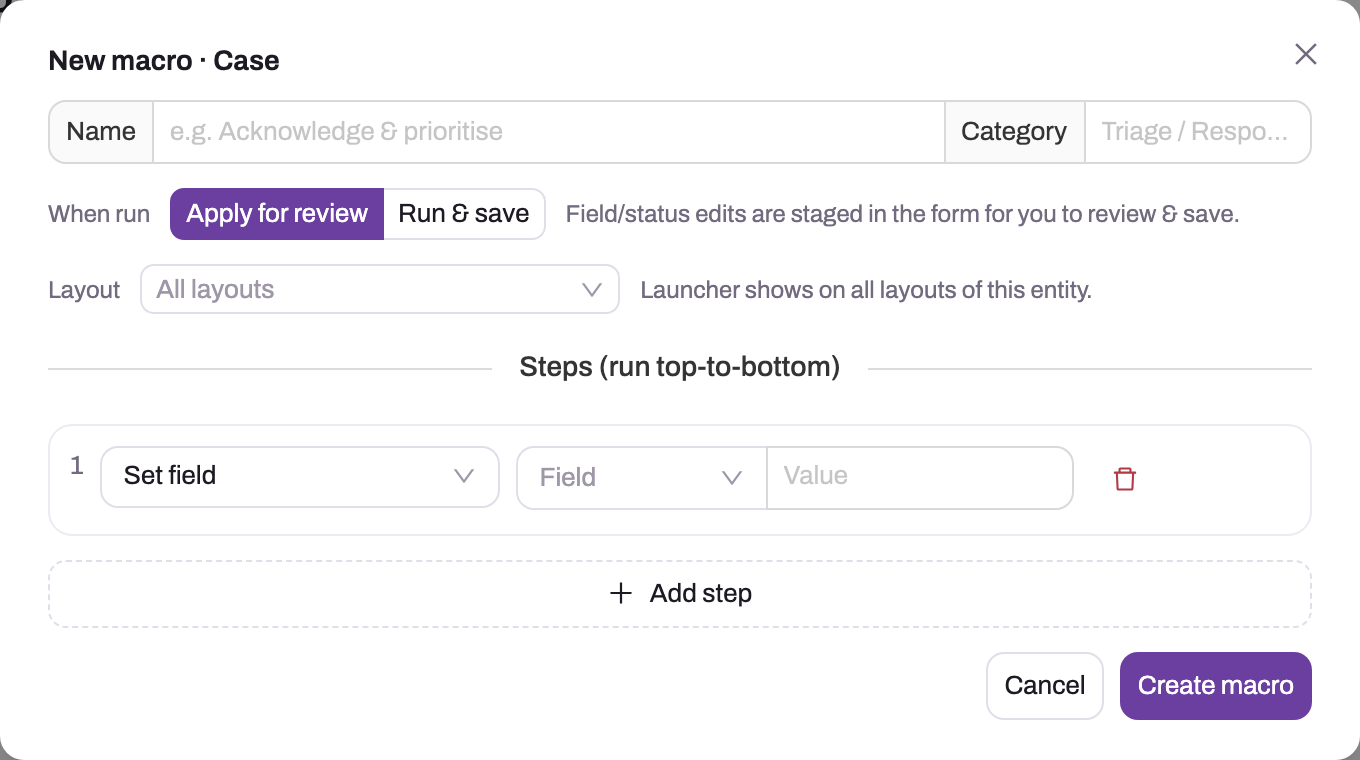
Select New macro in the page header. The New macro · Case dialog opens (it names the entity you picked).
- Type a Name. The name is required; without it you see Give the macro a name.
- Optionally type a Category, such as Triage, Response, Closure or Escalation. Agents see it as a tag and can search on it.
- Choose When run: Apply for review or Run & save (see How xMatix handles it).
- Leave Layout on All layouts, or pick one record layout. The layout matters only for a record-page Macros widget.
Step 3 — Add the steps
The dialog starts with one Set field step. For each step, choose its type in the left-hand box and fill in its settings:
- Set field — pick the Field from the entity's fields, then type the Value. For a picklist, type the value exactly as it appears in the list (for example High). For a lookup, the value must be the record's ID. For a yes/no field, type true or false.
- Change status — pick the new status from the Status list.
- Add note — type the note text.
- Create task — type the task subject. If you leave it empty, the task is called Macro task.
- Send email (template) — choose Draft for review or Send now, then pick an active email template. Send now sends to the record's email address (on a case, Contact Email).
- Send email (compose) — choose Draft for review or Send now, then fill in To, From, Cc, Subject and the body. You can use merge tokens (a field name such as ContactEmail inside double curly braces) in To, Subject and Body. The field name must be written as the record's field name, without spaces. A sent email goes only to the To address; From and Cc are written into the recorded copy but aren't used to send.
- Call server action — pick the action and optionally type arguments as JSON. This step only runs scripts bound to the action (see How xMatix handles it).
Select Add step for each further step. Steps run in the order shown; the number on the left is the run order. To remove a step, select its delete icon. Changing a step's type clears what you had entered for it.
Step 4 — Create the macro
Select Create macro. You see Macro "…" created with n step(s), and the macro appears in the table. Every new macro is saved as Active.
Step 5 — Rename the macro once
A new macro gets a number from the Macro Name Setting document series (starting MA). This number replaces the name you typed, so the table, the drawer and the timeline show the number. To use your own name:
- Select the edit icon (Edit macro) on the macro's row.
- Type the name again in Name.
- Select Save changes.
From then on the name stays. To keep the typed names permanently, an administrator can switch off the numbering series (see Configuration).
Step 6 — Change, switch off or delete a macro
- Change it. Select Edit macro, change the header or the steps, and select Save changes. You see Macro "…" updated. The steps you see replace the old steps completely.
- Switch it off. Turn the Active switch off in the table. You see Macro deactivated. An inactive macro is no longer listed for agents and refuses to run. Saving the macro in the builder switches it back on, so switch it off again after editing if needed.
- Delete it. Select the delete icon (Delete macro) and confirm Delete this macro?.
Step 7 — Run a macro on a case
- Open the case.
- Select Macros in the status bar at the bottom of the screen. The Macros · Case drawer lists the active Case macros, with a search box.
- Select a macro's name to see its steps, numbered in run order.
- Select Run on the macro you want.
You see Ran "…" — n/m step(s), where n is the number of steps that applied. The macro's steps open with the result under each one: a green number means applied, an orange number means skipped, with the reason. The record is already saved. Draft emails wait on the record's timeline for you to finish and send. The Run button is disabled on list pages; open a record first.
Fields
Macro (the header)
| Field | What it means | Notes |
|---|---|---|
| Name | The name agents see in the drawer and on the timeline | Required in the builder. Replaced by an MA number on create — rename once (Step 5) |
| Category | A grouping label, shown as a tag in the drawer | Free text in the builder; the suggested values are Triage, Response, Closure, Escalation |
| When run | Apply for review or Run & save | Shown in the table's When run column. Empty counts as Apply for review |
| Layout | One record layout, or All layouts | Applies to the record-page Macros widget only; the drawer ignores it |
| Active | Whether agents can see and run the macro | Set to on every time the builder saves |
| Target Entity | The entity the macro belongs to | Taken from the Entity picker on the Macros screen. Case when nothing else is given |
| Description | A longer explanation shown when the macro is expanded in the drawer | Not in the builder; it can only be set on the Macro record form |
Macro step
| Field | What it means | Notes |
|---|---|---|
| Step Order | Run position | The builder renumbers the steps 1, 2, 3… on every save |
| Step Type | The operation | One of the seven types in Overview |
| Target Field | The field to set, or the action to call | Set field and Call server action only. Empty on Change status means Status |
| Value | The value, text, send or draft choice, or arguments | Up to 2,000 characters in total. For a composed email this includes To, Subject and Body, so keep long messages in a template |
| Email Template | The template to render | Send email (template) only. Only active templates are offered |
Business rules
- Order and skipping. Steps run in Step Order. A step that can't apply is skipped with a reason; the rest still run and their results stand.
- Field steps. Set field converts the typed value to the field's type. A field the entity doesn't have, a field that can't be written, or a value that doesn't convert is skipped. Values are not checked against the picklist, so a misspelt value is written as typed.
- Saving. A run from the Macros drawer saves the record. This includes field and status changes, whatever the run mode.
- Status side effects. A status change made by a macro has the same effect as one made by hand. For example, moving a case to On Hold stops the SLA clock (see Pausing and resuming the clock).
- Emails. A draft is recorded on the timeline as an email with status Draft. A sent email is recorded as Completed. If sending fails, there's no recipient, or outbound email isn't available, the email is drafted instead and the step still counts as applied.
- Templates. A template that fails to render still produces a draft, with the subject Draft email and a placeholder body.
- Server actions. Call server action runs the automation scripts bound to the named action and reports Called server action '…', even when no script is bound. If a bound script fails, the step reports Server action '…' was not dispatched.
- Refusals. A run is refused before any step runs if the macro is inactive (Macro is inactive.), belongs to another entity (Macro '…' targets Case, not Lead.) or has been deleted (Macro not found.).
- Timeline marker. Each run adds a Ran macro '…' (n step(s)) entry to the record's timeline.
- Editing. Saving a macro in the builder deletes its old steps and writes the current list again. It also sets the macro to Active.
Example
The support team at a home-appliance retailer often has to ask customers for a photo of the fault before they can go on. They want one click for this.
- An administrator opens Setup → Feature Hub → Service → Macros, keeps Case selected and selects New macro.
- Name: Ask for photo. Category: Response. When run: Run & save.
- Steps:
- Change status → On Hold.
- Add note → Asked the customer for a photo of the fault.
- Send email (compose) → Draft for review. To: the merge token for ContactEmail. Subject: Your case, the merge token for Name, then : a photo would help. Body: Please reply with a photo of the fault so we can continue.
- Create task → Check for the customer's photo.
- They select Create macro. Then they rename it from its MA number to Ask for photo with Edit macro and Save changes.
- An agent working case CS…0142 selects Macros in the status bar and selects Run on Ask for photo. The message reads Ran "Ask for photo" — 4/4 step(s). The case is now On Hold, so its SLA clock is stopped. The timeline shows the note, the open task, a draft email to the contact with the case number in the subject, and the Ran macro entry.
- The agent opens the draft email from the timeline, checks it and sends it.
Training
Practice exercise
In a sandbox, as a user who sees Macros in the status bar:
- Build a Case macro called Acknowledge and prioritise, with Run & save and three steps: Set field Priority = High, Add note Acknowledged and prioritised, Create task Call the customer back.
- Rename it from its MA number to your name for it.
- Open any open case and run the macro from the Macros drawer.
Expected result: Ran "Acknowledge and prioritise" — 3/3 step(s). The case's Priority is High and already saved. The timeline shows the note, an open task called Call the customer back, and Ran macro 'Acknowledge and prioritise' (3 step(s)).
Then edit step 1 to set Priority to Urgent and run it again. The step still applies, because values aren't checked against the picklist. Case Priority offers only High, Medium and Low, so set it back to High by hand and correct the macro.
Quick reference
- Build: Setup → Feature Hub → Service → Macros → New macro.
- Run: open the record → Macros in the status bar → Run.
- A new macro is named with an MA number — rename it once with Edit macro.
- Runs from the drawer save at once, in either run mode.
- Green number = applied, orange = skipped; read the reason under the step.
- Only the composed email resolves merge tokens.
- Call server action runs bound scripts only, not Close, Escalate or Pause SLA logic.
- Saving in the builder switches the macro back on.
- Turn Active off to retire a macro without deleting it.
Permissions
| To… | You need |
|---|---|
| See Setup → Feature Hub → Service → Macros | The Service product enabled for your organisation. No separate setup capability |
| Create, edit or delete macros | Create, edit and delete access to Macro and Macro Step in your security profile. The shipped Standard User, Sales Executive, Sales Manager and System Administrator profiles have full access |
| See the Macros drawer | Telephony (CTI) enabled, and your user linked to a routing resource in a group with an active queue |
| Run a macro on a case | The Run Macro action on Case granted on the Actions tab of your security profile. The shipped Standard User, Sales Executive, Sales Manager and System Administrator profiles have it. There is no administrator bypass |
| Have a step's effects stick | Ordinary edit access to the record. The steps run as the agent |
Without the Run Macro grant, the run is refused and no step runs.
Configuration
- Macros screen. Setup → Feature Hub → Service → Macros is where every macro is built, for any entity.
- Macros on another entity. The Entity picker lists every entity, but a macro runs only where the entity has an active server action named RunMacro. Case has one. Lead has one that is switched off — running a Lead macro gives Action 'RunMacro' is inactive for entity 'Lead'. To enable macros on an entity:
- Add or activate a RunMacro server action on it — see Actions.
- Grant the action in the relevant security profiles.
- Who sees the drawer. The drawer follows telephony routing: turn on Enable Telephony (CTI) under Setup → Feature Hub → Service → Telephony → Settings. Then put each agent's routing resource in a resource group with an active queue. See queues and routing.
- Macro numbering. The Macro Name Setting document series (MA) numbers new macros and replaces their typed names. Switch it off if you want typed names to stay: Setup → Design Studio → Entities → Macro → Logic → Document Settings. See Email templates and document numbering.
- Email templates. Templates for Send email (template) are managed under Setup → Feature Hub → Platform → Messaging Templates. Only active templates are offered. A template is rendered against the record the macro runs on.
- Outbound email. Send now steps need outbound email for your organisation; without it they draft instead.
- Scripts for Call server action. To make a macro step do real work through an action, bind an automation script to that action.
- Category values. The Category picklist on the Macro entity (Triage, Response, Closure, Escalation) is a suggestion only. The builder accepts any text.
Common problems
There is no Macros button in the status bar
The status bar with Calls, Chats and Macros appears only when Telephony (CTI) is enabled and your user's routing resource is in a group with an active queue. It isn't shown on mobile devices. Ask your administrator to add you to a queue's resource group.
The Macros drawer says "No macros for this entity yet"
No active macro exists for this record's entity. Check the Entity picker and the Active switch on the Macros screen. Macros built for Case are not listed on other entities.
The Run button is greyed out
You are on a list page. Open a record; macros run against one open record.
My new macro shows a number instead of its name
The Macro Name Setting series replaced the name when the macro was created. Open it with Edit macro, type the name and select Save changes, or switch the series off.
A macro I switched off is active again
Saving a macro in the builder always sets it to Active. Turn the Active switch off again after editing.
The field changed straight away although the macro is set to Apply for review
Runs from the status-bar drawer always apply and save field and status changes. Review staging works only with a record-page Macros widget, which the shipped layouts don't include.
"Called server action" but nothing happened
The Call server action step runs only automation scripts bound to the action, not the action's built-in logic. To close, escalate, route or pause a case, use the case's own buttons. You can also bind a script to the action. For SLA pauses, use a Change status step to a pause status such as On Hold.
A step reports "SetField skipped"
The reason follows the message:
- has no writable field '…': the field name isn't on this entity or can't be written.
- '…' is not valid for …: the value doesn't convert to the field's type, for example text in a number field or a lookup that isn't an ID.
Correct the step in the builder.
The email was drafted instead of sent
The step is set to Draft for review, or no recipient was found (Email drafted — no recipient resolved), or outbound email isn't available (Email drafted — no email sender configured), or sending failed (Send failed (…) — drafted instead). The draft is on the record's timeline either way.
A merge token appears literally in a note
Tokens are replaced only in the composed email step. In a composed email, a token also stays as typed when the record has no field with that name. Check the spelling of the field name.
Saving a macro fails with a long email body
A step's settings are stored in up to 2,000 characters, which includes the To, Subject and Body of a composed email. Shorten the text, or put it in an email template and use Send email (template).
Running a macro on a lead fails
The shipped Run Macro action on Lead is switched off. An administrator has to activate it and grant it (see Configuration).
Common questions
When should I choose Apply for review over Run & save?
On a standard setup it makes no difference, because the status-bar drawer applies and saves in both modes. The choice matters only when an administrator has placed a record-page Macros widget on a layout. There, Apply for review puts the field and status changes into the open form for the agent to check and save. Notes, tasks and emails still happen at once. If agents need to check a change before it is saved, leave that step out of the macro and let them make it by hand.
Can a macro pause the SLA or escalate the case?
A macro can pause the SLA: add a Change status step to On Hold, or another pause status in your SLA policy. The clock follows the case status (see Pausing and resuming the clock). A macro can't escalate, route or close a case through Call server action, because that step runs only bound scripts. To close a case with a macro, set Close Reason with a Set field step and add a Change status step to Closed. A closed case without a close reason is refused on its next save with A close reason is required to close a case.
Is there an audit of what a macro changed?
Yes. Each run adds a Ran macro entry to the record's timeline. The notes, tasks and emails it created are ordinary timeline items. Field changes follow the entity's normal field auditing. The step-by-step result appears in the drawer after the run, but it isn't stored.
Can agents create their own macros?
Only through the Macros screen, which needs access to Setup. The shipped broad profiles have full access to the Macro entities, so restrict them in your security profiles if only administrators should build macros.
Can I run a macro on the mobile app?
No. Macros run from the status bar in the desktop browser.