
xMatix Support is the help desk: every customer issue becomes a case, and the desk makes sure each case has a promise, an owner and a record of what was done. Around the case sit SLA policies that set response and resolution clocks, queues that offer work to available agents, a knowledge base for answers, macros for repeated routines, and duplicate detection. A case can turn into follow-up work in other modules, such as a lead, an opportunity, an appointment or a workshop service order.
Overview
The shipped Support app holds the day-to-day screens. Its settings are on one page for administrators.
| What you want to do | Where it is in the shipped apps | Read |
|---|---|---|
| Log, work, resolve and close customer issues | Support → Cases | Cases |
| Log or review phone calls | Support → Calls | Calls, dispositions and recordings |
| Hand open cases to people on a board, timeline or map | Support → Case Allocation | The dispatch console |
| Look up customer accounts | Support → Accounts | Accounts |
| Read and write help articles | Support → Knowledge Base | Author and share knowledge articles |
| Report on and chart the desk | Support → Reports, Support → Dashboards | Analytics |
| Set up promises, calendars, queues and skills | Support → Settings | Support configuration reference |
| Build one-click routines for agents | Setup → Feature Hub → Service → Macros | Build and run macros |
| Set rules for spotting duplicate cases | Setup → Feature Hub → Platform → Deduplication rules | Collaborating on cases |
Support → Settings opens a page of cards: SLA Policies, Business Hours, Holidays, Milestone Configs, Skills, Resource Skills, Queues, Resource Groups and Knowledge Base, plus the Lead Allocation and Case Allocation consoles.
Your administrator can rename these entries, move them to other apps or add more, so your menus may differ.
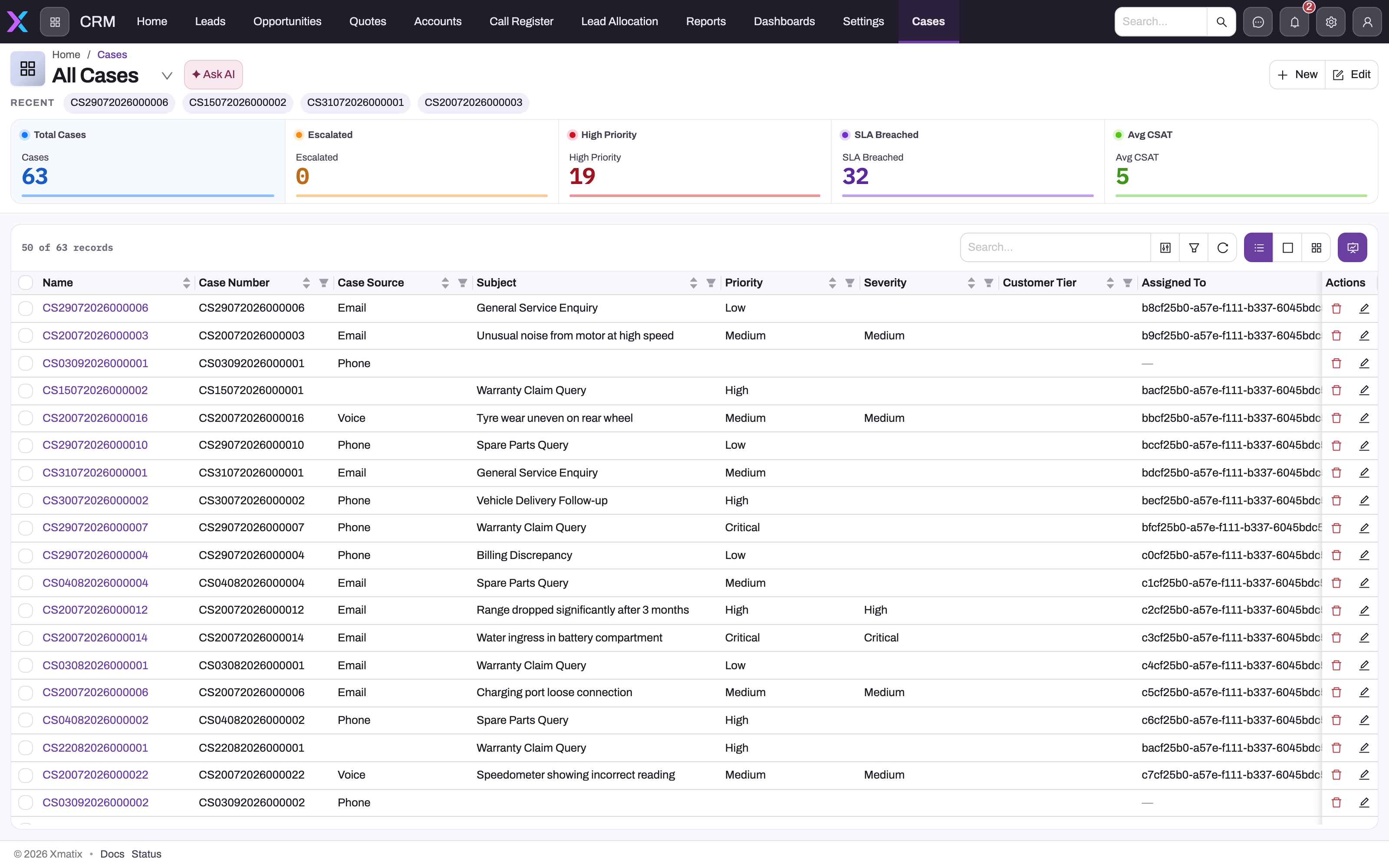
The picture shows a customised case list. The shipped All cases list shows Name, Case #, Subject, Priority, Category, Account, Asset, Assigned To, Phone, First Response Due, Resolution Due, SLA Status, Status, Created By, Created and Modified Date. The other shipped lists are Escalated cases and SLA breached cases.
When to use it
- Log a case whenever a customer reports something that needs follow-up: a fault, a complaint, a billing query, a question you can't answer on the spot. If you settled it during the call, log it anyway with Closed When Created so the contact is counted.
- Use SLA policies when you promise customers response or resolution times. Without them, cases work normally but carry no SLA status.
- Use queues when cases should be offered to whoever is free, rather than assigned by a person.
- Use a macro for a routine that agents repeat many times a day. Use a business rule instead when the change must happen every time, without anyone clicking.
- Use the knowledge base to give agents tested answers, and to email an answer to the customer from the case.
How xMatix handles it
- One save sets up a new case. The case gets its number (the shipped series is
CSfollowed by the date and a six-digit sequence) and the status New. Blank contact details are filled from the account. The best-matching active SLA policy attaches and starts its clocks. An acknowledgement email activity is written to the timeline; it is sent after the save when the case has a Contact Email, and stays a draft when it has none. - The status drives everything. Moving a case to In Progress records the first response. On Hold pauses the SLA clocks. Resolved needs a Resolution Summary, and Closed needs a Close Reason. Shipped business rules refuse moves that skip the lifecycle, such as Resolved back to In Progress. The Cases page lists every state and rule.
- The SLA policy is chosen once. It is picked when the case is created and is never re-matched, even if you change the priority later. A background job marks milestones Warning and Breached shortly after each threshold passes. A breach sets the case's Escalated flag but leaves its status as it was.
- Three people fields, three jobs. Owner is whose record it is. Assigned To is the user handling it now. Executive is the resource the case is allocated to; the Case Allocation console writes this field. A new case with no Executive gets the creator's own resource.
- Routing offers, it doesn't assign. When a new case has a Queue, the shipped Auto-route new cases rule passes it to the queue. The queue offers the work to an active member of its resource group who is Available and has room under their work-item limit. If nobody qualifies, the work waits as Pending. The case's Assigned To and Owner change only when the agent accepts the offer. The shipped web and mobile screens have no place to accept an offer, so a desk that routes this way needs an integration to accept it. See Queues and omni-channel routing.
- The record shows its work. The record page has the tabs Overview, People & Queue, SLA, Resolution, Knowledge, Duplicates, Call Register, Attachments and Related, with the Activities timeline on the right. Status changes, assignments and macro runs appear on the timeline. SLA events are stored separately as Case SLA Event records.
- Header buttons are limited. The shipped case page shows Appointment, Lead, Opportunity, Service Order, Duplicate, Edit and Delete. Close, Reopen, Escalate, Route, Pause SLA and Resume SLA exist as actions but are not on the header until an administrator adds them. Agents reach the same results by changing Status.
- Knowledge is suggested on the case. The Knowledge tab lists Published articles suggested from the case's content, with a search box. Each article can be previewed, attached to the case or emailed to the customer.
- Duplicates are found for you. The Duplicates tab lists open cases that share the contact, account or phone number. Compare & merge moves the activities, attachments and people to the surviving case and closes the other with the close reason Duplicate. Rules under Deduplication rules take precedence over this built-in matching.
Prerequisites
- A security profile with access to the Case entity. To use the Support app menu, the profile also needs the app; see Permissions.
- The account, and for equipment issues the asset, that the case concerns.
- For SLA clocks, routing and macros, an administrator has completed the setup under Configuration.
What this section covers
- Cases: logging, working, resolving, closing and reopening a case, every form field, the status rules, permissions and a practice exercise.
- SLA policies and milestones: how a policy is chosen, first-response and resolution clocks, business hours and holidays, pausing, warnings and breaches.
- Queues and omni-channel routing: who is eligible for an offer, the routing models, and accept, decline, transfer and reassign.
- Author and share knowledge articles: write, classify and publish articles, find them on a case and email them.
- Build and run macros: ordered steps that set fields, change the status, add notes and tasks, and draft or send email.
- Collaborating on cases: followers, team members, side conversations, and merging duplicates.
- Escalating a case: what the Escalate action changes and how breaches flag a case.
- Support configuration reference: queues and agent pools, skills, SLA policies, calendars and duplicate rules, for administrators.
- Troubleshooting the support desk: what to check when a case won't route or an SLA clock surprises you.
Example
A pump service company runs a small help desk.
- A customer calls: their booster pump trips after ten minutes. The agent opens Support → Cases, selects New, picks the Asset (the account fills in), enters the subject Booster pump trips after 10 minutes and sets Priority Medium. On save the case gets its
CSnumber and the status New, the desk's standard SLA policy attaches, and Case acknowledgement appears on the timeline. - The agent opens the Knowledge tab. A published article on thermal overload resets is suggested, so the agent selects Email to customer.
- The customer replies that the reset didn't help. The agent sets Assigned To to themselves, moves the case to In Progress (the first response is recorded) and then to On Hold while a part is ordered. The SLA clock pauses.
- The part arrives. The case goes back to In Progress, and the agent uses Service Order to send the job to the workshop. The case already has its partner account and branch.
- When the workshop has finished, the agent writes the Resolution Summary, moves the case to Resolved, and closes it with a Close Reason once the customer confirms.
- At the end of the week the supervisor opens the SLA breached cases list to review the cases that missed a promise.
Training
Practice exercise
In a sandbox where you are System Admin and at least one active SLA policy exists:
- Open Support → Cases, select New, choose an account, enter a subject and set Priority Medium. Save.
- Open the SLA tab.
- Move Status to In Progress and save.
- Move Status to Resolved without a Resolution Summary and save.
- Open Support → Settings.
Expected result: after step 1 the case number starts with CS, the status is New and the timeline shows Case acknowledgement. In step 2 the SLA Policy and SLA Status (OnTrack) are filled. After step 3 First Response Date is filled. Step 4 is refused with A resolution summary is required to resolve a case. Step 5 shows the settings cards, including SLA Policies and Queues.
Quick reference
- Cases live in Support → Cases; settings in Support → Settings.
- In Progress records the first response; On Hold pauses the SLA clock.
- Resolved needs a Resolution Summary; Closed needs a Close Reason.
- The SLA policy is chosen once, at creation.
- A breach sets the Escalated flag, not the status.
- A case with no Queue is never routed.
- Routing offers work; Assigned To changes only on acceptance.
- Macros are built in Setup → Feature Hub → Service → Macros.
- Duplicate copies a case; Compare & merge on the Duplicates tab merges two.
Permissions
Access comes in three layers, all set on security profiles:
| Layer | What it controls | In the shipped profiles |
|---|---|---|
| App and page access | The Support app menu, and pages such as Case Allocation and Settings | The Support app: Sales Executive and System Admin. Case Allocation: Sales Executive and System Admin. Support → Settings and its settings app: System Admin only |
| Entity access | Seeing, creating, editing and deleting cases and the setup records | Standard User, Sales Executive and Sales Manager can read, create, edit and delete cases; Service and System Admin can also view and change every case |
| Action grants | Each case action other than New, Edit and Delete, such as Close, Reopen, Escalate, Route, Pause SLA, Run Macro and Email Article | Standard User, Sales Executive, Sales Manager and System Admin hold all of them. The Service profile holds none |
A profile with access to cases but not to the Support app can still open cases through the App Launcher. A profile without the page grant does not see the Case Allocation or Settings entry. If someone can't see something, use this triage. See also Role guide: support agent.
Configuration
Set the desk up in this order:
- Turn the module on. The Support module has a master switch, Enable Support, which is on by default. When it is off, the Support apps leave the launcher and navigation for everyone. It has no Setup menu entry; open
/setup/featurehub/modules/support/settingsin the web app. - Calendars. Create business hours and holidays under Support → Settings. The standard Holiday form has no Business Hours field, so add it before you link holidays to a calendar.
- Promises. Create SLA policies, from specific ones at a high rank down to one catch-all policy with a blank match formula at the lowest rank. Add Milestone Configs for extra promises.
- People and pools. Create resources linked to users, put them in resource groups, and record skills under Skills and Resource Skills.
- Queues. Create queues with a resource group and a routing model under Support → Settings → Queues. The shipped rule Set Case Queue To High Priority names a specific queue; point it at one of yours, or switch it off. See Queues and omni-channel routing.
- Case lifecycle. Review the Case Status picklist and the shipped business rules that block and set statuses. Add Waiting on Customer, Waiting on Third Party and Escalated to the picklist if your desk uses them; they already pause the clock or set the flag. See Cases.
- Knowledge. Write and publish articles under Knowledge Base. Only Published articles appear on a case's Knowledge tab.
- Macros and duplicates. Build macros in Setup → Feature Hub → Service → Macros, and add duplicate rules in Setup → Feature Hub → Platform → Deduplication rules. The Macros drawer appears only for agents set up for telephony; see Build and run macros.
- Email. The acknowledgement and any emailed articles need outbound email set up for your organization. Case numbering is the Case Name Setting under Setup → Feature Hub → Platform → Document Settings; see Email templates and document numbering.
- Layouts. Add Close, Reopen, Escalate or the SLA buttons to the case header if agents should run them as buttons. See Design a form layout.
- Mobile. The Support app is part of the shipped mobile app, so agents can log and update cases on the phone. See the mobile app.
Common problems
I can't find the Support app
Your security profile isn't granted the app. In the shipped setup only Sales Executive and System Admin have it. Open cases through the App Launcher, or ask your administrator to grant the app.
There is no Settings entry in the Support app
The Settings page is granted only to System Admin in the shipped setup. Ask your administrator.
A new case has no SLA status
No active SLA policy matched when the case was created, and the policy is never re-matched later. Add a catch-all policy for future cases. See SLA policies and milestones.
A case sits in a queue and nobody gets it
Routing offers the work only to available members with spare capacity, and the case's Assigned To changes only when someone accepts. See Troubleshooting the support desk and Queues and omni-channel routing.
I can't find the Escalate or Close button
They are not on the shipped case header. Change Status instead, or ask your administrator to add the buttons to the case layout.
Common questions
What is the difference between Priority and Severity?
Priority says how fast the business should act; Severity says how serious the impact is. Both are picklists on the case, and an SLA policy's match formula can read either of them. Keep them separate: a cosmetic fault for a key customer can be high priority and low severity. Changing either one after the case is created doesn't change its SLA policy, because the policy is chosen once, when the case is saved for the first time.
Does a breached SLA change the case status?
No. A breach marks the milestone Breached, turns the case's SLA Status to Breached and sets the Escalated flag. The status stays as it was. A breach is also final: finishing the work later doesn't turn the milestone into Met. If you want something to happen on a breach, such as a notification or a reassignment, write a business rule on the SLA Status or Escalated field.
Can customers raise cases themselves?
A case is an ordinary record, so anything that creates records can create one, such as an integration or a portal page your organization builds. The shipped Support app has no customer-facing intake form. Whatever creates the case, the same save runs: numbering, the SLA policy, the acknowledgement and routing.
Is the support desk available on mobile?
Yes. The Support app is part of the shipped mobile app, and cases open there with the same New Case and case record forms. The Macros drawer and the telephony status bar are desktop only.