
A knowledge article is a reusable, titled answer — a summary and a full body, classified by category and visibility — that agents find on a case and can attach to it or email to the customer. Articles are written and maintained in the Knowledge Base list, move through the statuses Draft, Published and Archived, and only Published articles are offered on a case's Knowledge tab. Each article also keeps simple usage counters (views, helpful and not-helpful votes, and deflections) that show which answers actually work.
Overview
The knowledge base sits beside the case. An agent working a case opens its Knowledge tab, where xMatix suggests published articles that share words with the case, and offers a search over the rest. From there the agent reads an article, attaches a copy to the case, emails it to the customer, votes on it, or records that it resolved the case. Writing articles is the other half: whoever discovers a reliable answer turns it into an article so the next case gets it in seconds.
Articles live in two places in the shipped apps:
- Support → Knowledge Base — the working list for authors and agents.
- Support → Settings → Knowledge Base — the same list, reached from the support settings cards.
When to use it
- An answer has been given to customers more than once — write it down once as an article.
- A case matches a known problem — use the Knowledge tab instead of typing the answer again.
- A procedure or policy changes — update the article, or archive it and publish a replacement.
- You want to know which answers help — read the Helpful, Not Helpful and Deflections counters in the list.
How xMatix handles it
- One record per article. The article's Name is its title. Summary and Body are the content, Category and Keywords help it be found, Visibility classifies who it is meant for, and Status is its lifecycle.
- Defaults on save. When a new article is saved with no status, it becomes Draft; with no visibility, it becomes Internal.
- Only Published articles are offered on a case. The Knowledge tab loads up to 200 Published articles, most-viewed first. Drafts and archived articles never appear there.
- Suggestions come from shared words. The tab compares the case's subject, description and category with each article's title, summary, keywords and category, and lists the five best matches under Suggested for this record.
- Visibility is a label, not a lock. Nothing in the Knowledge tab or the email step checks Internal or Public: an internal article appears on the tab and can be emailed like any other. Your review process and permissions decide what is safe to send.
- Usage is counted from the case. Yes and No under Was this helpful? add one to Helpful or Not Helpful; This resolved the case adds one to Deflections and writes a note on the case timeline. Reading an article does not add to Views.
- There is no approval or version history. Publishing is a status change on the record. The record is audited, so field changes appear in its audit history.
Prerequisites
- Access to Knowledge Article records (the shipped System Admin, Sales Manager, Sales Executive and Standard User profiles include it) and the Support app.
- An authoring form with fields on it. In the shipped configuration the New/Edit form for articles (Knowledge Base Create) has no fields, so an administrator must design it before anyone can write an article — see Configuration.
- To use articles on a case: a case layout with the Knowledge tab (the shipped case layout has it) and permission to run Email Article on cases if you want to send them.
- For emailing: outbound email set up for your organization, and a Contact Email on the case.
Procedure
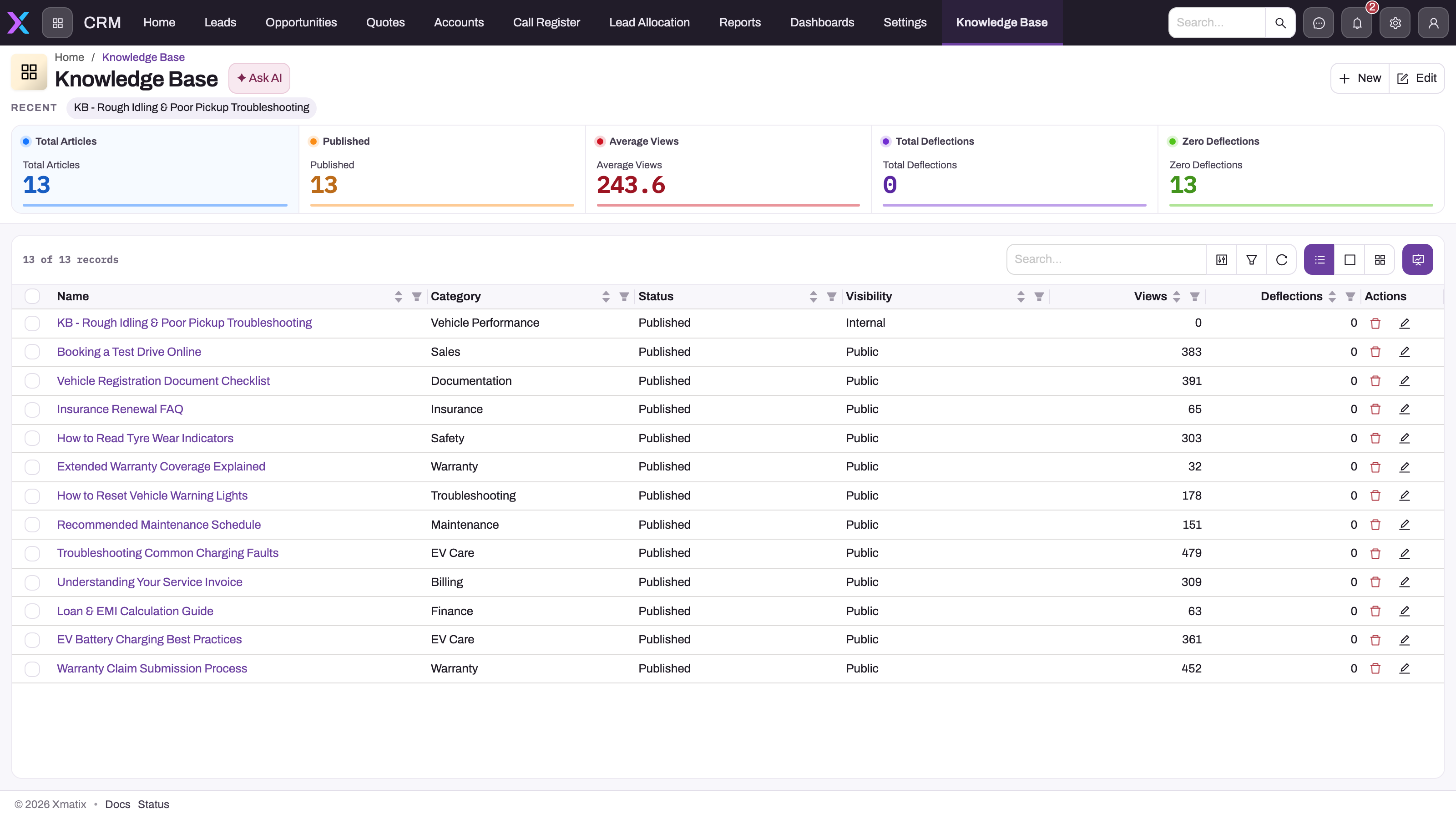
The Knowledge Base list is both the authoring queue and a quality dashboard. Its summary cards show Total Articles, Published, Average Views, Total Deflections and Zero Deflections, and its columns show the title, Category, Status, Visibility, Views and Deflections.
Step 1 — Open the knowledge base
Open the Support app and select Knowledge Base. Use search, filters and column sorting to find what already exists before writing something new — sort by Deflections to see the answers that work, or filter Status to Draft to see work in progress.
Step 2 — Create the article
Select New. On the form your administrator has set up, enter:
- Name — the title. Write it the way a customer or agent would describe the problem, for example Booster pump trips after ten minutes.
- Summary — one or two sentences on what the reader gets. Up to 500 characters.
- Body — the full answer, steps in order. Separate paragraphs with a blank line; the emailed version keeps those paragraph breaks.
Save. The article is created as Draft and Internal unless you chose other values. If saving fails with Name is required, the form has no Name field — ask your administrator to add it.
Step 3 — Classify it
Set Category (General, Troubleshooting, HowTo, Policy or FAQ), Visibility (Internal for agent-only content, Public for content reviewed as suitable for customers) and Keywords — the words people actually use for this problem, separated by spaces or commas. Keywords take part in matching, so add synonyms and part names that are not already in the title or summary. On the article's record page these fields can be edited in place.
Step 4 — Publish it
Set Status to Published and save. From now on the article can be suggested and found on every case's Knowledge tab. The shipped forms do not include Status, so this needs the field on the New/Edit form — see Configuration.
Step 5 — Find an article on a case
Open the case and select the Knowledge tab.
- Suggested for this record lists up to five published articles that share the most words with the case.
- All articles lists the rest of the published articles.
- Type in Search the knowledge base… to filter by title, summary, keywords or category. While you search, the suggestions are hidden and matches are listed under Results.
Select Read (or the article title) to open it in a side panel showing its category, status, view count, summary and body.
Step 6 — Attach it to the case
Select the paperclip (Attach to this record) on the article's row, or Attach in the side panel. xMatix saves a copy of the article as an HTML file in the case's attachments and shows Attached “title” to this record's files. The copy does not change when the article is edited later.
Step 7 — Email it to the customer
Select the envelope (Email to customer) on the article's row, or Email in the side panel. xMatix runs Email Article on the case and sends the article to the case's Contact Email. The customer receives an email whose subject is the article title, with the summary and body as the message. You see Emailed “title” to … with the address used.
If the server cannot send — for example the case has no contact email or you are not allowed to run Email Article — xMatix opens your own mail program instead, with the title as subject and the summary and body (shortened to 1,500 characters) as the message. Check the recipient before you send it.
Step 8 — Record whether it helped
In the side panel:
- Under Was this helpful?, select Yes or No. The count beside the button goes up by one.
- Select This resolved the case when the article solved the customer's problem. The article's Deflections count goes up by one, you see Recorded — this case was deflected by the article, and a note Resolved by knowledge: title is added to the case timeline.
Step 9 — Keep the knowledge base current
When an article is out of date, edit it in place or, if it no longer applies, set Status to Archived. Archived articles leave the Knowledge tab but keep their history and counters. Use Clone on an article's record page to start a new article from an existing one. Delete removes the article, so prefer archiving.
Fields
| Field | What it means | Notes |
|---|---|---|
| Name | The article title | Required. Shown in lists, on the Knowledge tab and as the email subject |
| Summary | Short description of what the article answers | Up to 500 characters. Shown under the title on the Knowledge tab and first in the email |
| Body | The full answer | Unlimited length. Blank lines split it into paragraphs in the email |
| Category | Subject area | General, Troubleshooting, HowTo, Policy, FAQ. Used in search and matching |
| Visibility | Intended audience | Internal or Public. Defaults to Internal on save. Not enforced when emailing |
| Status | Lifecycle | Draft, Published, Archived. Defaults to Draft on save. Only Published appears on a case |
| Keywords | Extra search words | Up to 500 characters, separated by spaces or commas. Used in search and matching |
| Views | Stored view count | Not increased by reading the article on a case; the Knowledge tab lists the most-viewed first |
| Helpful | Number of Yes votes | Increased from the Knowledge tab |
| Not Helpful | Number of No votes | Increased from the Knowledge tab |
| Deflections | Number of times an agent marked This resolved the case | Increased from the Knowledge tab. Shown in the list, not on the shipped record page |
On the shipped record page, the Key Information section holds Category, Body and Visibility, and Additional Details holds Views, Keywords, Summary, Helpful and Not Helpful. The counters are editable there like any other field, so restrict who can edit articles if you rely on the numbers.
Business rules
- Required title. Every article needs a Name; there is no automatic numbering for articles.
- Defaults. A new article saved without Status becomes Draft; without Visibility it becomes Internal. Values you choose are kept.
- No transition rules. Any status can be changed to any other; publishing does not require a category, body or approval.
- Knowledge tab contents. Up to 200 Published articles, ordered by Views, highest first.
- Matching. Words of three or more letters are compared, ignoring common words such as the, and, how and with. Each word the article's title, summary, keywords or category shares with the case's subject, description or category adds one point; an article whose category equals the case's category gets two more. The five highest-scoring articles with at least one point are suggested.
- Search. Matches any part of the title, summary, keywords or category, ignoring case.
- Email. The recipient is the case's Contact Email. The subject is the article title (or Knowledge article if it has none); the body is the summary followed by the body. Status and visibility are not checked.
- Counters. Votes and resolved marks are saved as edits to the article. If the save fails, the vote count drops back and nothing is recorded.
- Attach. Saves a snapshot HTML file to the case's attachments; later article edits do not change it.
Example
A support team keeps getting calls about booster pumps that trip after running for a while.
- A senior agent opens Support → Knowledge Base, selects New, and enters the title Booster pump trips after ten minutes, the summary Why the thermal overload trips on long runs, and how to reset it safely, and a body with five numbered reset steps. They save: the article is Draft and Internal.
- They set Category to Troubleshooting, Keywords to overload, thermal, reset, tripping, booster, and Visibility to Public after their supervisor reviews the wording. They set Status to Published.
- Next morning a customer reports that their booster pump keeps tripping. The agent creates the case with the subject Booster pump tripping after a few minutes and opens the Knowledge tab. The article appears under Suggested for this record because booster, pump and tripping match.
- The agent selects the envelope icon. The customer, whose address is in Contact Email, receives Booster pump trips after ten minutes.
- The customer confirms the reset worked. The agent opens the article, selects Yes under Was this helpful? and This resolved the case. Helpful and Deflections each rise by one, and the case timeline shows Resolved by knowledge: Booster pump trips after ten minutes.
Training
Practice exercise
In a sandbox where the article form has been set up:
- Create an article titled Resetting a tripped compressor with a summary, a body of three paragraphs, Category Troubleshooting and Keywords compressor, trip, reset. Save without choosing a status or visibility.
- Confirm it is Draft and Internal. Open any case whose subject mentions compressor and check that the article does not appear on the Knowledge tab.
- Set the article to Published. Reload the case's Knowledge tab and confirm the article appears under Suggested for this record.
- Attach it to the case and check the case's attachments.
- Select Yes under Was this helpful? and This resolved the case.
Expected result: the article appears only after publishing; the attachment is an HTML file named after the title; Helpful and Deflections are each 1; the case timeline has a Resolved by knowledge note.
Quick reference
- Title = Name; write it as the customer would describe the problem.
- New articles save as Draft and Internal unless you choose otherwise.
- Only Published articles appear on a case's Knowledge tab.
- Keywords add matching words; include synonyms and part names.
- Public is a label for reviewed content — the system does not stop an internal article being emailed.
- Email goes to the case's Contact Email; if sending fails, your mail program opens instead.
- This resolved the case raises Deflections and writes a timeline note.
- Archive old articles instead of deleting them.
Permissions
- See, create, edit and delete articles — the Knowledge Article entity permission in the user's security profile. The shipped System Admin, Sales Manager, Sales Executive and Standard User profiles grant every level, including View All and Modify All. Clone is granted to System Admin, Sales Executive and Standard User.
- Record access — articles are owned by the user who creates them. The shipped sharing default gives other internal users read-only access to articles they do not own, widened by the role hierarchy, team access and manual sharing. A profile with Modify All can edit every article regardless. See record security.
- Vote and record deflections — these save edits to the article, so the agent needs edit access to that article. Users of the shipped profiles have it through Modify All; an agent profile you build without it can only vote on articles they own or that are shared with edit access. Without it, the count drops back after a moment.
- Email Article — a separate action permission on Case, granted in the shipped System Admin, Sales Manager, Sales Executive and Standard User profiles. Without it, the envelope opens the user's own mail program instead of sending.
A user who cannot see Knowledge Base in the Support app should follow Troubleshooting: a user can't see something.
Configuration
- Design the article form (required). Go to Setup → Design Studio → Entities, open Knowledge Article, and on Experience → Layouts open Knowledge Base Create in the designer. Add Name, Summary, Body, Category, Visibility, Status and Keywords, and leave the counters off. This form is used for both New and Edit. See Design a form layout.
- Record page. The Knowledge Article view layout controls what shows on an article's record page; add Name and Status there if authors should change them in place, and remove the counter fields if they should not be edited by hand.
- Categories. The Category picklist (General, Troubleshooting, HowTo, Policy, FAQ) can be extended on the entity's fields. Keep Status values as shipped: the Knowledge tab looks for exactly Published.
- Knowledge tab on cases. The shipped case view layout has a Knowledge tab holding the knowledge panel. The panel works on any record page you add it to, using that record's subject (or title), description and category for suggestions.
- Email Article on other records. Email Article ships on Case only. To use the envelope on another entity, add an Email Article action to that entity and grant it; the recipient is the record's first filled field among contact email, web email, email and email address.
- Outbound email. Emailed articles use your organization's outbound email setup; see Email templates and document numbering.
- Sharing. If your agent profile has no Modify All on Knowledge Article, change the Knowledge Article sharing policy to read/write so agents can vote on articles they do not own.
- List view. The Knowledge Base view sets the list columns and summary cards; edit it like any other view.
Common problems
"Name is required" when I save a new article
The article form has no Name field — the shipped Knowledge Base Create form is empty. An administrator must add the fields to it (see Configuration).
I can't publish an article
Status is not on the shipped forms. Ask your administrator to add it to Knowledge Base Create, then edit the article and set Published.
My article doesn't appear on the case
It is not Published, or it shares no words with the case. Check the status first, then add Keywords that match how customers describe the problem. Search on the Knowledge tab still finds it if it is published.
The Knowledge tab says "No knowledge articles yet"
No article is Published yet. Publish at least one article.
Selecting the envelope opened my mail program instead of sending
The server send failed: usually the case has no Contact Email, or you are not allowed to run Email Article. Add the address to the case or ask for the permission, then try again. The mail program's message may have an empty recipient.
My vote disappeared
The vote could not be saved because you do not have edit access to that article. Ask your administrator to give your profile Modify All on Knowledge Article, or to change the article sharing policy.
An internal article was emailed to a customer
Visibility is not checked when emailing. Restrict who can publish, keep agent-only content in Draft or Archived, and train agents to check Visibility before sending.
Common questions
What does Public visibility actually do?
Today it is a classification. It tells agents that the article has been reviewed for customers, and separates it from agent-only content such as internal workarounds. Neither the Knowledge tab nor the email step checks it, so an Internal article is listed and can be emailed like a Public one. If internal content must never reach customers, keep it out of Published, limit who can publish through permissions, and make checking Visibility part of your team's routine before sending an article.
Why does Views stay at zero?
Reading an article on the Knowledge tab does not count as a view, and nothing else in the shipped product increases it. Views is a stored number you can import or maintain yourself. The tab uses it only to order articles, most-viewed first, so a value you set does influence which articles appear first in All articles. Use Helpful, Not Helpful and Deflections to judge which articles work, because those are counted from agents' actions on cases.
What is a deflection?
A deflection is a case that an article resolved. When an agent selects This resolved the case in the article's side panel, the article's Deflections count goes up by one and a note is added to the case timeline. The Knowledge Base list totals deflections in a summary card and counts articles that have never deflected anything, which is a quick way to find answers that are not helping. Deflections are counted per selection, so selecting it twice on the same case counts twice.
Does a published article change when I edit it?
Yes. The Knowledge tab and emails always use the article as it is now; there is no version history or re-approval step. Copies already attached to cases do not change, because attaching saves a snapshot file. If a change is large, consider archiving the old article and publishing a new one so earlier counts stay with the earlier wording.
Can I write an article while working the case that taught me the answer?
Yes. Articles are ordinary records, so you can open the Knowledge Base in another tab, save a Draft while the details are fresh, and publish when it is polished. There is no button that creates an article from a case, so copy the useful parts of the resolution yourself. Any resolution summary you find yourself writing twice belongs in the knowledge base.