
A company card is a corporate credit card that an employee holds. In xMatix you record each card once and add each statement line as a card transaction. Posting a transaction books the spend to the company's card liability, not to the employee. The employee never pays for card spend and is never owed anything for it, so it sits outside the claim and reimbursement process. The liability is cleared when the company pays the card issuer.
Overview
Company cards use three records:
- Company Card: one per physical card. It holds the cardholder, the issuing bank, a masked card reference and, optionally, the card's own liability account. You find it in the Expenses app under Company Cards.
- Card Transaction: one per statement line. It holds the date, merchant, amount, expense category and expense account. Post turns it into a journal.
- Card Reconciliation: a sign-off record for a statement date. It holds the issuer's closing balance, the book balance and the difference, all typed in by hand.
Transactions and reconciliations have no menu entry of their own. Both live on the card's Related tab.
When to use it
- An employee paid for company business with a company card. Record it as a card transaction on that card, not as a line on an expense claim or an expense voucher.
- The monthly card statement has arrived. Add each line and post it.
- The card bill is being paid. Post the payment so the card liability falls back to what the issuer says you still owe.
Use an expense claim only for money the employee spent out of their own pocket.
How xMatix handles it
Posting a card transaction creates a posted journal with two lines:
| Line | Account | Debit | Credit |
|---|---|---|---|
| 1 | The transaction's ExpenseGL Account | Amount | |
| 2 | The card payable account | Amount |
The card payable account is the card's Credit Card PayableGL Account. If that field is empty, xMatix uses the company's account whose stored control type is CreditCardPayable. The journal is dated with the transaction's Txn Date (today if empty) and carries its branch and company. The transaction then shows the journal in GL and its Recon Status becomes Posted.
Paying the card bill is the reverse: debit the card payable account, credit the bank. The card's Pay Card Statement button is meant to post this. On the standard record page, though, it opens no dialog, so it never receives a bank account or amount and stops. Post the payment as a journal instead (Step 6).
No employee payable is raised at any point, so card spend never shows in an employee's balance.
Prerequisites
- A liability account for card spend in the company's chart of accounts, such as Credit Card Payable with account type Credit Card or Other Current Liability. See GL accounts.
- Expense categories and expense GL accounts. See Categories and limits.
- A Resource record for the cardholder.
- Permission to post: see Permissions.
Procedure
Step 1 — Create the card
- Open the Expenses app and go to Company Cards.
- Select New.
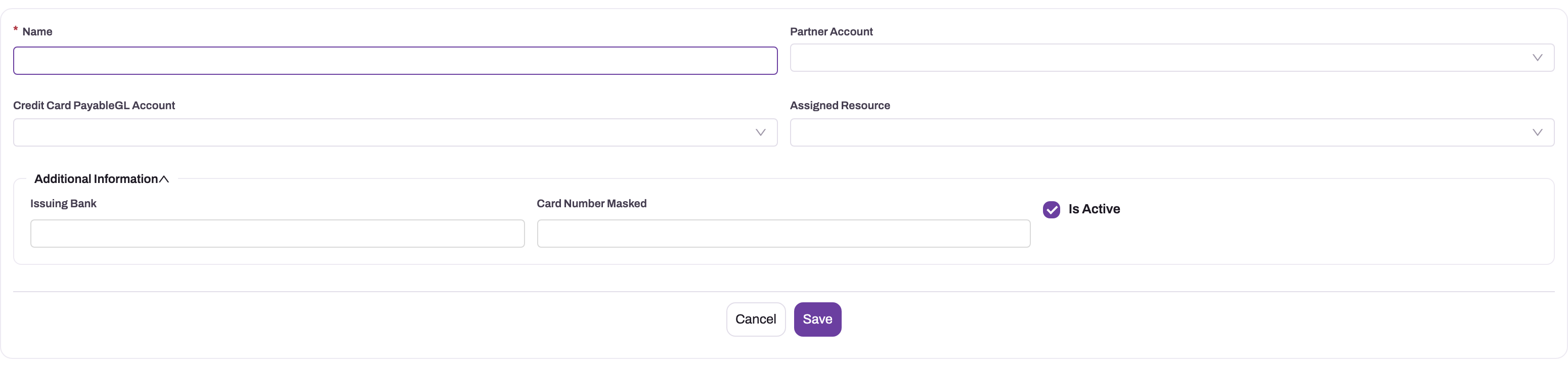
- Fill in the form:
- Partner Account: the company that owns the card liability. Only companies are offered. On a tenant with only one company the field is hidden and filled in for you.
- Credit Card PayableGL Account: the liability account for this card. Setting it here is the most reliable set-up (see Configuration).
- Assigned Resource: the cardholder.
- Under Additional Information: Issuing Bank, Card Number Masked (for example
XXXX-4417; never the full number) and Is Active.
- Select Save.
The card is named automatically from the CC numbering series. The Name box at the top of the form is not saved, so you don't need to put anything meaningful in it. Use Card Number Masked and Issuing Bank to tell cards apart in the list.
Step 2 — Open a card and change its details
Select a card's name in the Company Cards list. The record page has two tabs:
- Related: the card's transactions and reconciliations, each with a New button.
- Details: Card Details (Card Number Masked, Issuing Bank, Credit Card PayableGL Account, Amount Due, Bank GL Account) and Other Details (Assigned Resource, Is Active).
To change a value, click it on the Details tab, edit it in place and save. The header shows only Pay Card Statement; there is no separate Edit or Delete button on the record page.
Step 3 — Add a statement line
- Open the card and go to the Related tab.
- In the transactions list, select New. Company Card is filled in for you.
- Fill in Partner Account (where shown), Branch (filtered to that company), Expense Category (required), Txn Date, Merchant Name and ExpenseGL Account.
- Save. The transaction is numbered from the CCT series and starts with Recon Status
Unmatched. - Open the new transaction (select its name in the list). The create form has no Amount field, so click Amount on the record page, enter the charged amount and save.
The record page also shows Expense Claim Line and Receipt File Asset. You can fill these in place if you want to note a matching claim line or attach a receipt.
To load a long statement in one go, use data import on Card Transaction and include Company Card, Amount and the expense account in the file. There is no dedicated card-statement import.
Step 4 — Post the transaction
- Open the transaction and check Amount and ExpenseGL Account.
- Select Post in the header.
The journal is created and posted straight away. GL shows the journal and Recon Status becomes Posted. If something is missing, the post stops with a message (see Common problems), nothing is written and you can fix it and post again.
Step 5 — Correct a posted transaction
A posted transaction can't be posted again. Editing its Amount or accounts afterwards does not change the journal. To correct one:
- Reverse its journal from Journals (Step 5 there).
- Post the corrected amount as a new manual journal (debit expense, credit the card payable account), or add a new card transaction for the correct amount and post that.
Reversing the journal does not clear the transaction's GL link, so the original transaction stays marked Posted. Change its Recon Status by hand if you want the list to show that it was reversed.
Step 6 — Pay the card bill
Post the payment as a manual journal:
- Go to Journals and create a journal dated on the payment date. See Journals.
- Add two lines: debit the card payable account and credit your bank account, both for the amount paid.
- Post the journal.
The card payable account's balance now falls by the amount paid. If an administrator has given Pay Card Statement a dialog that sends a bank account and an amount, it posts the same two lines (see Configuration).
Step 7 — Record a reconciliation
- On the card's Related tab, select New in the reconciliations list.
- Enter Statement Date and Closing Balance Per Card (from the issuer's statement).
- Look up the card payable account's balance on that date (see GL accounts) and enter it as Closing Balance Per Book.
- Enter the Difference yourself, then save. The record is numbered from the CRCL series.
xMatix does not calculate the book balance or the difference, and it does not change the transactions. The record is your sign-off note for that statement.
Fields
Company Card
| Field | What it means | Notes |
|---|---|---|
| Name | The card's name. | Set from the CC series. What you type in the form's Name box is not saved. |
| Partner Account | The company that owns the card liability. | Only companies are offered. Used to find the fallback card payable account. Hidden on single-company tenants. |
| Credit Card PayableGL Account | The liability account card spend is credited to. | Optional. If empty, the company's CreditCardPayable control account is used. |
| Assigned Resource | The cardholder. | For reference; posting does not use it. |
| Issuing Bank | The bank that issued the card. | Free text, up to 80 characters. |
| Card Number Masked | A masked card reference. | Up to 25 characters. Never the full number. |
| Is Active | Whether the card is in use. | Informational only: inactive cards can still be chosen on new transactions, and their transactions still post. |
| Amount Due | Total Amount of the card's transactions. | Calculated when the card is saved. Counts every transaction, posted or not, and is never reduced by payments, so it is not the balance owed. |
| Bank GL Account | A bank account noted on the card. | For reference; not used by any posting. |
Card Transaction
| Field | What it means | Notes |
|---|---|---|
| Partner Account | The company the expense posts to. | If empty, the card's company is used. |
| Branch | The branch on the journal lines. | Filtered to the chosen company. |
| Company Card | The card the line belongs to. | Required. Filled in when you add from the card. |
| Expense Category | The kind of spend. | Required to save. Does not fill in the expense account. |
| Txn Date | The statement date of the charge. | Journal date; today if empty. |
| Merchant Name | Where the card was used. | Used as the journal reference. |
| ExpenseGL Account | The expense account debited. | Required to post. Not defaulted from the category. |
| Amount | The amount charged. | Record page only. Must be greater than zero to post. |
| Expense Claim Line | A claim line reporting the same spend. | Optional note; nothing reads it. |
| Receipt File Asset | A receipt file. | Optional. |
| Recon Status | Where the line stands. | Unmatched when created, Posted after Post. Tagged and Reconciled are never set by the system. |
| GL | The posted journal. | Read-only in practice; once set the line can't post again. |
Card Reconciliation
| Field | What it means | Notes |
|---|---|---|
| Name | The record's name. | Replaced by the CRCL series on save. |
| Partner Account | The company. | Hidden on single-company tenants. |
| Company Card | The card being reconciled. | Filled in when you add from the card. |
| Statement Date | The statement's date. | |
| Closing Balance Per Card | The issuer's closing balance. | Typed in. |
| Closing Balance Per Book | The card payable balance in the books. | Typed in; not calculated. |
| Difference | The gap between the two. | Typed in; not calculated. |
Business rules
- Post checks, in this order: the transaction isn't already posted, it has an ExpenseGL Account, its Amount is greater than zero, and a card payable account can be found. Any failure stops the post with nothing written.
- The card payable account is the card's own account first, then the account in the transaction's company (or the card's company if the transaction has none) with stored control type
CreditCardPayable. - A transaction posts once. Its GL link is never cleared, not even when the journal is reversed.
- Editing a posted transaction does not re-post or adjust its journal.
- Cards, transactions and reconciliations are numbered on creation from the CC, CCT and CRCL series.
- Nothing links card transactions to claims automatically. Claim duplicate checks compare claim lines with other claim lines only, never with card transactions.
Example
A regional sales manager holds a card issued by Harbour Bank, masked XXXX-4417. Finance created the card with Partner Account Lakeview Trading Pvt Ltd and Credit Card PayableGL Account 2150 Credit Card Payable.
The March statement shows two lines: a hotel stay of 8,400.00 on 12 March and a client dinner of 2,150.00 on 19 March. Finance opens the card, goes to Related and adds two transactions. The first has Expense Category Lodging, ExpenseGL Account 6110 Travel – Lodging, Merchant Name Seaview Hotel and Txn Date 12 March. The second has Meals, 6120 Business Meals, Olive Court and 19 March. Finance opens each one, enters the amount and selects Post. Both show Posted, and the card payable account now holds a credit of 10,550.00.
On 5 April the company pays the issuer 10,550.00. Finance posts a journal: debit 2150 Credit Card Payable 10,550.00, credit 1010 Current Account 10,550.00. On the card's Related tab, finance then adds a reconciliation with Statement Date 31 March, Closing Balance Per Card 10,550.00, Closing Balance Per Book 10,550.00 and Difference 0.
Training
Practice exercise
In a sandbox, make sure a company has a card payable account. Then:
- Create a company card for that company, with the payable account and a cardholder.
- On its Related tab, add a transaction with an expense category, an expense account and a merchant. Save it, open it, enter an Amount of 1,000 and select Post.
- Select Post again.
- Post a journal that pays 1,000 from a bank account to the card payable account.
Expected result: after step 2 the transaction shows Recon Status Posted and a GL journal with a 1,000 debit to the expense account and a 1,000 credit to the card payable account. Step 3 is refused with "Card transaction is already posted." After step 4 the card payable account's balance for this card is back to zero.
Quick reference
- Card spend goes on card transactions, never on a claim.
- Set Credit Card PayableGL Account on every card.
- Add transactions from the card's Related tab, then enter Amount on the record page.
- ExpenseGL Account is not filled in from the category. Pick it.
- Post once; a posted line can't be posted again.
- Pay the bill with a journal: debit card payable, credit bank.
- Amount Due is not the balance owed. Check the card payable account.
- Reconciliation figures are typed in by hand.
Permissions
Access follows the user's security profile.
| What | Standard profiles that have it |
|---|---|
| See, create, edit and delete cards, transactions and reconciliations | System Admin, Standard User, Sales Executive (full entity access) |
| Post on a card transaction | System Admin, Standard User |
| Pay Card Statement on a card | System Admin, Standard User |
A user whose profile lacks the action grant gets a permission error when they select the button. There is no administrator bypass: the grant must be on the profile's Actions tab. Posting the payment journal (Step 6) also needs the journal Post permission; see Journals. Review the shipped profiles if sales users should not be able to post card spend.
Configuration
- Card payable account. The most reliable set-up is to fill Credit Card PayableGL Account on each card. The fallback matches the account's stored control type exactly as
CreditCardPayable, without spaces. The Control Type list on the GL account form offers Credit Card Payable with spaces, which the fallback does not recognise, and neither shipped chart template tags a card payable account. To use a shared fallback account, have an administrator set the stored value through the Setup Copilot or a data import. See GL accounts — Configuration. - Pay Card Statement. The action needs a bank account (
bankGLAccountId) and an amount (amount), with an optionalpaymentDate. The shipped action has no dialog, so from the record page it always stops. Until an administrator adds a dialog, use a journal (Step 6). The action can also be run through the data API with those arguments; see the developer documentation. - Numbering. The CC (cards), CCT (transactions) and CRCL (reconciliations) series and their formats are under Setup → Design Studio → Entities → Company Card (or Card Transaction, Card Reconciliation) → Logic → Document Settings.
- Menu. Only Company Cards is in the Expenses app. To give finance a list of all card transactions or reconciliations, add those entities to an app under Setup → Design Studio → Apps → Manage Items; see Create an entity.
- Forms. To capture Amount when the transaction is created, add the field to the Card Transaction create layout. See Design a form layout.
- Field app. Company Cards is part of the Expenses app in the field app too, with mobile versions of the card forms.
Common problems
"Card transaction needs an expense GL account."
The transaction has no ExpenseGL Account. Picking an Expense Category does not fill it in. Set it on the record page and post again.
"Card transaction amount must be greater than zero."
Amount is empty or zero. The create form has no Amount box, so open the transaction, click Amount, enter the value and save before posting. Refunds can't be posted as negative transactions; post a journal for them.
"No Credit Card Payable account configured"
The card has no Credit Card PayableGL Account, and the company has no account with stored control type CreditCardPayable. Set the account on the card (Step 2) and post again. See Configuration.
"Card transaction is already posted."
The transaction already has a journal. If the journal was wrong, reverse it and post the correction separately (Step 5).
Pay Card Statement says a bank account or amount is required
The button has no dialog in the standard set-up, so it sends neither. Pay the bill with a journal (Step 6).
Amount Due doesn't match the statement
Amount Due adds up every transaction on the card, posted or not. It is refreshed only when the card is saved, and payments never reduce it. Use the card payable account's balance instead.
I can't find an Edit or Delete button on the card or transaction
The record pages show only Pay Card Statement or Post. Edit values in place on the record page. To delete records, ask an administrator to add the delete action to the layout, or use a list where your profile allows deletion.
Common questions
Does card spend show up in the employee's expense balance?
No. Posting a card transaction credits the card payable account, so no employee payable is raised and the cardholder's balance never changes. Assigned Resource records who holds the card, for accountability. Posting doesn't use it. If the employee also includes the same spend on an expense claim, the claim would pay them for money they never spent. Catch this in claim review, because xMatix does not compare claims with card transactions.
Can one card have its own liability account?
Yes. Set Credit Card PayableGL Account on the card and all its transactions credit that account. Cards without one share the company's fallback account. A separate account per card or per issuer makes each statement easy to reconcile, because the account balance is exactly what that issuer is owed. The cost is a longer chart of accounts.
Is there an import for card statements?
There is no dedicated card-statement import, and the bank statement import does not create card transactions. You can load a statement file with the platform's data import on Card Transaction. Map Company Card, Txn Date, Merchant Name, Amount, Expense Category and ExpenseGL Account so each line can be posted straight away. Each imported line still needs Post.
Does a reconciliation change anything?
No. A Card Reconciliation records the figures you type in for a statement date. It posts nothing, doesn't calculate the book balance or the difference, and doesn't change the transactions' Recon Status. Treat it as your sign-off note, and keep the evidence (the statement and the account balance report) alongside it.