
An expense claim is the document that gets an employee reimbursed: one claim header for the employee and the period, one line per expense, a receipt on each line, then approval, posting to the books and payment. It sits between the spending (and any advance paid beforehand) and the reimbursement that clears what the company owes. This page covers raising a claim, checking it against policy, approving it, posting it, and everything an administrator configures around it.
Overview
A claim has two levels:
- The claim header — the company, branch, claimant (Resource), claim period, Claim Date, currency, the account a reimbursement is paid from, cost allocation and the reimbursement method. Each claim is numbered automatically when it is saved (for example
EXC-…). - Claim lines — one per expense: category, date, amount, merchant and invoice details, GST, payment mode, receipt, and the Expense GL Account the line posts to.
The record page has four tabs: Lines (the claim's expense lines), Details (header fields in the panels Claim Details, Cost Allocation, Reimbursement, Posting and Settlement, Amount Details, Status and Controls), Approval Process (the approval panel) and Related. The header band shows Partner Account, Business Unit, Branch, Approval Status, Payment Status, Resource and Status at a glance, and carries the buttons Evaluate Policy, Post, Edit and Delete.
When to use it
Use an expense claim whenever an employee has spent their own money on company business — travel, meals, fuel, supplies — and needs to be paid back. Spend on a company card is not claimed this way; it is posted from the card transactions (see Company cards). Money handed to an employee before the spend is an advance, which is later settled against the claim.
How xMatix handles it
A claim tracks three separate states, and it helps to read them separately:
| Field | Values you will see | Who sets it |
|---|---|---|
| Status | Draft, ApprovedForPayment, ApprovedForPayroll, Rejected, Submitted, Posted, Settled | Approval decisions, posting and settlement |
| Approval Status | Approved, Rejected, Pending, or empty | Approval decisions |
| Posting Status | NotPosted, Posted | Posting |
| Payment Status | Unpaid, Paid | Posting, then reimbursement or settlement |
A new claim starts as Draft, NotPosted and Unpaid. What then happens:
- Policy check (on demand). Evaluate Policy checks every line against the active expense policies and records each finding as a policy violation. Only auto-disallow rules change money: they write the excess into the line's Disallowed Amount. See Expense policies.
- Approval. The claim is submitted through the approval panel into the approval process your administrator built. Submitting does not change Status by itself (unless the process is set up to stamp a value on submission).
- Decision. When the final approver approves, Approval Status becomes
Approved, Status becomesApprovedForPayment(orApprovedForPayrollwhen the reimbursement mode isPayroll) and the claim is posted immediately. A rejection setsRejected. A recall returns an unposted claim toDraftand clears Approval Status. Reverting an approval setsPendingandSubmitted. - Posting. Posting books the journal — each line's allowed amount to its Expense GL Account, input GST to the Tax Credit account on ITC-eligible lines, and the total to Employee Payable — and opens an employee-payable balance for the claimant. Status and Posting Status become
Postedand Payment StatusUnpaid. The journal date is the Claim Date. - Settlement. A reimbursement, a reimbursement batch, the salary payment batch (for a claim handed to payroll) or an advance settlement clears the balance; the claim becomes Payment Status
Paidand StatusSettled. A claim handed to payroll staysUnpaiduntil its salary payment batch is paid. See Reimburse expense claims.
What a line is worth at posting is its allowed amount: the amount plus tax, reduced by whichever is lower of two ceilings — the amount left after Disallowed Amount, and the line's Approved Amount when one is entered. Tax is reduced in proportion. Totals on the header (Total Amount, Total Approved Amount, Net Reimbursable Amount) are filled in at posting; they are not running totals while you edit lines.
Prerequisites
- Access to the Expenses app and to Expense Claims through your security profile.
- A Resource (employee record) for the claimant. Posting refuses a claim without one, and the policy check reads the resource's grade.
- For posting: an Employee Payable control account for the claim's company, and a Tax Credit control account if any line is ITC-eligible. See Configuring Expense Management.
- For approval: an active approval process on the Expense Claim entity. None is shipped; an administrator creates it.
Procedure
Step 1 — Create the claim
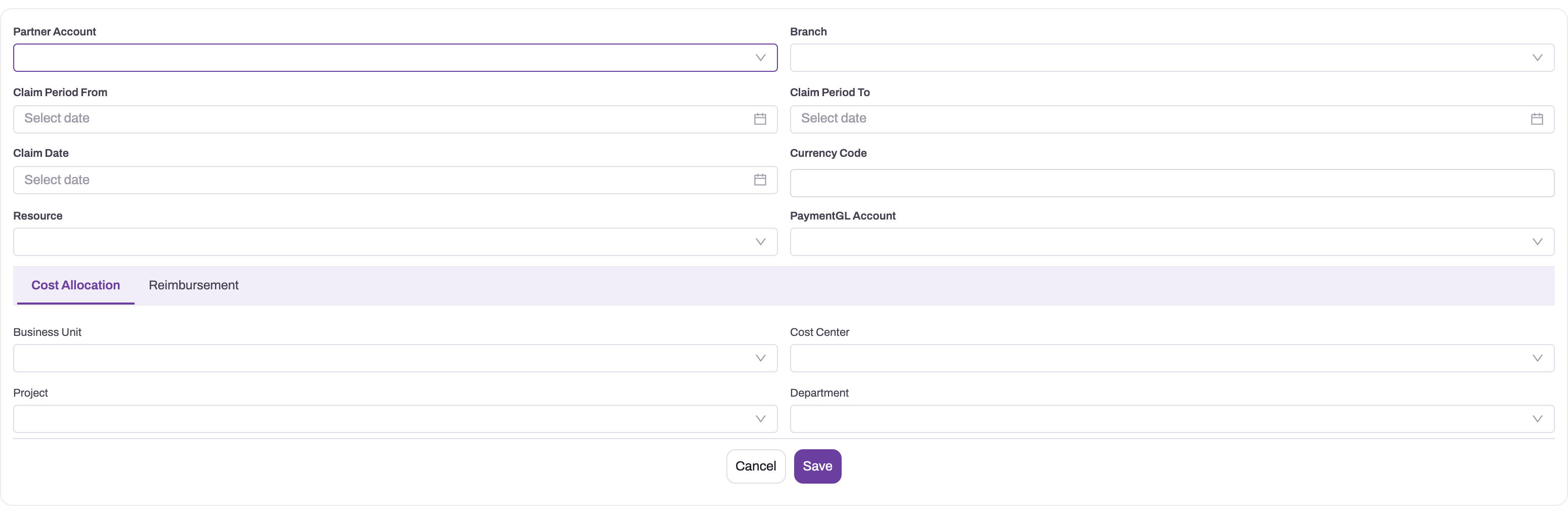
In the Expenses app open Expense Claims and choose New. Fill in:
- Partner Account (the company) and Branch. The company decides which policies apply and which control accounts the claim posts to. In a tenant that runs a single company or location these fields may be hidden.
- Claim Period From and Claim Period To — the span the expenses cover.
- Claim Date — the date the claim posts on, so it must fall in an open period. The late-submission policy rule also measures from this date.
- Currency Code, Resource (the claimant) and PaymentGL Account (the bank or cash account a later reimbursement is paid from by default).
- On the Cost Allocation tab: Business Unit, Cost Center, Project, Department. A line without its own cost center posts with the claim's.
- On the Reimbursement tab: Reimbursement Mode, Payroll Period, Payroll Component (see Step 4).
Choose Save. The claim opens on its record page with a document number, Status Draft.
Step 2 — Add a line per expense
Open the Lines tab and choose New in the list header. A line form opens inside the tab, already linked to the claim. Enter one line per receipt.
The standard setup has two line forms, and you see whichever one your administrator has made the default (see Configuration):
- The quick-add form — Expense GL Account, Expense Category, Expense Date, Description, Amount, and an area for attaching files. This form is quick to fill in, but it has no merchant, invoice or GST fields.
- The full form — every line field except Expense GL Account.
On the full form, fill in:
- Expense Category, Expense Date, Amount, Description.
- Merchant Name, Invoice Number, Invoice Date. Copy them exactly from the bill: the duplicate check compares merchant, invoice number and amount. A line with neither a merchant nor an invoice number is never checked for duplicates.
- Payment Mode: how you paid, typed as text.
- For GST: Cgst, Sgst, Igst, Cess, Tax Amount, Supplier GSTIN, Place Of Supply, Hsn Sac Code, Tax Invoice Available. Tick Itc Eligible (and fill in Itc Category) when the company may recover the tax.
- For rebilling: Is Billable To Customer, Customer Account, Markup Percent.
- Cost Center, Project, Branch when the line differs from the header.
- Receipt File Asset: the receipt (see Step 3).
Every line also needs an Expense GL Account, the expense account the line posts to. It is not filled in from the category. A line without it is left out of posting entirely, and a claim whose lines all lack it cannot post. If you work on the full form, someone must add the account afterwards (on the quick-add form, or on a form your administrator has extended). When you choose an Expense GL Account and leave Branch empty, the line takes the account's default branch.
Choose Save on the line. Use Edit and Delete on a line's row to change or remove it. Open a line by its name to see all of its fields on its record page, where you can also edit them in place.
Step 3 — Attach receipts
Attach each bill to its own line through Receipt File Asset on the line. This field is what the receipt rule checks: a line over the receipt threshold with nothing in it is reported as a violation. A file you drop into the quick-add form's attachment area does not fill this field. After uploading, choose the file in Receipt File Asset on the line's record page, or the receipt rule will still report the line. Open the uploaded file and check that merchant, date, amount and invoice number match what you entered.
Step 4 — Choose how you are reimbursed
On the Reimbursement tab, set Reimbursement Mode. Posting and payment treat every value except Payroll the same way — the claim is paid by finance (singly or in a batch). Only Payroll sends the claim to a payroll run: final approval then sets ApprovedForPayroll, the finance Reimburse action refuses the claim, and the employee's next payroll run pulls it in when it is calculated, lists it on the payslip and pays it with the salary. The choices are Finance payment and Payroll. Payroll Period and Payroll Component are for your reference only; payroll does not read them (see Expense claims through payroll).
Step 5 — Check the claim against policy
When all lines and receipts are in, choose Evaluate Policy in the header. Each finding is recorded as a policy violation on the claim, and the lines are marked:
- Each finding names the rule and the line, for example "Receipt required above 2000 (line 2450, no receipt attached)." or "Possible duplicate: … / … / …".
- Lines with a finding show Policy Violation Flag; a suspected duplicate also shows Duplicate Flag; the header shows Has Policy Violation.
- An auto-disallow rule writes the excess over the cap into the line's Disallowed Amount.
Fix what you can (attach the receipt, correct the invoice number, split or recategorise the line) and choose Evaluate Policy again. Each run replaces the previous one: earlier findings are withdrawn and policy deductions are recalculated, so running it twice does not deduct twice.
Evaluation does not stop anything on its own. A hard-block or higher-approval rule is recorded on the violation, but neither submission, approval nor posting reads it — approvers have to look at the findings. Evaluation does not run automatically on submission either.
Step 6 — Submit for approval
Before submitting, compare each line with its receipt one more time. Open the Approval Process tab and submit from the approval panel. One pending request appears and the approver the process resolves is notified. Whether the claim is locked while pending, and whether you may recall it, depend on how the process is configured.
To change a pending claim, Recall the request from the same panel: the claim returns to Draft, you edit it, re-run Evaluate Policy and submit again. The generic approval steps are described in Approval processes and Approvals on mobile.
Step 7 — Approve or reject (the approver's side)
Approvers open the request from their approvals inbox or from the claim's Approval Process tab. Check the claimant, period and purpose; each line against its receipt; the policy violations and Disallowed Amount on each line; and the duplicate flags.
- To reimburse less than claimed on a line, open the line and lower its Approved Amount before the final approval. Posting uses the lower of the approved and policy-allowed amounts. Approved Amount is before tax, like Amount: the line's tax is cut in the same proportion, and a value above Amount counts as Amount. The field edits in place on the line's record page.
- Approve advances a multi-step route; the last approval finalises the claim and posts it.
- Reject with a comment sets Status
Rejected.
Step 8 — Check the posting
After the final approval, reopen the claim. A successful posting shows Status Posted, Approval Status Approved, Posting Status Posted, Payment Status Unpaid, Is GL Posted ticked, and the totals filled in on Amount Details.
If the approval went through but the claim still shows NotPosted (and its Approval Status did not change), posting failed — for example because a control account is missing or no line has an Expense GL Account. The approval itself stands. Fix the cause and choose Post in the header, then confirm Yes. Post is also how you post a claim in an organisation that does not route claims through approval.
Step 9 — Follow it to payment
Finance pays the open balance with Reimburse or a reimbursement batch, or settles an advance against it with Settle Against Claim on the advance. The claim then shows Payment Status Paid and Status Settled. A Payroll claim is instead pulled into the employee's payroll run at Calculate (or handed over early with Settle via Payroll) and shows Paid and Settled once the run's salary payment batch is paid. Reimburse and Settle via Payroll are not on the standard claim header; an administrator adds them to the record page layout for the finance users who need them (see Configuration).
Fields
Claim header
| Field | What it means | Notes |
|---|---|---|
| Partner Account | The company the claim belongs to | Decides which policies apply and which control accounts posting uses. May be hidden in a single-company tenant. |
| Branch | The branch the claim posts under | Used on the payable and on lines without their own branch. |
| Claim Period From / Claim Period To | The span the expenses cover | Informational. |
| Claim Date | The posting date | Journal date of the posting; the late-submission rule and policy effective dates are measured against it. |
| Currency Code | The claim currency | Free text. |
| Resource | The claimant | Required for posting. Its grade selects grade-specific policies. Duplicate detection compares against this resource's other claims. |
| PaymentGL Account | Default account a reimbursement is paid from | Used by Reimburse when no other bank account is given. |
| Narration | A note on the claim | Shown on the Details tab. |
| Business Unit, Cost Center, Project, Department | Cost allocation | A line's own cost center or branch takes precedence over the header's. The header Project is recorded only; set Project on each line instead. |
| Reimbursement Mode | How the claim is paid | Finance payment or Payroll. Only Payroll changes behaviour (Step 4). |
| Payroll Period, Payroll Component | Payroll target for payroll-mode claims | Reference only; not read by payroll. |
| Included In Payroll Run | The payroll run that carries and pays the claim | Set when a run's Calculate pulls the claim in, or by Settle via Payroll when given a run. A claim in one run is never pulled into another. |
| Employee Payable Open Transaction | The open balance raised at posting | Set by posting; reimbursement and settlement clear it. |
| Employee Account | Older claimant field (an account in the employee role) | Not used by posting; use Resource. |
| Policy | A policy reference on the claim | Evaluation does not read it — it applies every active policy that matches the company, grade and date. |
| Total Amount | Claimed amount plus tax over postable lines | Filled in at posting. |
| Total Approved Amount | Allowed amount after disallowances and approved-amount reductions | Filled in at posting. |
| Advance Adjusted Amount | Advances settled against the claim | Increased by Settle Against Claim on an advance. Leave it empty before posting (see Common problems). |
| Net Reimbursable Amount | What is owed to the employee | Set at posting, then reduced by advance settlements. |
| Status, Approval Status, Posting Status, Payment Status | The states described above | Maintained by the system; do not edit them by hand. |
| Taxable Perquisite Flag | Marks the reimbursement as a taxable perquisite for payroll | Not read by expense posting. |
| Is GL Posting Approved | A flag on the Controls panel | Not read by expense posting. |
| Is GL Posted | Ticked when the claim has posted | Set by posting. |
| Has Policy Violation | The last policy check found something | Set by Evaluate Policy. |
Claim line
The line record page shows the fields below in this order, except Line Number, Name, Merchant Name and Expense GL Account, which appear only on the entry forms (see Step 2).
| Field | What it means | Notes |
|---|---|---|
| Expense Claim | The claim the line belongs to | Filled in when you add the line from the claim's Lines tab. |
| Line Number | The line's position | Posting books the lines in this order. Optional. |
| Name | The line's identifier | Assigned automatically when the line is saved; anything typed here is replaced. |
| Expense Category | The kind of spend | Policies target categories. A deactivated category blocks posting. |
| Expense Date | When the expense happened | Used by the late-submission rule; falls back to the claim date. |
| Amount | Amount before tax | Must be non-zero (with tax) for the line to post. |
| Description | What the expense was | Becomes the journal line narration. |
| Merchant Name, Invoice Number, Invoice Date | Details from the bill | Merchant + invoice number + amount drive duplicate detection. A line with neither merchant nor invoice number is never flagged. Merchant Name is on the full entry form only, not on the record page. |
| Payment Mode | How the employee paid | Free text, recorded for reference; it does not change posting. |
| Itc Eligible | Whether the company recovers the GST | When ticked, the allowed tax posts to the Tax Credit account instead of the expense account. |
| Itc Category | The class of input credit | Free text, recorded only. |
| Cgst, Sgst, Igst, Cess, Tax Amount | GST on the line | Tax Amount is what posts. On ITC-eligible lines the components set the split of the input-tax record (see Business rules); with no split, the whole tax is recorded as IGST. |
| Supplier GSTIN, Place Of Supply, Tax Invoice Available, Tds Applicable | Supplier tax details | Recorded on the line only. Nothing checks them; in particular, ITC is not refused when Tax Invoice Available is clear. |
| Hsn Sac Code | The bill's HSN or SAC code | Carried onto the input-tax record of an ITC-eligible line. |
| Is Billable To Customer, Customer Account, Markup Percent | Rebilling | Used by Compute Recharge — see Expense accounting and recharge. |
| Cost Center, Project, Branch | Line-level allocation | Cost Center and Branch override the header for this line's expense posting. An empty Branch is filled from the Expense GL Account's default branch when the account is chosen. Project is not posted and is not copied from the header; it groups the line's billable cost in Compute Recharge — see Projects. |
| Partner Account | The company | Record page only. Posting uses the claim's company, not this field. |
| Receipt File Asset | The attached receipt | Choose an uploaded file. Checked by the receipt rule. |
| Expense GL Account | The account the line is debited to | Required for the line to post; not filled from the category. On the quick-add line form only in the standard layouts. |
| Approved Amount | A reviewer's reduced amount for the line, before tax | Optional; posting uses the lower of this and the policy-allowed amount, cuts the tax in proportion, and treats a value above Amount as Amount. |
| Disallowed Amount | The part policy will not reimburse, tax included | Written by auto-disallow rules; recalculated on every evaluation. |
| Line Status | A per-line review field | Free text. Not set or read by the system. |
| Blocked Credit Reason | Why input credit is blocked | Free text, recorded only. |
| Policy Violation Flag, Duplicate Flag | Set by policy evaluation | Read-only in practice. |
| Billing Status, Recharge Invoice | Rebilling progress | Set by Compute Recharge and Link Recharge Invoice. |
Business rules
- Numbering. Claims are named from the Expense Claim name setting (series
EXC, six-digit counter, date partDDMMYYYY). Lines are named automatically too. The standard setup ships two active line name settings (seriesECLandEXPCL), and only one of them is used; see Configuration. - Input GST record. When a claim posts, the allowed tax of each ITC-eligible line is also stored as input-tax records, split into CGST, SGST, IGST and Cess and carrying the line's Hsn Sac Code. The split is scaled to the allowed tax. These records carry no company GSTIN and no supplier, so the GSTR-3B and GSTR-9 figures xMatix computes do not include input GST from expense claims, and neither does GSTR-2B reconciliation. The credit is in the Tax Credit account; account for it separately when you file. If this record-keeping fails, the posting still goes through.
- Posting refuses a claim that is already posted, has no Resource, has no line with an Expense GL Account and a non-zero amount, uses a deactivated category, has no Employee Payable (or, for ITC lines, Tax Credit) control account for its company, or has nothing left to pay after disallowances and advances.
- Only the allowed amount posts. Disallowed Amount and Approved Amount reduce what is booked and owed; the claimed amount is kept in Total Amount for comparison.
- Final approval posts automatically, once. If posting fails, the approval is kept and the claim stays unposted until someone runs Post.
- Policy findings are advisory except auto-disallow. Nothing blocks submission, approval or posting because of a violation.
- Re-evaluation replaces the previous findings and policy deductions; a reduction typed into Approved Amount by a reviewer is kept.
- Settlement sets Payment Status
Paidand StatusSettled, whether by reimbursement, batch, an advance that covers the whole balance, or — for a claim handed to payroll — the salary payment batch that pays it. Handing a claim to payroll does not by itself mark it paid. - No reversal. There is no cancel or reverse action for a claim. Reversing the claim's journal from the journal record does not reset the claim or its employee-payable balance.
- Clone copies the claim header only, not its lines, and keeps the source's statuses — avoid cloning a posted claim.
Example
An engineer, travelling for a customer site visit from 2 to 4 September, raises a claim:
- Header: company and branch as usual, Claim Period From 2 September, Claim Period To 4 September, Claim Date 6 September, Resource their employee record, Project "Site rollout", Reimbursement Mode Finance payment.
- Lines: hotel 3 nights, Amount 9,000, Tax Amount 1,080, Itc Eligible ticked with the supplier GSTIN; taxi 1,450 with no receipt; dinner 2,600. Each line gets its Expense GL Account (Travel – Lodging, Travel – Local, Staff Meals); the hotel and dinner bills are attached.
- Evaluate Policy reports "Receipt required above 1000 (line 1450, no receipt attached)." and a meal cap of 2,000 exceeded by 600 with auto-disallow. The engineer attaches the taxi receipt and runs Evaluate Policy again; the receipt finding disappears and the dinner line keeps Disallowed Amount 600.
- The manager approves, then finance approves. The claim posts on 6 September: hotel 9,000 to lodging and 1,080 to input GST, taxi 1,450, dinner 2,000; Employee Payable credited 13,530. Total Amount shows 14,130 (what was claimed), Total Approved Amount and Net Reimbursable Amount 13,530, and Payment Status
Unpaid. - Finance includes the claim in the week's reimbursement batch; the claim becomes
PaidandSettled.
Training
Practice exercise
In a sandbox: create a claim for yourself with two lines — one of 1,500 in a category whose policy has a receipt threshold below 1,500, with no receipt, and one duplicate of it (same merchant, invoice number and amount). Make sure both lines have an Expense GL Account. Choose Evaluate Policy.
Expected result: a receipt finding on each line and a duplicate finding on both, Duplicate Flag and Policy Violation Flag ticked, Has Policy Violation ticked on the header. Delete the duplicate, attach a receipt, evaluate again — the findings clear. Then choose Post and confirm the claim shows Posted, Unpaid, with Total Amount 1,500.
Quick reference
- One claim per period; one line per receipt.
- Every line needs an Expense GL Account — the category does not supply it.
- Evaluate Policy before submitting; it is never run for you.
- Violations warn; only auto-disallow reduces the money.
- Lower a line's Approved Amount to pay less than claimed.
- Final approval posts the claim; Post is the manual fallback.
- Claim Date is the posting date.
- Only Reimbursement Mode
Payrollroutes a claim to payroll. - Paid means
Paid+Settled; approval alone does not pay.
Permissions
Creating, editing and deleting claims and lines follow the entity access in the user's security profile. The claim's server actions also need a grant on the profile's Actions tab. In the seeded profiles:
| Action | Button | Seeded grants |
|---|---|---|
| Evaluate Policy | Evaluate Policy | Standard User, System Admin |
| Post | Post | Standard User, System Admin |
| Reimburse | Reimburse | Standard User, System Admin |
| Settle via Payroll | Settle via Payroll | Standard User, System Admin |
| Compute Recharge | Compute Recharge | Standard User, System Admin and one sales profile |
| Link Recharge Invoice | Link Recharge Invoice | Standard User, System Admin |
| Clone | Clone | Standard User, System Admin and one sales profile |
Who may submit, approve, recall or edit a pending claim is set on the approval process, not on the profile. A user without a grant does not see the button.
Configuration
- Approval process — Setup → Process Studio → Approvals, entity Expense Claim. No process is shipped. Choose the steps, maker-checker, lock on submission and recall. If you want Status to read something like
Submittedwhile pending, add a submission field update. See Approval processes and Configuring Expense Management. - Control accounts — Employee Payable, Tax Credit (for ITC lines) and Payroll Payable (for payroll handoff), per company, in the chart of accounts.
- Policies and categories — Expense policies and Categories, grades and limits. Policies apply by company, grade and effective dates.
- Reimbursement Mode picklist — ships with Finance payment and Payroll. Keep the stored value
Payrollunchanged; approval and Reimburse depend on it. - Record page buttons — the standard claim header shows Evaluate Policy, Post, Edit and Delete. To give finance Reimburse, Settle via Payroll, Compute Recharge, Link Recharge Invoice or Clone on the claim, add them to the header actions of the claim's view layout (Design a form layout). Reimburse opens a dialog asking for the PaymentGL Account to pay from.
- Line forms — Expense Claim Line has two entry forms: a quick-add form (Expense GL Account, Expense Category, Expense Date, Description, Amount and an attachment area) and a full form (every field except Expense GL Account). Neither is marked as the default, so choose which one the Lines tab's New opens: Setup → Design Studio → Entities → Expense Claim Line → Experience → Defaults, slot New. Whichever form you choose, close its gap in Experience → Layouts (Design a form layout). Add Expense GL Account to the full form, or Merchant Name, Invoice Number, the GST fields and Receipt File Asset to the quick-add form. The line record page also lacks Expense GL Account and Merchant Name; add them there if reviewers need to see or correct them.
- Numbering — the Expense Claim name setting (series
EXC) controls claim numbers. For lines, two active settings (seriesECLandEXPCL) both write the line name, and only one of them is used. To make line names predictable, deactivate the one you do not want under Setup → Feature Hub → Platform → Document Settings (document numbering). - Mobile — claims are available in the field app as generic records; there is no claim-specific mobile screen. Approvers can act on requests from the mobile approval panel.
Common problems
The approver approved, but the claim did not post
Posting runs at final approval but its errors are not shown to the approver. The claim stays NotPosted and Approval Status is not updated. Choose Post on the claim to see the reason — the most common are "Expense claim has no postable expense lines." (no line has an Expense GL Account and an amount), "No Employee Payable control account (GLControlType.EmployeePayable) is configured.", "An ITC-eligible line needs a TaxCredit (Input GST) control account." and "Cannot post: expense category '…' is deactivated. Remove or replace it before posting." Fix it and choose Post again.
"Expense claim must be anchored on a Resource (ResourceId) before posting."
The claim has no Resource. Set the claimant and post again.
"Expense claim has no allowed amount to post (every line is disallowed or approved at zero)."
Policy disallowances or approved amounts have reduced every line to zero. Check Disallowed Amount and Approved Amount on the lines.
"Journal does not balance" or "Net reimbursable amount must be greater than zero" when posting
Advance Adjusted Amount was filled in before posting. Posting subtracts it from the payable without booking the advance, so the journal cannot balance (or nothing is left to pay). Clear the field, post the claim, then settle the advance with Settle Against Claim on the advance.
"Expense claim is already posted."
The claim was posted earlier (by approval or Post). There is nothing more to post; follow it to payment.
My claim was submitted with a hard-block violation
Expected: violations are recorded for the approver but do not stop submission. Approvers should reject claims with unresolved hard-block findings.
A line is flagged as a duplicate but is not one
The check matches merchant name, invoice number and amount against the other lines of this claim and all your other claims, in any status. Two different purchases from one merchant with the same amount and a blank invoice number collide. Enter the real invoice numbers and evaluate again.
I attached the receipt, but the receipt finding is still there
The receipt rule checks only the line's Receipt File Asset field. A file added through the quick-add form's attachment area is not placed in that field. Open the line, choose the uploaded file in Receipt File Asset, and choose Evaluate Policy again.
A line I added did not post
The line has no Expense GL Account, or its amount plus tax is zero. Such lines are skipped without a message, as long as at least one other line can post. The full line form does not show Expense GL Account in the standard setup. Check every line before the final approval, and ask your administrator to add the field to the form you use.
The GST on my claims is missing from GSTR-3B
Input GST from expense claims posts to the Tax Credit account but is not included in the GSTR-3B or GSTR-9 figures xMatix computes (see Business rules). Take it into account separately when you prepare the return.
Part of my claim was not paid
An auto-disallow rule trimmed a line (see Disallowed Amount), an approver lowered Approved Amount, or an advance was settled against the claim (see Advance Adjusted Amount).
Common questions
Can I edit a claim after submitting it?
While the request is pending, only if the approval process does not lock the record; recall the request instead, edit, re-run Evaluate Policy and submit again. After posting, edits to lines or amounts do not change the journal or the amount owed — the posting is fixed. There is no reverse action for a claim, so correct mistakes before the final approval.
Does submitting run the policy check?
No. Evaluate Policy runs only when someone chooses it (or an automation your administrator built runs it). Make it part of your routine before submitting, and approvers should check the findings before approving.
Why are Total Amount and Net Reimbursable Amount empty on my draft?
They are filled in when the claim posts, not while you add lines. Until then, add up the lines in the Lines tab.
Can a claim be paid through payroll?
Yes, when Reimbursement Mode is Payroll. When the employee's payroll run is calculated, the posted claim is pulled in: the balance moves to Payroll Payable, the payslip lists "Expense reimbursement <claim number>", and the run's salary payment batch pays it with the salary. The claim shows Paid and Settled once that batch is paid. Settle via Payroll hands a claim over before the run is calculated. See Expense claims through payroll.
What does the approver see of policy?
The violations recorded by the last Evaluate Policy run, the flags on each line, Disallowed Amount, and Has Policy Violation on the header. Approving does not remove them. The violations themselves are listed in the Expense List app under Policy Violations, with rule, rule type, severity and excess; the message and the line are recorded too but appear only once an administrator adds them to the page. See Review the policy violations.
Should I enter Approved Amount with or without tax?
Without tax. Approved Amount is compared with the line's Amount, which is before tax. The tax is then cut in the same proportion. For example, on a line of 2,000 plus 360 GST, an Approved Amount of 1,500 posts 1,500 plus 270 tax. A value above Amount is treated as Amount, so it can never raise what is paid. Disallowed Amount works differently: it is taken off the amount including tax. When both are set, the one that leaves less is used.
Does xMatix read the details off my receipt automatically?
No. xMatix doesn't read receipts (there is no OCR), so you type the merchant, date, amount, invoice number and Supplier GSTIN on the line yourself. The platform also has an Expense Receipt record with "extracted" fields and an OCR Status, but it appears in no app or menu and isn't listed on the claim line. Nothing creates, fills or reads it, so its OCR Status stays Pending. Only the line's Receipt File Asset counts. The receipt rule checks that field, and the duplicate check compares the lines' merchant, invoice number and amount. See the Expense Receipt reference.