
Reimbursement pays employees what the company owes them for posted expense claims, either one claim at a time, many claims at once in a Reimbursement Batch, or by handing the claim to payroll.
A posted claim is a liability: the amount sits in employee payable until finance pays it. Reimbursement comes after approval and posting and is the last step in a claim's life. A successful finance reimbursement moves the claim's Status from Posted to Settled and its Payment Status from Unpaid to Paid. Keep those two fields distinct during reconciliation.
Overview
There are three ways to clear a claim's employee-payable balance:
- Reimburse on a single claim posts one payment journal for that claim.
- A Reimbursement Batch holds one Reimbursement Batch Line per claim. Pay Batch posts one journal for the whole batch: a debit to employee payable per control account and branch, and one credit to the bank account for the total.
- Payroll. A claim with Reimbursement Mode
Payrollis pulled into the employee's payroll run when the run is calculated: the balance moves from employee payable to payroll payable, the claim appears on the payslip as "Expense reimbursement <claim number>", and the run's salary payment batch pays it with the salary. Settle via Payroll on the claim does the same hand-over early. The claim staysUnpaiduntil the salary payment batch is paid.
An advance settled against the claim also reduces or clears the balance.
When to use it
Use a batch for a regular payment run, such as a weekly or month-end payout of every approved claim, when finance makes one bank transfer and wants one journal. Use Reimburse for an urgent one-off payment. Leave claims whose Reimbursement Mode is Payroll to the payroll run; use Settle via Payroll only to hand one of them over before the run is calculated.
How xMatix handles it
- Every payment pays the claim's open balance: the employee-payable amount still open after posting, policy disallowances and advance settlements. The amount you type on a batch line is not what is paid.
- A batch is paid once. After Pay Batch succeeds, the batch's GL field links to the payment journal, Total Amount and Item Count are filled in, and every paid line shows Payment Status
Paid. Running Pay Batch again is refused. - Lines that cannot be paid are skipped silently. The batch still pays the other lines, and the skipped lines keep the payment status they had.
- The batch has no undo action. There is no cancel or reverse button on the batch, and editing or deleting a paid batch or its lines does not change the journal or the settled claims.
Prerequisites
- Posted claims. Final approval posts a claim automatically, and a claim that is not posted cannot be reimbursed. In the claim's header band, Status is
Postedand Payment Status isUnpaid. - The bank GL account the payments go out of.
- Access to Expense Claims, Reimbursement Batches and Reimbursement Batch Lines through your security profile, and the Pay Batch action grant for batches (see Permissions).
Procedure
Step 1 — Find what is payable
Filter Expense Claims to Posted and Unpaid, then reconcile that set with employee-payable ageing. For each candidate, confirm the employee, currency, approval, posting journal, open balance, advance settlements and Reimbursement Mode. Separate finance-payment claims from payroll-mode claims before building a run, because a batch does not check the mode (see Business rules). A payroll-mode claim already handed to payroll also shows Unpaid until its salary batch is paid; a batch skips it because its employee-payable balance is zero. Record the count and total of the open balances as the control figure for Step 5.
Step 2 — Pay a single claim
Open the finance-mode claim and choose Reimburse. It is not on the standard claim header; an administrator adds it to the claim's view layout. Check the bank account, the employee, the currency and the open balance shown; a claim-specific payment account takes precedence when present. Submit once, then open the journal: employee payable is debited and the bank credited for the full remaining balance after advance settlements. Confirm that the open item is closed, Payment Status is Paid, and a second reimbursement is refused.
Step 3 — Create a reimbursement batch
- Open the Expenses app and choose Reimbursement Batches, then New.
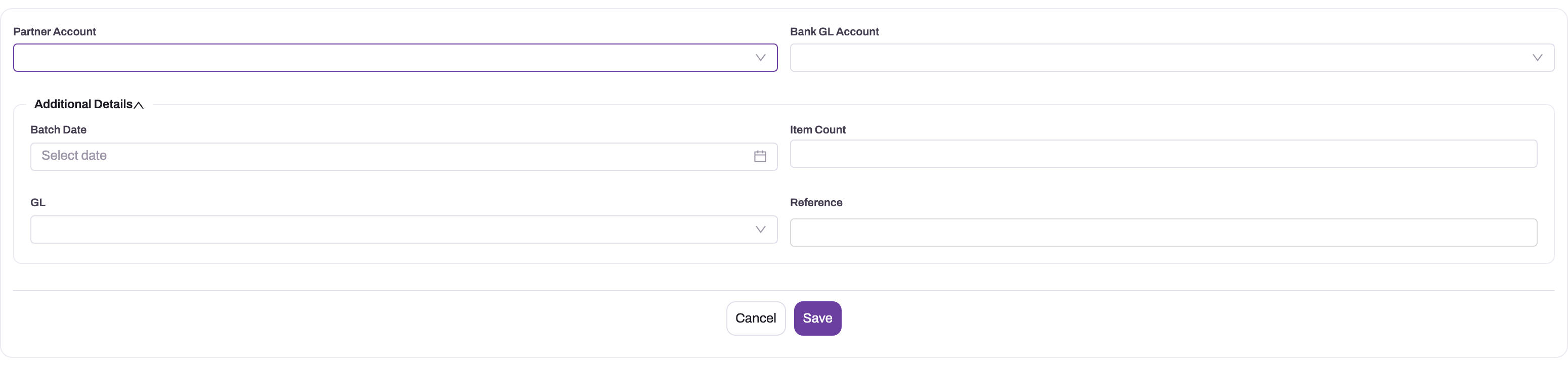
- Fill Partner Account (the company paying) and Bank GL Account (the account the money leaves from). Bank GL Account is what Pay Batch credits, so do not leave it empty.
- Under Additional Details, set Batch Date. This becomes the date of the payment journal; if you leave it empty, the journal is dated on the day you pay the batch. Add a Reference, such as your bank transfer reference. Leave Item Count and GL empty: xMatix fills them when the batch is paid, and a batch whose GL is already filled is refused as already paid.
- Select Save. The batch opens on its record page with the number from the batch series (default prefix ERB).
Step 4 — Add a line per claim
On the batch's Lines tab, select New. A quick-add card opens with Name, Expense Claim, Amount and Utr Number.
- Type any short text in Name; the saved line takes the next number from the batch line series (default prefix RBL).
- Pick the claim in Expense Claim. The picker lists every claim, not only posted and unpaid ones, so pick from your Step 1 list.
- Enter the claim's open balance in Amount as your own control. Pay Batch replaces it with the actual open balance on every line it pays.
- Leave Utr Number empty until the bank confirms the transfer (Step 6).
- Save, and repeat for each claim. Add each claim only once (see Business rules).
The Lines tab lists each line's Name, Expense Claim, Amount, Payment Status and Utr Number. Use the row Edit and Delete actions to correct a line before payment.
Step 5 — Check and pay the batch
Add up the Amount column on the Lines tab and count the lines; compare both with your Step 1 control figure. Neither Total Amount nor Item Count on the batch is calculated before payment, so this check is yours to make.
Select Pay Batch in the batch's header. xMatix:
- reads each line's claim, and skips the line if the claim is not posted or has no open employee-payable balance;
- posts one journal dated Batch Date: a debit to employee payable for each control account and branch combination, and one credit to Bank GL Account for the total;
- closes each paid claim's open item and sets the claim to Payment Status
Paidand StatusSettled; - sets each paid line's Amount to the amount paid and its Payment Status to
Paid; - fills the batch's GL with the journal, Total Amount with the total paid and Item Count with the number of claims paid.
If no line can be paid, nothing is posted and you see "Batch has no payable claims to reimburse."
Step 6 — Record bank references
When the bank confirms each transfer, open the batch's Lines tab, select Edit on the line and enter the bank's payment reference in Utr Number. You can also open the line and edit the field in place. The reference is for traceability only; nothing else reads it.
Step 7 — Hand payroll-mode claims to payroll
A payroll-mode claim is one whose Reimbursement Mode is Payroll (the other choice is Finance payment). You normally do nothing: when the employee's payroll run is calculated, the claim is pulled in, the liability moves from employee payable to payroll payable, Included In Payroll Run names the run, and the payslip lists "Expense reimbursement <claim number>". The run's salary payment batch pays it with the salary, and only then does the claim show Paid and Settled.
To hand a claim over before the run is calculated, choose Settle via Payroll (added to the claim's view layout like Reimburse). It does not check the mode itself, so check it before you run it. It does not pay cash: it posts the same transfer journal, the claim stays Unpaid, and the next Calculate carries it. It is refused if the claim was already handed to payroll. See Expense claims through payroll.
Step 8 — Verify the run
After each run, check that every processed claim shows Payment Status Paid and Status Settled. Investigate every batch line that is not Paid against its source claim, because no skip reason is stored. Compare the batch's Total Amount with the journal and the bank statement. Rerun employee-payable ageing: processed items must disappear, and the remaining total must equal the employee-payable control account. Payroll-mode claims are checked on the payroll side: after the salary payment batch is paid they show Paid and Settled, and payroll payable no longer holds them.
Fields
Reimbursement Batch
| Field | What it means | Notes |
|---|---|---|
| Document Number | The batch number | Given from the batch series (default prefix ERB) when the batch is saved. |
| Partner Account | The company making the payment | The picker lists partner accounts only. Hidden when your organisation runs one company. |
| Bank GL Account | The GL account credited with the batch total | Required in practice: Pay Batch refuses a batch without it. |
| Batch Date | The accounting date of the payment journal | Empty means the date the batch is paid. |
| Item Count | Number of claims paid | Filled by Pay Batch. Anything typed before payment is overwritten. |
| GL | The payment journal | Filled by Pay Batch. Leave it empty: a filled GL marks the batch as already paid. |
| Reference | Your own reference for the run | Free text, such as the bank transfer reference. |
| Total Amount | Total paid | Filled by Pay Batch; shown on the Details tab and in the batch list. |
The batch also keeps an internal status (Draft, then Paid when paid). It is not shown on the seeded forms; use GL and Total Amount to tell whether a batch has been paid.
Reimbursement Batch Line
| Field | What it means | Notes |
|---|---|---|
| Name | The line number | Given from the line series (default prefix RBL) when the line is saved. The quick-add form asks for a value, but it is replaced. |
| Expense Claim | The claim this line pays | Unfiltered picker. Only posted claims with an open balance are paid. |
| Amount | The amount paid for the claim | A planning figure until payment; Pay Batch sets it to the claim's actual open balance on paid lines. Skipped lines keep what you typed. |
| Utr Number | The bank's payment reference for this employee | Entered by hand after payment; for traceability only. |
| Payment Status | Whether this line was paid | Starts as Pending; set to Paid by Pay Batch. Not on the forms; it shows in the Lines list. Nothing sets the value Failed. |
| Resource | The employee | Shown on the line's record page, but nothing fills it; the employee is on the claim. |
Business rules
- What is paid. For each line, Pay Batch pays the claim's open employee-payable balance. A line is skipped when its claim is missing, its claim's Posting Status is not
Posted, or its open balance is zero or less (already paid, handed to payroll, or covered by an advance). - Payroll-mode claims are not excluded. Unlike Reimburse, Pay Batch does not check Reimbursement Mode, so a posted payroll-mode claim in a batch is paid from the bank. Keep payroll-mode claims out of batches.
- Add each claim once. If the same claim is on two lines of one batch, its open balance is debited and paid twice in the same journal, and the employee is overpaid. Before paying, check that the Expense Claim column has no duplicates. A claim that is in two different batches is paid only by the first batch you pay; the second skips it.
- Accounting. Debits are grouped per employee-payable control account and claim branch, so a batch can mix companies' branches and employees. The bank credit carries no branch.
- Paying twice. A batch whose GL is filled is refused with "Reimbursement batch is already paid."
- No reversal on the batch. The batch has no cancel or reverse action. Deleting or editing a paid batch or line leaves the journal posted and the claims settled.
- Deleted lines are ignored by Pay Batch.
- Numbering. Batches use the series default prefix ERB and lines the prefix RBL; both can be changed in the entity's document settings.
Example
Finance runs the month-end payout for three posted claims. Claim one has an open balance of 13,530, claim two 4,200 and claim three 2,750; claim three has Reimbursement Mode Payroll.
- The accountant filters Expense Claims to Posted and Unpaid and lists the claims. Claim three is payroll-mode, so it is left for the payroll run, which pays it with the salary. The control figure is two claims, 17,730.
- They create a Reimbursement Batch: Partner Account their company, Bank GL Account the main current account, Batch Date 30 September, Reference "Sept payout". The batch is saved with the next ERB number.
- On Lines, they add claim one with Amount 13,530 and claim two with Amount 4,200. The column adds up to 17,730 over two lines, which matches the control.
- Before paying, an advance of 1,000 is settled against claim two, which reduces its open balance to 3,200.
- They select Pay Batch. The journal debits employee payable 16,730 and credits the bank 16,730. Line two's Amount changes to 3,200, both lines show
Paid, the batch shows Total Amount 16,730 and Item Count 2, and GL links to the journal. Both claims areSettled. - Next day the bank file comes back, and they enter each transfer reference in the lines' Utr Number.
Training
Practice exercise
In a sandbox, approve and post two small expense claims for the same employee (see Submit and approve expense claims). Create a Reimbursement Batch with a Bank GL Account and today's Batch Date. Add a line for each claim, but type an Amount of 1 on both. Select Pay Batch.
Expected result: the batch's GL links to one journal with a credit to the bank for the sum of the two claims' open balances; each line's Amount shows the real balance, not 1; both lines show Paid; both claims show Settled. Select Pay Batch again and confirm that it is refused as already paid.
Quick reference
- Expenses → Reimbursement Batches → New: Partner Account, Bank GL Account, Batch Date, Reference.
- Leave Item Count and GL empty; Pay Batch fills them.
- One line per claim; never add a claim twice.
- Line Amount is a check figure; the claim's open balance is what is paid.
- Keep payroll-mode claims out of batches; the payroll run pays them with the salary.
- Lines still
Pendingafter payment were skipped; check their claims. - Record bank references in Utr Number after payment.
- There is no undo on a paid batch.
Permissions
| What | Who can do it |
|---|---|
| See, create, edit and delete batches and lines | Profiles with access to Reimbursement Batches and Reimbursement Batch Lines. The seeded Standard User and System Admin profiles have full access. |
| Pay Batch | Profiles granted the Pay Batch action on Reimbursement Batch. The seeded Standard User and System Admin profiles have it. A profile without the grant cannot run it, even for an administrator. |
| Reimburse, Settle via Payroll | Granted on Expense Claim, and only usable once an administrator adds the buttons to the claim layout. |
Restrict Pay Batch to finance users: it posts to the bank account. Employees see that they have been paid through their own claim's Payment Status; they do not need batch access. See Security profiles.
Configuration
- Menu. Reimbursement Batches are in the Expenses app. Batch lines are reached from a batch's Lines tab; they have no menu entry of their own.
- Numbering. The batch series (default ERB) and line series (default RBL) are document name settings. Change them in Setup → Design Studio → Entities → Reimbursement Batch (or Reimbursement Batch Line) → Logic → Document Settings.
- Layouts. The batch header shows Pay Batch, Edit and Delete. Fields on the batch and line record pages edit in place. To show the batch status or a line's Payment Status on a form, or to add Reimburse and Settle via Payroll to the claim header, edit the layouts in Design Studio.
- Claim picker. The line's Expense Claim picker is not filtered. An administrator can add a lookup filter in Design Studio so that it lists only posted, unpaid claims.
- Accounts. The bank account is chosen per batch. The employee-payable account comes from each claim's posting; see Expense accounting and recharge.
- Reimbursement Mode picklist. Ships with Finance payment and Payroll; keep the stored value
Payrollunchanged (see Expense claims). - Security. Grant Pay Batch and batch access per profile (see Permissions).
Common problems
"Reimbursement batch needs a bank GL account."
The batch has no Bank GL Account. Edit the batch, choose the bank's GL account and select Pay Batch again.
"Batch has no payable claims to reimburse."
Every line was skipped: the claims are unposted, already paid, handed to payroll, or fully covered by advances. Nothing was posted. Rebuild the batch from the Posted and Unpaid claims.
"Reimbursement batch is already paid."
The batch's GL is filled. Either the batch was paid before (check the journal it links to), or someone filled GL when creating it. If it was never paid, clear GL and pay again.
Some lines are still Pending after payment
Those lines were skipped. Open each claim: it is either not posted, or its balance was already cleared by another batch, Reimburse, payroll or an advance. Post or pay the claim separately, then delete the stale line or leave it as a record.
A claim was paid twice
The claim was on two lines of the same batch. The bank was credited twice, and employee payable for the employee is now in debit. Recover the overpayment from the employee and correct the books with a journal; see Journals.
A payroll-mode claim was paid from the bank
Batches do not check Reimbursement Mode. Once the batch has paid it, the claim is Paid, so payroll no longer pulls it. Keep payroll-mode claims out of future batches.
"Expense claim must be posted before it can be reimbursed."
From Reimburse: the claim's approval finished but posting did not happen, usually because a control account was missing at posting time. Fix the cause and run Post on the claim, then reimburse. See Troubleshooting.
"Claim is set to reimburse via payroll; finance reimbursement is not applicable."
Reimburse refuses payroll-mode claims by design. Let the payroll run pay it (or hand it over early with Settle via Payroll), or change the claim's reimbursement mode first if it was set wrongly.
A claim was paid for less than the employee expected
The payment is the open balance: the claimed total minus policy disallowances and advance settlements. Both deductions are recorded on the claim; nothing was lost in the payment run.
Common questions
Can I partially pay a claim?
No. A finance reimbursement, single or in a batch, pays the claim's full open balance in one go. Partial balances come from advance settlements reducing the balance before you pay, not from partial payment runs. The Amount you enter on a batch line does not limit the payment; it is replaced with the open balance. If you need to stagger payouts, stagger the claims across batches.
Can one batch mix branches and employees?
Yes. The batch settles each claim's own payable and groups the debits per control account and branch, so a company-wide payment run can be one batch and one bank payment however the claims are spread. The bank credit is a single line for the total with no branch. Each employee's amount stays visible on the batch lines and on their claims.
How do I undo a paid batch?
The batch has no cancel or reverse action, and deleting it does not reverse the journal or reopen the claims. If a payment was made in error, recover the money from the employee and correct the accounts with a journal. Review the batch lines carefully before you select Pay Batch, because the posting is final.
What tells the employee they have been paid?
Their claim. Payment Status changes to Paid and Status to Settled. Employees track their own claims in the Expenses app, so no separate notification step is needed for them to see it. The bank reference you record in Utr Number is on the batch line, which employees usually cannot see.