
xMatix exchanges data with other systems through integration apps — named containers that hold everything one integration needs (connections, credentials, entity bindings, flows, triggers, run history and access) — and, for standing two-way synchronization, through sync profiles that build those flows for you. Both are administered from Setup → Platform, and both report into the same monitoring screens.
An integration usually sits between a business process in xMatix and a system of record somewhere else: orders flowing out to a storefront, customers flowing in from a CRM, vouchers flowing to accounting. This page explains the building blocks, the order to set them up in, who may do what, and where to look when something stops. The step-by-step build of one integration is on Connect an external system.
Overview
| Building block | What it is | Where you manage it |
|---|---|---|
| Integration app | The unit of ownership. It holds every other building block and can be switched off as a whole | Setup → Platform → Integrations |
| Connection | A configured connector — which system, which endpoint, which credentials | The app's Connections page |
| Secret | A write-only credential (password, token, key) that connections refer to by name | The app's Secrets page |
| Entity binding | Which xMatix entity the app touches, in which direction, and with which write mode | The app's Entity Bindings page |
| Flow | A small step graph that reads, transforms and writes records for one binding and direction | The app's Flows page |
| Trigger | What starts a flow: a schedule, a poll, an inbound webhook, a record change and more | The app's Triggers page |
| Run | One execution of a flow, with its steps, items and errors | The app's Overview and Errors pages |
| Sync profile | A declarative "keep these entities in step with that system" contract that compiles into flows | Setup → Platform → Sync profiles |
When to use it
- One-off or occasional loads from a file: use Import data, not an integration.
- Push a record to another system when it changes, or pull records on a schedule: build an integration app with a flow and a trigger. Outbound integration describes the push patterns.
- Keep the same records in step on both sides over time, with change detection and conflict handling: create a sync profile.
- Let another system call xMatix: give it a webhook flow on an integration app, or a client credential for the data API — see Credentials and rotation.
How xMatix handles it
Connectors
Every connection uses a connector — the component that speaks the other system's protocol. When you create a connection, the Connector Type list offers:
| Connector | What it reaches |
|---|---|
| HTTP REST | Any JSON-over-HTTPS API |
| Salesforce REST | Salesforce, including bulk writes and live schema discovery — see Salesforce |
| Zoho Books, Zoho Payroll, Zoho People | The three Zoho products, each with its own credentials and organization — see Zoho |
| SFTP | File transfer to and from an SFTP server |
| Azure Service Bus | Message queues and topics |
| Azure Blob (tenant storage) | Files in your organization's own integration storage area (CSV, delimited and Excel files) |
| Web site (browser) | Websites that have no API, driven step by step through a browser; these runs appear on the app's Browser jobs page |
| Catalog connectors | ClearTax GSP, HubSpot, Shopify and Zendesk, delivered as reviewed configuration on the shared REST engine — see Catalog connectors |
Tally is integrated differently — through a sync site that pushes data to xMatix — and is described on Tally.
Bindings, flows and triggers
An entity binding names the xMatix entity (optionally narrowed to a view), the Direction (Inbound, Outbound or Bidirectional) and the Write Mode (Create, Update or Upsert). Under Governance & staging it can also require operator approval before inbound data is committed, or park inbound rows in a staging table for review first. Those choices are what fill the app's Approvals and Staging pages.
A flow attaches a binding to a direction and a slug; its versions carry the step graph, and only the active version runs. A trigger starts it. The trigger types are Schedule (cron), Poll (cron-driven connector read), Webhook (inbound HTTP), Entity Event (record created, changed or removed), Data Lake Event and Manual.
Runs and their statuses
Each execution is a run. Runs move through Pending, Running, PendingApproval, Approved, Rejected, Succeeded, Failed and DeadLettered. The app's Overview lists recent runs; Errors shows the same history filtered to Failed and DeadLettered.
The app as a switch
An app's Active setting is checked for every dispatch — schedules, polls, webhooks, record events, replays and queued work alike. While the app is inactive, its scheduled triggers are skipped and any other dispatch is refused with "Integration app is disabled. Re-enable the app to resume its flows." Nothing is deleted, so switching it back on resumes work.
Who the flows run as
Every flow of an app reads and writes xMatix as the app's Run as user, so that user's security profiles limit what the flows can touch. Left empty, flows run as the System Process user, which has no security profiles — any write to a secured entity is then denied.
Sync profiles
A sync profile declares the external system, the connection, the entities in scope with a direction for each, and the field mappings, then compiles into flows on its integration app. The engine keeps a watermark per entity and direction, pairs records in a ledger so they are updated rather than duplicated, ignores unchanged re-reads, and opens a conflict rather than guessing when both sides changed the same field. See Scheduled sync and Sync health and conflicts.
Prerequisites
- Your security profile has the Manage integrations capability (granted on the profile's Entitlements tab). Without it the Integrations and Sync profiles entries are hidden in Setup.
- You know the external system's address, the credentials xMatix will use, and which xMatix entities are in scope and in which direction.
- An active user exists to act as the app's Run as user, with security profiles that allow exactly the reads and writes the integration needs.
Procedure
Step 1 — Create the integration app
- Go to Setup → Platform → Integrations. The Integration apps list shows every app with its status, counts of connections, bindings, flows and triggers, pending approvals and the last run.
- Select New, enter a Name and select Create.
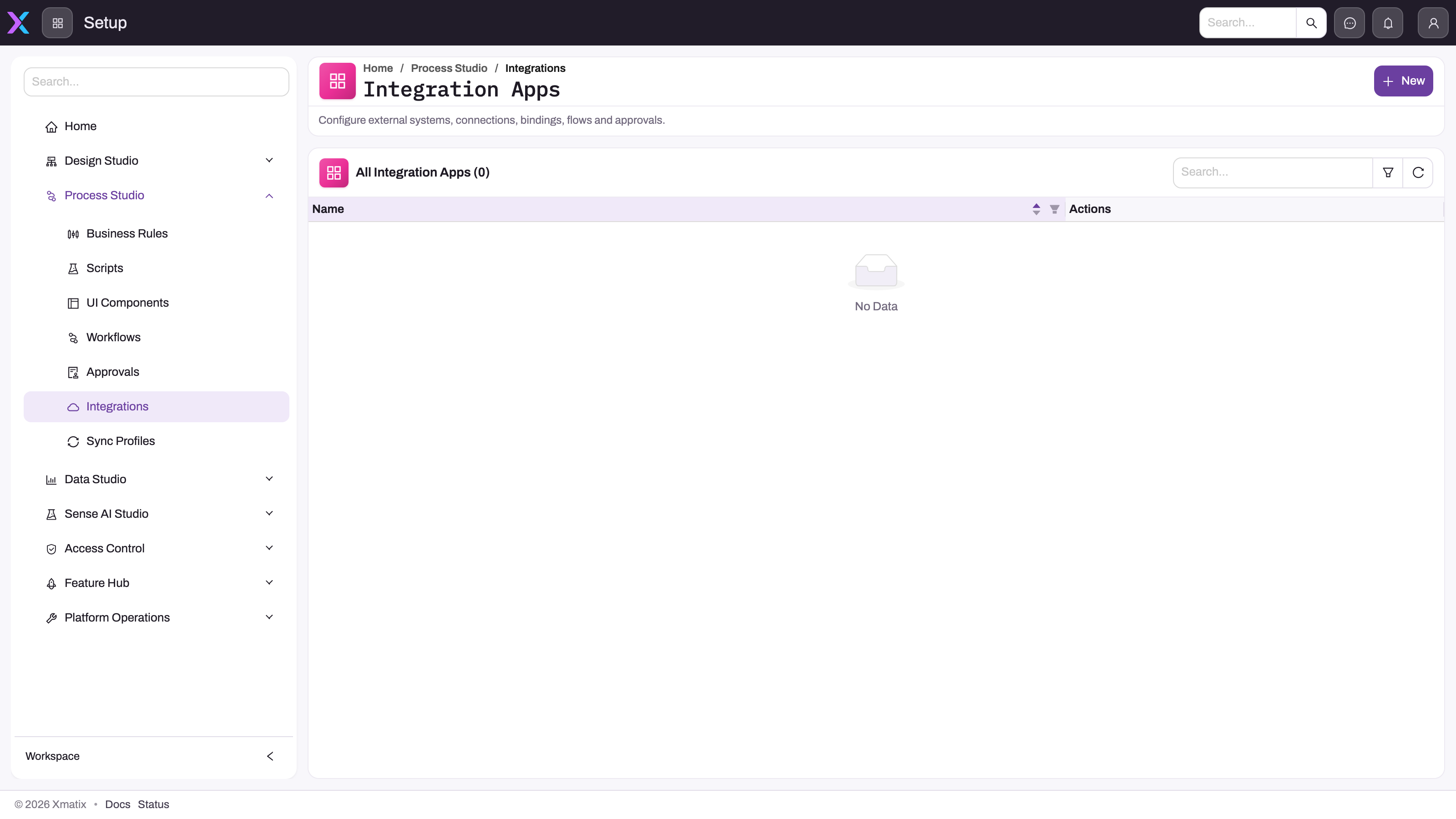
The screenshot shows an empty list in an earlier Setup menu, where Integrations sat under Process Studio; today it is under Platform.
The app is created Active, receives a Public ID, and your security profiles — plus the built-in SystemAdmin profile — are given the Admin role on it.
Step 2 — Set the run-as user
- Open the app and select Edit.
- Pick the Run as user and select Save. The user must be active; an inactive user is refused.
In a sandbox the dialog also shows Allow sandbox execution. Leave it off until the app's connections and secrets point at sandbox-tier systems: until it is on, the sandbox refuses the app's flows.
Step 3 — Grant access
- Open the app's Members page.
- Add each security profile that needs access and choose its Role (see Permissions).
Step 4 — Connect, bind, build and trigger
Store credentials on Secrets, create and test the connection on Connections, bind the entity on Entity Bindings, build and activate the flow on Flows, and add a trigger on Triggers. Connect an external system walks through each of these.
Step 5 — Watch the first runs
Open the app's Overview to see recent runs, and Errors for failures. Decide parked runs on Approvals and review staged rows on Staging. For sync profiles, use Setup → Platform → Monitoring → Sync Monitor.
Step 6 — Pause or retire an integration
- To pause everything the app does, select Edit, turn Active off and Save.
- To remove it, use Delete App in the list's actions column. This permanently removes the app with all of its connections, bindings, flows, triggers, runs, secrets and role assignments, and cannot be undone.
Fields
The integration app dialog. On a new app only Name is shown; the other fields appear when you edit a saved app.
| Field | What it means | Notes |
|---|---|---|
| Name | The app's name in lists and menus | Required. Keep secrets and personal names out of it |
| Active | Whether the app's flows may run | On when the app is created. Off refuses every dispatch without deleting anything |
| Allow sandbox execution | Lets a sandbox tenant's flows call the systems this app connects to | Shown only in a sandbox. Off by default |
| Run as user | The xMatix user every flow of this app acts as | Optional. Empty means the System Process user, which has no security profiles |
| Public ID | The app's public identifier, used in its inbound webhook addresses | Read-only; shown in the list and the app's header |
Business rules
- Creating an app grants the Admin role to the creator's security profiles and to the SystemAdmin profile, so a new app is never unreachable.
- Roles are cumulative: each role includes everything the roles below it allow.
- An inactive app's flows are refused on every path — scheduled, polled, webhook, record event, replay or queued.
- Secrets are write-only: once saved they are never shown again, only replaced.
- Sandbox copies do not carry integration secrets, and a sandbox refuses an app's flows until Allow sandbox execution is on for it.
- Deleting an app deletes everything it holds, including run history.
Example
A distributor wants web-shop orders in xMatix and stock levels back on the shop.
- The administrator creates the app "Web shop" and sets Run as user to a dedicated integration user whose profile may create Orders and read Items.
- On Members they give the operations team's profile the Operator role and the IT profile the Connection Manager role.
- IT stores the shop's API token on Secrets, creates a connection with the shop's catalog connector and selects Test Connection.
- Two bindings follow: Order, Inbound, Upsert, with Require operator approval before commit on for the first weeks; and Item, Outbound, Update.
- A Poll trigger reads new orders every 15 minutes, and an Entity Event trigger pushes an item when it changes.
- The first morning, the operations team approves the parked order runs on Approvals. When the shop announces maintenance, they turn the app's Active setting off for the evening and back on afterwards.
Training
Practice exercise
In a sandbox, create an integration app called "Practice app", open it and confirm that the Members page lists your own security profile and SystemAdmin with the Admin role. Edit the app, turn Active off and save. Expected result: the list shows the app as Inactive, and its header Status reads Inactive. Delete the app afterwards.
Quick reference
- Integrations and Sync profiles live under Setup → Platform.
- One app per external system or integration product; everything else lives inside it.
- Connection → binding → flow → trigger is the build order.
- Active off pauses everything; Delete App removes everything.
- Set a Run as user, or secured writes are denied.
- Viewer reads, Operator runs and approves, Connection Manager adds connections, Admin does the rest.
- Failures: the app's Errors page; sync profiles: Sync Monitor.
Permissions
Two gates stack.
- The Manage integrations capability shows the Integrations and Sync profiles screens and lets a user create apps and list them all.
- App roles, granted to security profiles on each app's Members page, decide what a user can do inside an app:
| Role | What it adds |
|---|---|
| Viewer | Open the app and read its runs, errors, approvals and members |
| Operator | Replay and cancel runs, decide approvals and answer browser-job prompts |
| Connection Manager | Create, edit, test and delete connections |
| Admin | Edit or delete the app, manage secrets, bindings, flows, triggers (including Fire now) and members |
A user who has the capability but no role on an app can see it in the list, but opening it shows "You don't have access to this integration app". Sync profiles and the Sync Monitor are governed by the capability alone; app roles do not apply to them. See Security profiles.
Configuration
| Setting | Where | What changing it affects |
|---|---|---|
| Manage integrations capability | Setup → Access control → security profile → Entitlements | Who can see the integration screens at all |
| App roles | The app's Members page | What each security profile can do inside one app |
| Active | The app's Edit dialog | Pauses or resumes every flow of the app |
| Run as user | The app's Edit dialog | Which records the app's flows can read and write |
| Allow sandbox execution | The app's Edit dialog, sandboxes only | Whether the sandbox may call the app's external systems |
| Secrets | The app's Secrets page | The credentials connections use; replacing one rotates it — see Credentials and rotation |
| Approval and staging | Each binding's Governance & staging section | Whether inbound data waits for review before it is written |
| Triggers | The app's Triggers page | When and how often flows run |
| Sync profiles | Setup → Platform → Sync profiles | Standing synchronization, its schedule and its mappings |
Common problems
"You don't have access to this integration app"
Your security profile has no role on the app. Ask an app Admin to add your profile on the app's Members page with at least the Viewer role.
Every run of one app fails with "Integration app is disabled"
The app's Active setting is off. Open the app, select Edit, turn Active on and Save. Replay the runs that failed while it was off if they still matter.
Flows fail when writing records, but the connection test passes
The app has no Run as user, or that user's security profiles do not allow the write. Set a run-as user whose profiles cover the entities the flows touch.
Nothing runs in a sandbox
Flows in a sandbox are refused until Allow sandbox execution is on for the app, and secrets are not copied into a sandbox. Point the connections at sandbox-tier systems, add the secrets again, then turn the setting on.
The Integrations entry is missing from Setup
Your security profile lacks the Manage integrations capability. Ask an administrator to grant it on the profile's Entitlements tab.
More symptoms and fixes: Troubleshooting integrations.
Common questions
Do I need a developer to set up an integration?
Not for the common paths. Creating an app, storing credentials, testing a connection, binding an entity, declaring a sync profile and mapping fields are all done on administration screens, and sync profiles generate their flows for you. Technical comfort helps when a flow needs custom transformation steps or when you call an unusual API through the generic HTTP REST connector. The developer documentation covers the programmatic surface, including the data API and client credentials for systems that call xMatix.
Which external systems are supported out of the box?
Named connectors ship for Salesforce, Zoho Books, Zoho Payroll, Zoho People, ClearTax GSP, HubSpot, Shopify and Zendesk, and Tally is connected through its own sync site. Beyond those, the HTTP REST connector reaches any JSON-over-HTTPS API, SFTP and Azure Service Bus cover file and queue transports, and the Web site (browser) connector works with sites that have no API. See Catalog connectors for what a catalog connector provides.
What is the difference between an import and a sync?
An import is a one-time, file-based load you run and review. A sync profile is standing configuration: it runs on a schedule, detects what changed on each side since the last pass, writes only the differences, and keeps a per-record ledger so the same record is updated rather than duplicated on every cycle.
Should I pause an integration or delete it?
Pause it. Turning Active off stops every flow of the app while keeping its connections, secrets, history and access intact, and turning it back on resumes work. Delete only an integration you will never use again: deleting removes all of its configuration and run history permanently.