
A sync profile is standing configuration: "keep these entities in step with that external system, on this schedule." You declare the entities, their direction and their field mappings; the profile compiles into the integration flows that execute it. On every cycle the engine reads only what changed since its last position (the watermark), pairs records through a ledger so nothing is duplicated, drops unchanged re-reads as echoes, and opens a conflict instead of guessing when both sides edited the same field.
This is a different thing from a Mobile Sync Profile, which governs offline data on devices — the two share a word, not a mechanism.
Prerequisites
- The integration administration capability.
- An integration app with a tested connection to the external system. The profile references that app and connection and its generated runs belong there. Current Sync Profiles API endpoints are gated by the tenant integration capability but do not enforce the referenced app's Viewer/Operator membership, so do not describe app roles as an additional sync-profile authorization boundary until that is implemented and verified.
- A sync identity: the xMatix user the engine reads and writes as. Record-level security bounds what that identity can see, so the profile can never sync more than this user can. Use a dedicated, deliberately-scoped user rather than a person's account.
Procedure
- 1
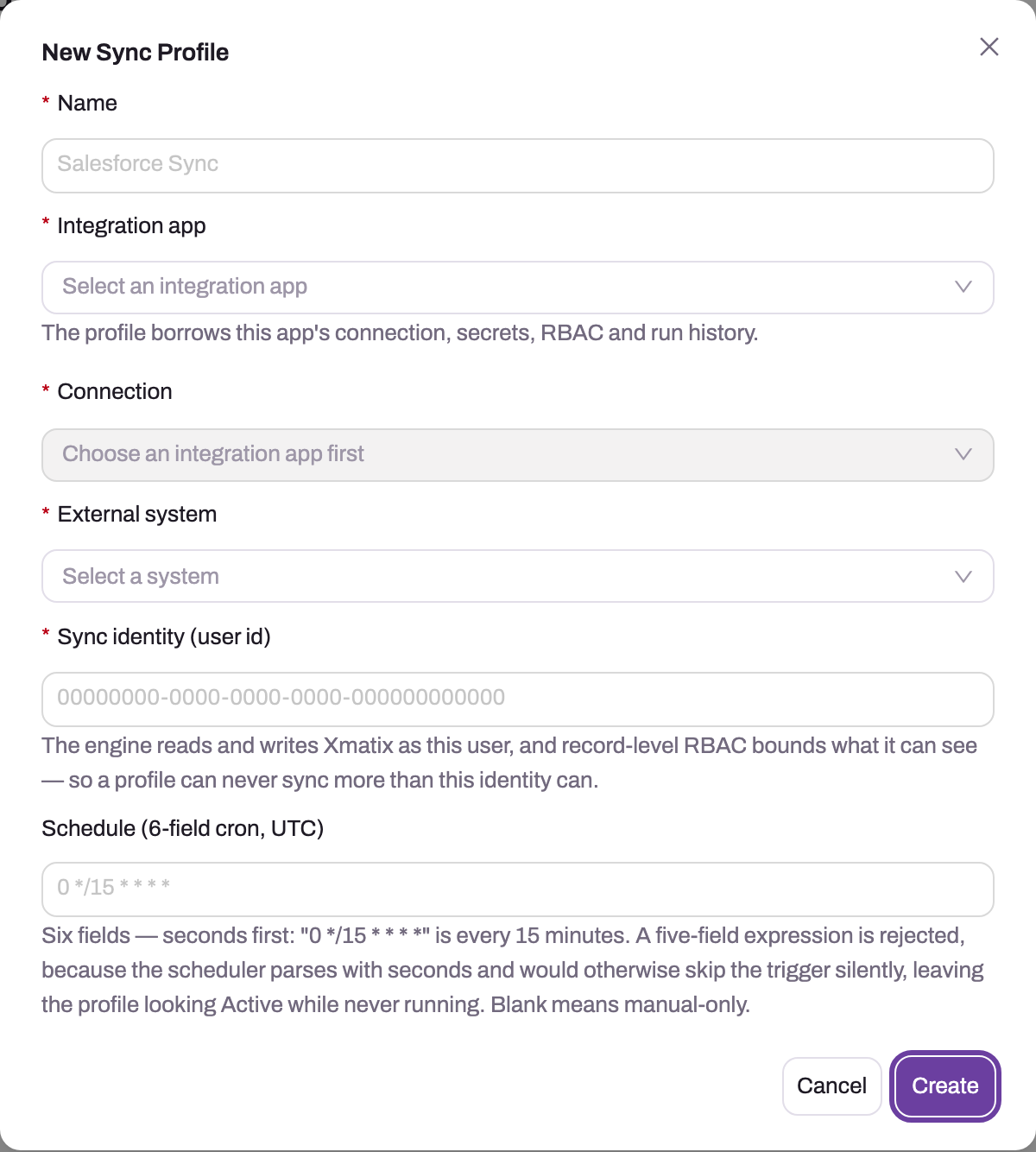
Name identifies the standing sync contract in the monitor and in the names of the flows it compiles.
- 2
Integration app: the profile borrows this app's connection, secrets, roles and run history, so its runs appear under the app.
- 3
Connection is enabled only after an app is chosen and lists that app's tested connections.
- 4
External system selects the registered sync provider; it must agree with the connector behind the chosen connection.
- 5
Sync identity is the user id the engine reads and writes as; record-level security bounds what it can sync, so use a dedicated, deliberately scoped user.
- 6
Schedule is a six-field UTC cron, seconds first (0 */15 * * * * = every 15 minutes); five fields are rejected and blank means manual-only.
- 7
Create saves a Draft profile and opens its detail page; nothing runs until it is compiled, scheduled and set Active.
The New Sync Profile dialog asks for Name, Integration app, Connection (enabled once an app is chosen), External system, Sync identity (user id) and an optional six-field UTC Schedule; the Sync Profiles page behind it also shows the Profiles, Active, Open Conflicts, Parked Records and Falling Behind counters you will watch later. Entities, field mappings, status and detailed policy are deliberately absent from this first dialog and are configured on the saved profile's tabs.
Step 1 — Create the profile
Go to Setup → Platform → Sync profiles and choose New Profile. Give it a specific name, then select an existing integration app, one connection that belongs to that app, the provider and a dedicated sync identity user id. The API verifies app/connection ownership, provider registration, schedule syntax and profile-name uniqueness. Read any provider capability note before saving: no change watermark means full scans, and no delete feed requires a reconciliation sweep. Creation deliberately returns a Draft profile and navigates to its detail page.
Step 2 — Declare the entities
On Entities, add one declaration at a time and record its xMatix entity, live external object and direction. Start with Delete mode: None unless an approved design proves propagation safe. Add source filters, conflict policy and rank; run Apply derived ranks and verify parents precede children. Save and review the declaration matrix for accidental bidirectional scope or unbounded data before mapping.
Step 3 — Map the fields
Use Discover fields, inspect every proposal's confidence and rationale, and apply only semantically equivalent fields. On Mapping, set direction, transforms and conflict-ignore flags deliberately; audit stamps often belong outside conflict checks, business fields do not. Test value maps, nulls, dates and identifiers with representative samples. Confirm required target fields are populated and sensitive fields are absent before compile.
Step 4 — Compile
Select Compile, read every error and warning, and fix the declaration at source. Compile again until the result is accepted and note the generated/versioned flows. An unchanged recompile should write nothing and never move watermarks or history; verify that property before treating compile as safe repeatable configuration.
Step 5 — Set the schedule and activate
On Schedule, enter a six-field UTC cron expression—seconds first—and translate the intended business time into UTC, including daylight-saving policy where relevant. Review overlap window and estimated cycle duration; the cadence must not continuously overlap. Leave it blank at creation for manual-only profiles. Current edit behavior has an important limitation: the web form sends null when an existing schedule is cleared, while the controller treats null as "leave unchanged." After any attempt to make a scheduled profile manual-only, reopen it and verify the Schedule value. Until that path is corrected, pause/deactivate the profile or use a supported PATCH that sends an empty string rather than assuming the blank UI saved.
The overlap window (default 120 seconds) rewinds the watermark slightly on every pass to absorb clock differences between the two systems; the re-read is cheap because unchanged records are dropped as echoes.
Set status Active only after compile and schedule review, then verify the Active count on the profiles screen increments and the next-run time matches the intended cadence.
Step 6 — Watch the first cycles
Watch the first cycle from start to completion. Reconcile records in/out, echoes, conflicts, deferrals and failures to the expected sample; inspect the profile's watermark lag and a few paired ledger records. Confirm a second cycle drops unchanged echoes and does not duplicate records. Do not leave the profile unattended with failures or an unbounded baseline.
Expected result
The profile's saved detail shows the intended status and schedule, compile has no blocking errors, and active cycles process entities in dependency order and advance watermarks. Initial and repeat cycles reconcile to expected counts, unchanged echoes are dropped, and conflicts or failures remain visible. For manual-only profiles, explicitly verify Schedule is empty after reopening because a cleared edit can otherwise retain the old cron.
Common problems
- The profile is Active but nothing runs. Check the saved schedule is six fields, status and active flag permit execution, generated flows have an active version, and the owning app is active. Schedules do not fire in sandbox tenants. If you recently cleared a schedule, reopen the profile—the current null-update path can leave the old cron stored instead of making it manual-only.
- It runs but syncs nothing. Three usual causes, in order: the sync identity cannot see the records (record security silently scopes the sync — widen the identity deliberately); the entity declarations are inactive; or an entity needs a reseed, shown on the health board, meaning its incremental position cannot be trusted until a fresh baseline pass.
- Records sync once, then stop. Look for the record on the profile's Records tab. A record parked as Excluded was deliberately stopped (usually via "Ignore always" on a conflict) and stays stopped until you select Resume.
Common questions
What stops an update loop between the two systems?
Content hashing. Every synced record's mapped fields are hashed at each successful sync; a record that comes back unchanged — including the engine's own write echoing back — matches the stored hash and is dropped before anything else is considered. Convergence therefore does not depend on timestamps, clocks, or the other system reporting who wrote what.
What happens when both sides change the same record?
Fields changed on only one side propagate normally under every policy — a disputed field does not discard unrelated edits. Genuinely contested fields follow the profile's conflict policy: field-level merge (recommended) opens a conflict listing only the contested fields for a human decision; the one-side-wins policies decide automatically and record that they did. Deletes contested by edits always go to a human. See sync health and conflicts.
How fresh is the data?
As fresh as the schedule: a 15-minute cron means changes land within roughly 15 minutes plus the run time. The engine is schedule-driven — it does not subscribe to instant change feeds from external systems. For pushing xMatix changes outward the moment they happen, an entity-event flow is the near-real-time tool — see outbound integration.
Can I sync only a subset of records?
Yes — per entity, on either side. The xMatix filter scopes which xMatix records are in play, and the external filter is passed to the external system in its own query dialect. Both are part of the declaration, so compile after changing them.