
This page helps agents and administrators find out why xMatix telephony is not behaving as expected, one symptom at a time, in the order a call happens: provisioning, the agent's call dock, routing, ringing, the call record, recordings and insights, and supervision. Most telephony problems leave visible evidence — an empty setup list, a route status, a status pill or a call record — so each section says where to look first and what fixes it.
Overview
A call passes through several layers, and each one can stop it:
| Layer | Where the evidence is | Who fixes it |
|---|---|---|
| Provisioning — trunks and numbers | Setup → Feature Hub → Service → Telephony → Trunks & numbers | xMatix, on request |
| The master switch | Telephony → Settings → Enable Telephony (CTI) | Administrator |
| The agent's call dock | The Calls segment in the status bar | Administrator (queue pools) |
| Agent status | The status pill in the Calls drawer | Agent |
| Routing | Telephony → Routing, the Status column | Administrator |
| The call itself | The call register | Agent or administrator |
| Recordings and insights | The call record and the supervisor console | Administrator |
Work from the top: fix the earliest layer that is missing or failing before changing anything further down.
When to use it
- An agent has no Calls segment, or nothing ever rings for them.
- Calls ring every agent in your organization instead of the right team.
- Callers appear as New caller although they are in your records.
- A route shows Error on the Routing screen.
- A call record has no recording, no transcript or no useful insights.
- A supervisor cannot listen to a call.
How xMatix handles it
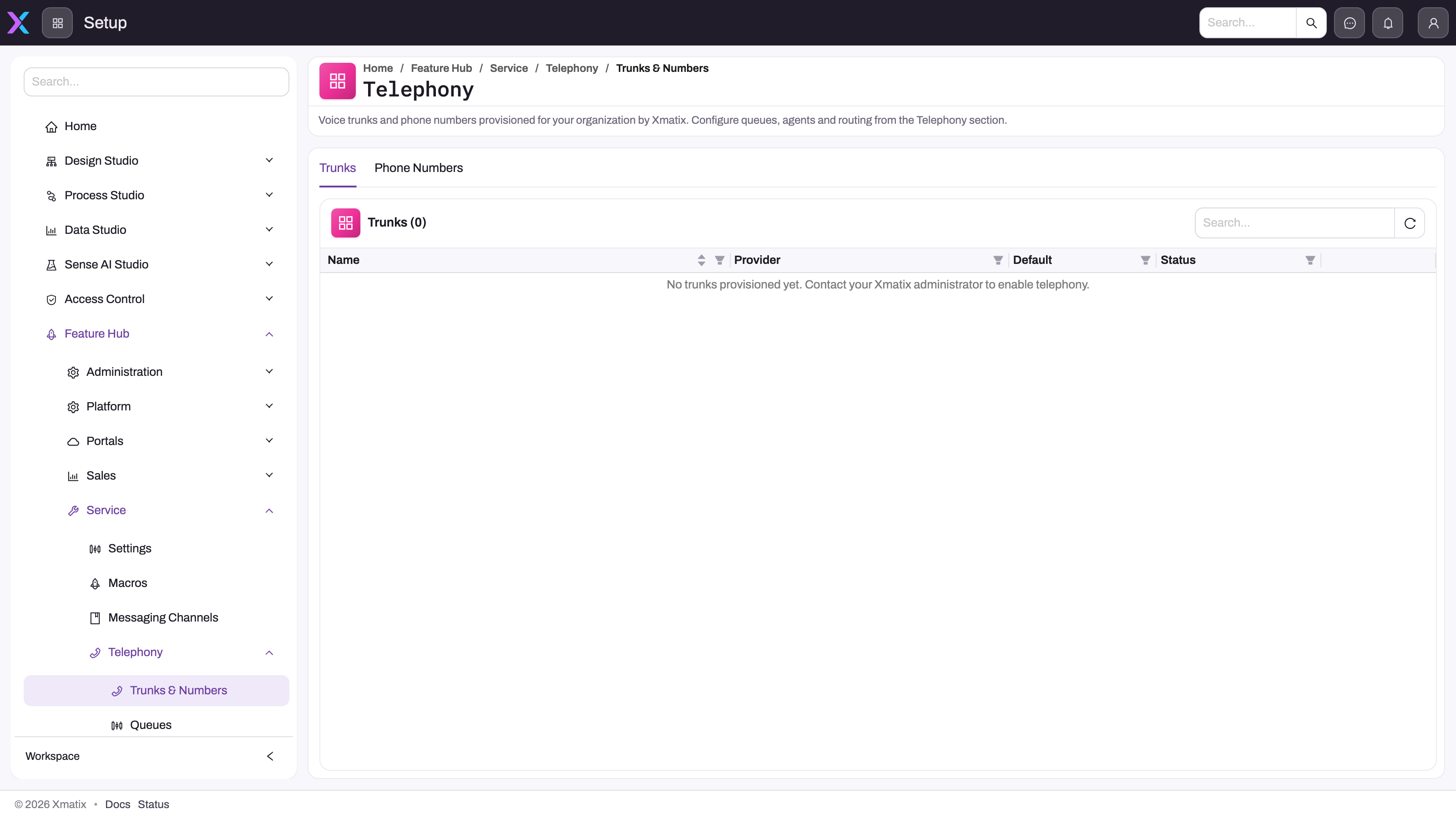
Telephony is provisioned first. Trunks and phone numbers are allocated by xMatix; you cannot create them in Setup. When nothing is provisioned, the Trunks tab is empty and says no trunks have been provisioned yet.
The call dock depends on queue membership. The Calls segment and drawer appear only when Enable Telephony (CTI) is on and the user's routing resource belongs to the resource group of at least one active queue. xMatix checks this when the workspace loads, so a change takes effect after the user reloads. The dock is never shown on phones or tablets. A human-agent entry on the Agents screen does not give anyone a call dock.
Being reachable is a lease. An agent is offered calls only while Available in a browser tab that went online. The browser renews the status every minute; when renewals stop (sleep, lost network), the router stops offering calls after five minutes. Closing any tab that is online sets the agent Offline straight away, even if another tab is still open.
Routing fails open. When a number has no active route, the route's target cannot take the call, or the queue no longer exists, the call rings every signed-in agent instead of being dropped. See Inbound routing.
Every call leaves a record. An inbound call is in the register from its first ring. Unanswered calls end as Completed with an empty Answered; the Missed, Failed, Voicemail and Declined statuses exist in the list but nothing writes them.
Prerequisites
- To check setup screens you need Manage telephony (CTI); for the Settings switch, also Manage module settings.
- To use the supervisor console you need Supervise telephony (CTI).
- Agents need no capability — only a place in an active queue's pool.
Procedure
Step 1 — Confirm telephony is provisioned and switched on
- Open Setup → Feature Hub → Service → Telephony → Trunks & numbers.
- On Trunks, check that at least one trunk is listed with Status Enabled. An empty list means telephony has not been provisioned — arrange it with your xMatix account team. Nothing further down can work until then.
- On Phone numbers, check that the number callers dial is listed and active.
- Open Telephony → Settings and check that Enable Telephony (CTI) is on.
Step 2 — Check the agent's call dock
- Ask the agent to look for Calls in the status bar at the bottom of the workspace, on a desktop browser.
- If it is missing, open the queue the agent should staff (Telephony → Queues) and check that it is Active and note its Agent pool.
- Check that the agent's user has a routing resource and that this resource is a member of that resource group. See Queues and omni-channel routing.
- Ask the agent to reload the page. The Calls segment appears.
Step 3 — Check the agent's status
- The agent opens Calls and reads the status pill.
- If the drawer says "You're offline — the live call channel isn't connected, so nothing will ring here.", they select Go online.
- If it shows Busy or Away, they choose Available. Only Available agents are offered queue calls.
- If the pill is locked at Offline with "Live call connection unavailable — you're Offline until it reconnects. Reload to retry.", the browser cannot reach the live call channel. They check their network and reload.
Step 4 — Check the route
- Open Telephony → Routing and find the route for the dialled number.
- Read Status: Synced is working, Syncing… is still being pushed (the screen rechecks every 10 seconds), Inactive means the route is switched off, and Error means the push failed.
- For Error, point at the status to read the reason, fix it as described under Common problems, and select Resync on the row.
- Check the target: a queue whose pool contains the agent, an active human agent, or an active AI agent.
Step 5 — Read the call record
- Open the call register and find the call by Ring start and number.
- Read Status, Answered and Agent. A Completed call with an empty Answered and no Agent rang but was never picked up.
- A call still Ringing or InProgress long after it ended never received its end signal. Use End this call on its row in the Calls drawer's Recent tab.
When you need help from xMatix support, note the call's ring time and the error text shown on its route. Do not send recordings, transcripts or customer details.
Business rules
- The call dock needs Enable Telephony (CTI) on and membership of an active queue's agent pool; it is evaluated when the workspace loads.
- A queue call is offered to one agent who is Available, has a live status (renewed within five minutes) and has spare capacity on their routing resource.
- A number routed to a human agent rings only that person; routed to an AI agent, it rings no person.
- Unroutable calls ring every signed-in agent.
- The call's Queue field is not filled by routing, so it cannot tell you which queue was tried.
- Calls use the enabled default trunk first, then any other enabled trunk.
Example
An agent at a service centre reports that colleagues get calls but they never do.
- The administrator confirms on Trunks & numbers that the trunk is Enabled and the service number is active.
- The agent has a Calls segment, so the call dock is fine. Their status pill reads Away — set before lunch and never changed.
- The agent chooses Available. The next call to the service line rings for them.
- A week later the same agent loses the Calls segment entirely. The administrator finds that the agent's resource was removed from the Service advisors team group during a team reshuffle. They add it back, and the agent reloads the page; the segment returns.
Training
Practice exercise
In a sandbox with telephony provisioned, a queue and a route to it:
- Go online in the Calls drawer and choose Away. Call the routed number from another phone.
- Open the call register and find that call.
- Choose Available and call again.
- Ask an administrator to switch the queue off, then reload your page.
Expected result: in step 1 your softphone does not ring (the call rings someone else in the pool or, if nobody is available, every signed-in agent); in step 2 the call is Completed with an empty Answered if nobody picked it up; in step 3 your softphone rings; in step 4 the Calls segment disappears, unless you are in the pool of another active queue. Switch the queue back on afterwards.
Quick reference
- Empty Trunks tab = not provisioned; contact your xMatix account team.
- No Calls segment = not in an active queue's pool, CTI switched off, or a phone/tablet. Reload after fixing.
- Nothing rings = not Available, another online tab was closed, or the status lapsed after five minutes without renewal.
- Everyone rings = no active route, or the target cannot take the call.
- Route Error = point at it, fix the cause, Resync.
- Unanswered calls are Completed with empty Answered — filter on that.
- Unrecognized number = no unbroken last-seven-digit match on a contact or account phone.
- Listen fails = call not connected, you are on a call, or it just ended.
Permissions
| Task | You need |
|---|---|
| Check trunks, numbers, queues, agents and routes | Manage telephony (CTI) |
| Switch Enable Telephony (CTI) | Manage module settings |
| Listen to and barge into live calls | Supervise telephony (CTI) |
| Take and place calls | No capability; membership of an active queue's agent pool |
| Read call records | Access to the Call record type |
Without Manage telephony (CTI) the telephony configuration entries are missing from Setup. Without Supervise telephony (CTI) the supervisor console says that supervisor access is required. Capabilities are granted on a security profile's Entitlements tab — see Security profiles.
Configuration
The settings that most often cause the symptoms on this page:
| Setting | Where | Symptom when it is wrong |
|---|---|---|
| Enable Telephony (CTI) | Telephony → Settings | Nobody has a Calls segment |
| Trunk Enabled / Default for outbound calls | Telephony → Trunks & numbers → Trunks | Calls use the wrong trunk, or human agents cannot be added |
| Number Active | Telephony → Trunks & numbers → Phone numbers | The route fails with The route's number is missing or inactive. |
| Queue Active and Agent pool | Telephony → Queues | Agents lose the Calls segment, or are never offered the queue's calls |
| Resource group membership | The resource group behind each queue | The agent is not in the pool |
| Routes | Telephony → Routing | Calls ring everyone, or the wrong people |
| Recording Player on the call layout | The call record's layout | No recording player on calls |
Full procedures are on Telephony configuration.
Common problems
There is no Calls segment in my status bar
Cause: Enable Telephony (CTI) is off, your routing resource is not in the agent pool of any active queue, your user has no routing resource, or you are on a phone or tablet. A human-agent entry alone does not give you a call dock.
Fix: an administrator adds your resource to the resource group of an active queue (or switches the queue on). Then reload the page.
Calls ring my colleagues but never me
Cause: your status is not Available; you closed another tab that was online, which set you Offline; your browser stopped renewing your status for more than five minutes; you are already at your capacity; or the number routes to a queue whose pool you are not in.
Fix: open Calls and choose Available in the tab you are working in. If it keeps happening, ask your administrator to check the route's target and the queue's pool.
"Live call connection unavailable — you're Offline until it reconnects. Reload to retry."
Cause: your browser could not reach the live call channel, so you are held Offline and the status pill is locked.
Fix: check your network connection, then reload the page.
Every agent's phone rings for every call
Cause: this is the fallback. The number has no active route, the route's human agent is inactive, the queue was deleted, or nobody in the queue's pool is available with spare capacity.
Fix: on Routing, give the number an active route, then check its target. Staff the queue's pool with agents who go online and choose Available.
A call routed to a specific person never reaches them
Cause: that person has no call dock because they are not in an active queue's pool.
Fix: add them to the pool of an active queue, even though you route to them directly.
Callers show as "Unrecognized number"
Cause: matching uses the last seven digits of the calling number as one unbroken run in a contact's Phone, Mobile Phone, Home Phone or Other Phone, then the account's Phone. A stored number with spaces or dashes inside its last seven digits, or a number held only in Assistant Phone, does not match. When two contacts share a number, one of them is used without a choice.
Fix: re-enter the number on the contact without separators in its last seven digits. The next call matches.
A route shows Error
Cause and fix: point at Error to read the reason.
- The route's number is missing or inactive. — switch the number back on, or edit the route to another number.
- The route's AI agent is missing or inactive. — switch the AI agent on, or retarget the route.
- The voice platform could not be reached. Retry or contact support. — wait a few minutes.
- Telephony is not provisioned for this tenant yet. — there is no usable trunk; contact your xMatix account team.
- Calls to … are answered by another dispatch rule … — another rule takes this number's calls; ask xMatix support to remove it.
Then select Resync. Until the route syncs, calls to the number follow the previous behaviour or ring every signed-in agent; they are not lost.
"Could not place the call."
Cause: there is no usable outbound trunk, the telephony service rejected the number, or the chosen Call as AI agent is no longer active. The softphone shows the same message for every failure.
Fix: check the number and its country code. If every call fails, an administrator checks Trunks & numbers.
I answer but hear nothing, or the caller can't hear me
Cause: usually the browser's microphone permission or the wrong input device. Hold also silences the caller's audio until you select Resume.
Fix: allow the microphone in your browser's site settings, check your computer's input device, and make sure the call is not on hold.
There is no recording on the call
Cause: the seeded call form has no recording player. Once an administrator adds Recording URL with the Recording Player component to the call layout, the player shows only when a recording exists — so it is absent when recording is not set up for your organization, the file has not arrived yet (recordings are delivered after the call ends), or the call never connected.
Fix: add the player to the layout, and arrange call recording with your xMatix account team if it is not set up. See Calls, dispositions and recordings.
The insights say "No transcript is available yet for this call."
Cause: call insights are generated only from transcript text. Calls handled through the built-in telephony are recorded but not transcribed.
Fix: if your organization delivers transcripts, wait until the transcript arrives and select Refresh in the supervisor console's call details. The analysis is stored once per call, so it does not update by itself.
A call is stuck in Ringing or InProgress
Cause: the telephony service's end signal never arrived.
Fix: select End this call on its row in the Recent tab of the Calls drawer. The call becomes Completed.
"Could not start monitoring — the call may have ended."
Cause: the call ended between the refresh and your click, or your organization's telephony provider does not support joining calls.
Fix: select Refresh in the supervisor console and pick a call that is still in progress. If it fails on every call, ask your administrator to check the telephony connection. If you see "End your own call before monitoring another.", finish your own call first; a ringing call cannot be monitored. Details are on The supervisor console.
Common questions
Everyone's phone rings for every call — is that broken?
No, that is the fallback working. A call rings every signed-in agent when its number has no active route, or when the routed target cannot take it — a queue with nobody available, an inactive human agent, a deleted queue. xMatix prefers too much ringing to dropped calls. Give every active number a route, keep the target active, and make sure enough agents in each queue's pool go online as Available. Once a queue has an available agent with spare capacity, only that agent's softphone rings for its calls.
A call shows a different agent from the one I routed it to — why?
The call's Agent is set from the routing resource of the person who actually selected Accept. If the call fell back to ringing every signed-in agent, or a colleague in the same pool accepted it first, the record names that person. Read it as evidence of who took the call, not as a data error. Supervisor monitoring never changes the Agent on a call.
Where do I find calls that failed or were missed?
In the call register. xMatix does not write the Missed or Failed statuses: a call that never connected ends as Completed with an empty Answered, but keeps its number, times and caller match. Filter the register on an empty Answered to list them. For the day's picture, use the completed-today list in the supervisor console; when failures cluster on one number, check that number's route on Routing.
Why did I go Offline when I hadn't changed anything?
Going online belongs to the browser tab where you did it. Closing any online tab sets you Offline straight away, even when another tab is still open, and a laptop that sleeps or loses its network stops renewing your status, so after five minutes you are no longer offered calls. Open Calls in the tab you are working in and choose Available again.